First login tour
How people sign in to Egret, what the single sign-on and break-glass logins are for, and where things are in the app.
Sign in
The sign-in page changes with the server configuration.
| Configuration | What the page shows |
|---|---|
Single sign-on off (oidc.enabled = false, the default) | An email and password form. |
| Single sign-on on (as on the demo stack) | Sign in with SSO, and a small Admin sign-in (break-glass) link below it. |

Sign in with SSO
-
Press Sign in with SSO. The browser goes to your identity provider.
-
Sign in there. In the development stack and the demo stack the provider is Keycloak and the realm
egrethas three users:User Password Group claim admin-ssoAdmin12345!platform-adminsmember-ssoMember12345!data-teamtesterpwdata-team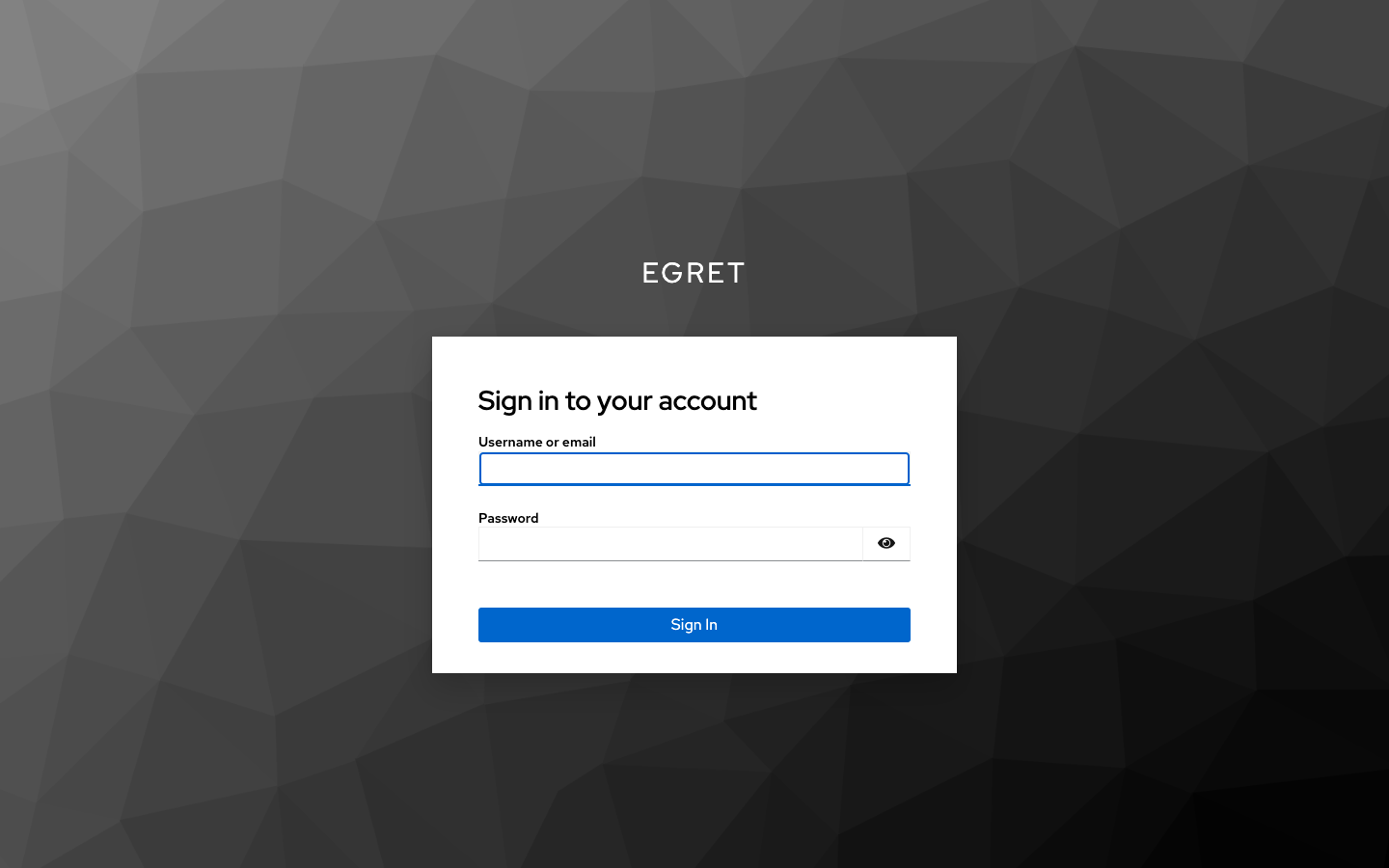
-
The provider sends the browser back to Egret. Egret creates your account the first time it sees your identity (matched by the token's
sub), updates your name and email on every sign-in, and joins you to the groups named in the token'sgroupsclaim.
Egret creates the account as a plain member. What a person can do comes from roles granted to their groups, and those
grants are made by an administrator: assign a platform role to the group under Control Plane → Groups, or add the group
to a workspace under Manage → Workspace settings → Members. From a terminal, egret workspace add-group --workspace <slug> --group <idp-group> --role ws_editor does the second one. Until a grant exists, the person can sign in and sees
only No workspaces yet. Ask an admin to add you to one.
Break-glass administrator
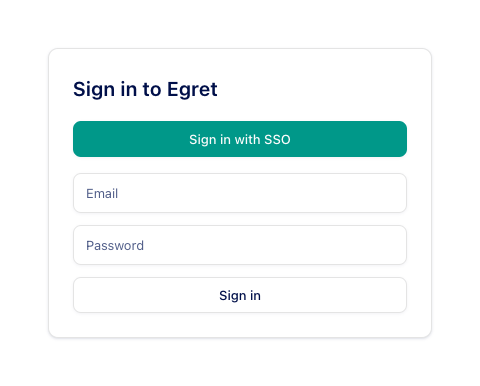
The local administrator account created by egret init keeps working when single sign-on is on. It is the way in when the
identity provider is down or misconfigured.
-
Press Admin sign-in (break-glass). The email and password form appears under the SSO button.
-
Enter the administrator's email (
admin@egret.localunless you setEGRET_ADMIN_EMAIL) and password, then press Sign in. On the demo stack the password isAdmin12345!.
Treat this account like a root password: use it to set up single sign-on and to recover, and give day-to-day administrators a platform role through their IdP group. The security checklist covers securing it.
Errors on the page
| Message | Meaning |
|---|---|
| Invalid email or password | The email and password do not match a local account. |
| Too many attempts. Please wait a few minutes and try again. | The local sign-in limit (5 attempts per 5 minutes) was exceeded. Successful attempts count too. |
For SSO errors see SSO errors.
The layout
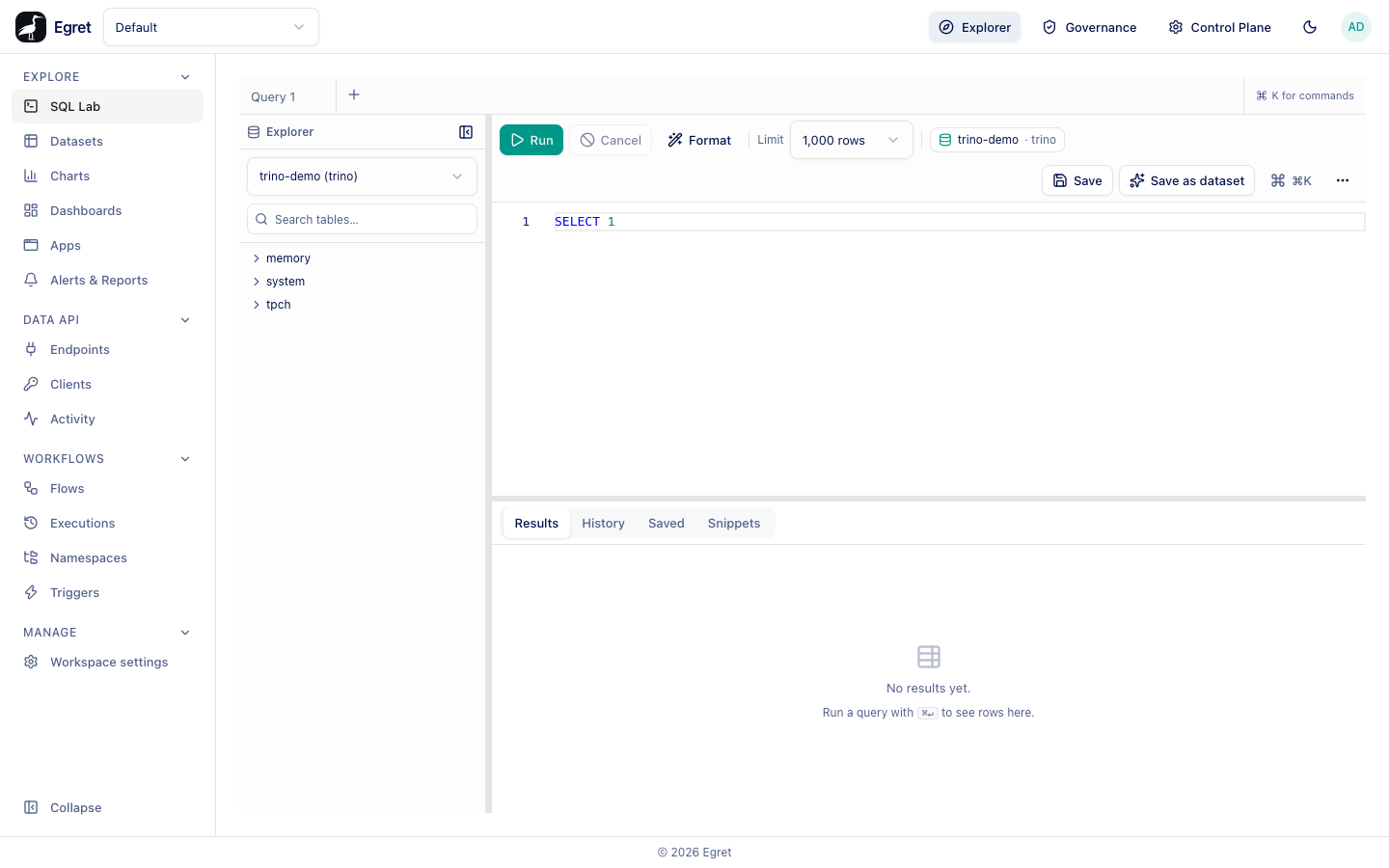
After signing in you land in SQL Lab of your default workspace.
The top bar
| Control | What it does |
|---|---|
| Workspace picker (top left) | Switches between the workspaces you belong to. |
| Explorer | Everyday work inside the current workspace. |
| Governance | Data access policy and classification. |
| Control Plane | Platform administration. Visible with platform permissions. |
| Theme toggle | Light and dark theme. |
| Account menu (your initials) | Shows who you are signed in as, and Log out. |
The Explorer sidebar
| Section | Pages |
|---|---|
| Explore | SQL Lab, Datasets, Charts, Dashboards, Apps, Alerts & Reports |
| Data API | Endpoints, Clients, Activity |
| Workflows | Flows, Executions, Namespaces, Triggers |
| Manage | Workspace settings |
Use ⌘+K for the command palette, and Collapse at the bottom to shrink the sidebar.
Under Manage → Workspace settings → Engines, not under Explore. See Databases, or follow the first step of Your first dashboard.