Your first dashboard
This tutorial takes you from a database connection to a dashboard with two charts. You will connect to a query engine, run a query, save it as a dataset, add a metric, build a bar chart and place it on a dashboard. It takes about 15 minutes.
The fastest way to follow it is the demo stack: after just demo-up, sign in as admin@egret.local
and every step below works as written, in the workspace Default, on the bundled Trino connection trino-demo with its
tpch sample catalog. The screenshots come from that stack.
On another installation you need a workspace where you can create content (the ws_editor role or higher) and a Trino or
StarRocks engine you can reach. Any table works; the steps name the places where you substitute your own.
1. Connect a database
On the demo stack the connection trino-demo is already there: skip to step 2. On another installation,
skip this step if your workspace already lists a connection under Manage → Workspace settings → Engines.
-
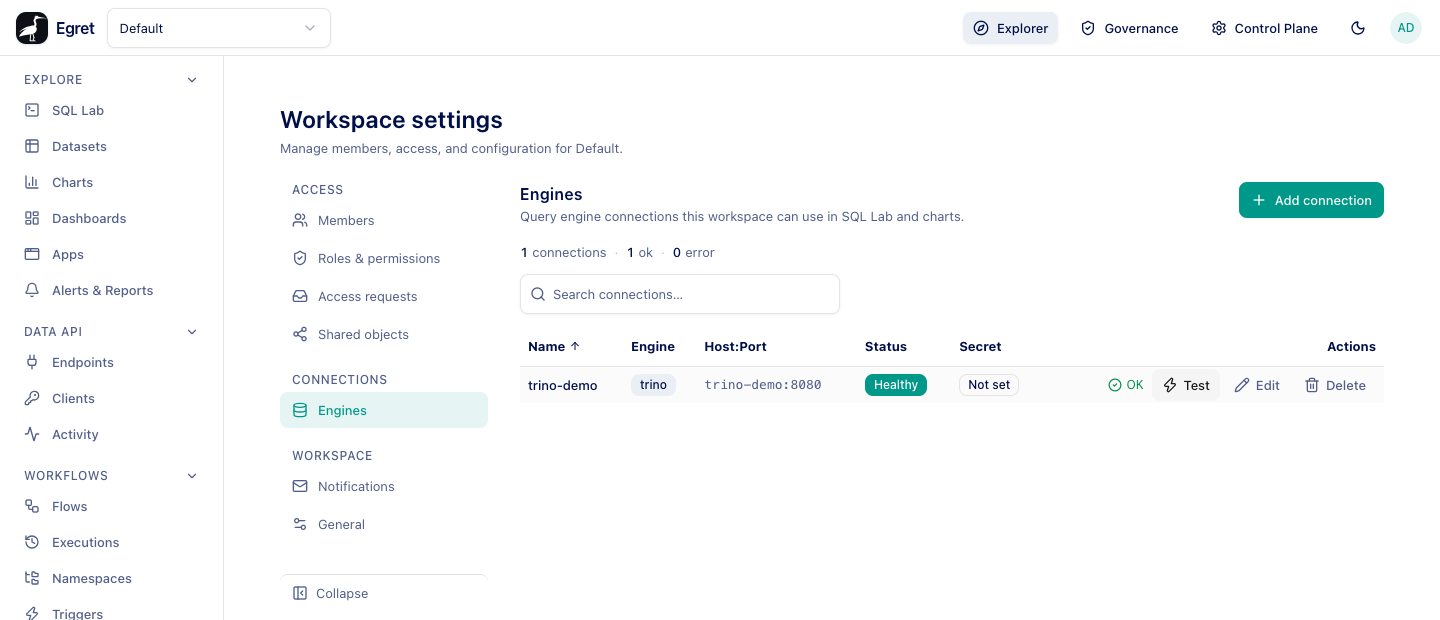
Go to Manage → Workspace settings → Engines.
-
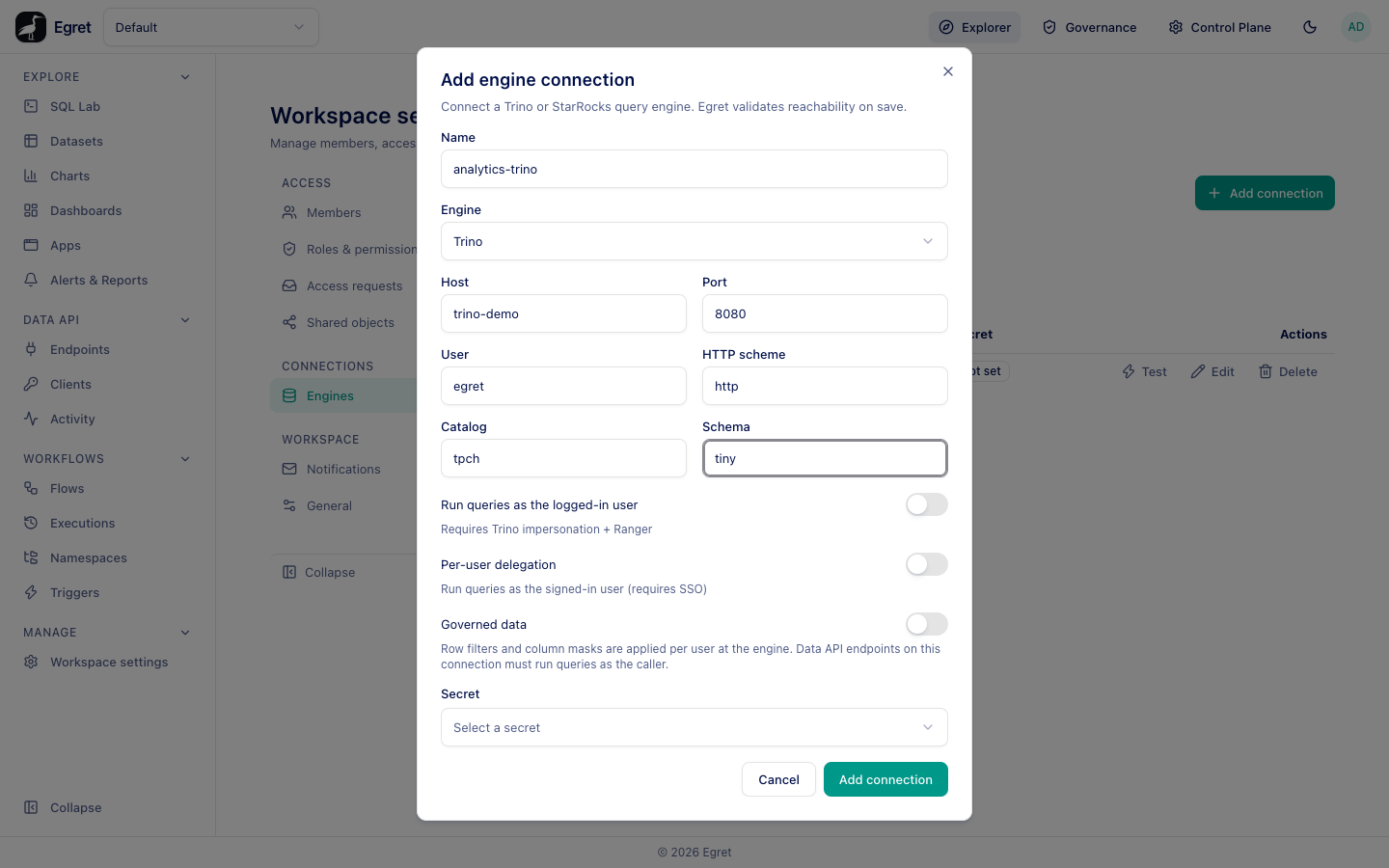
Press Add connection.
-
Fill in Name (for example
analytics-trino), Engine (Trino or StarRocks), Host and Port. For Trino you can also set User, HTTP scheme (httporhttps), Catalog and Schema. Add connection stays disabled, with the hint Fill in name, host, port, until those three are set. -
Leave Run queries as the logged-in user, Per-user delegation and Governed data off for now. They are covered in Databases.
-
If the engine needs a password, choose it under Secret. Saving a secret needs
EGRET_SECRETS__MASTER_KEYto be set on the server. -
Press Add connection. Egret checks that the engine is reachable when you save. Test on the connection's row repeats the check and shows OK next to the button. A new connection's Status says Unknown until it has been tested, and turns to Healthy only when you reload the page.
A Trino that answers 406 Not Acceptable needs http-server.process-forwarded=true. See Engine 406 and 502
errors.
2. Run a query
-
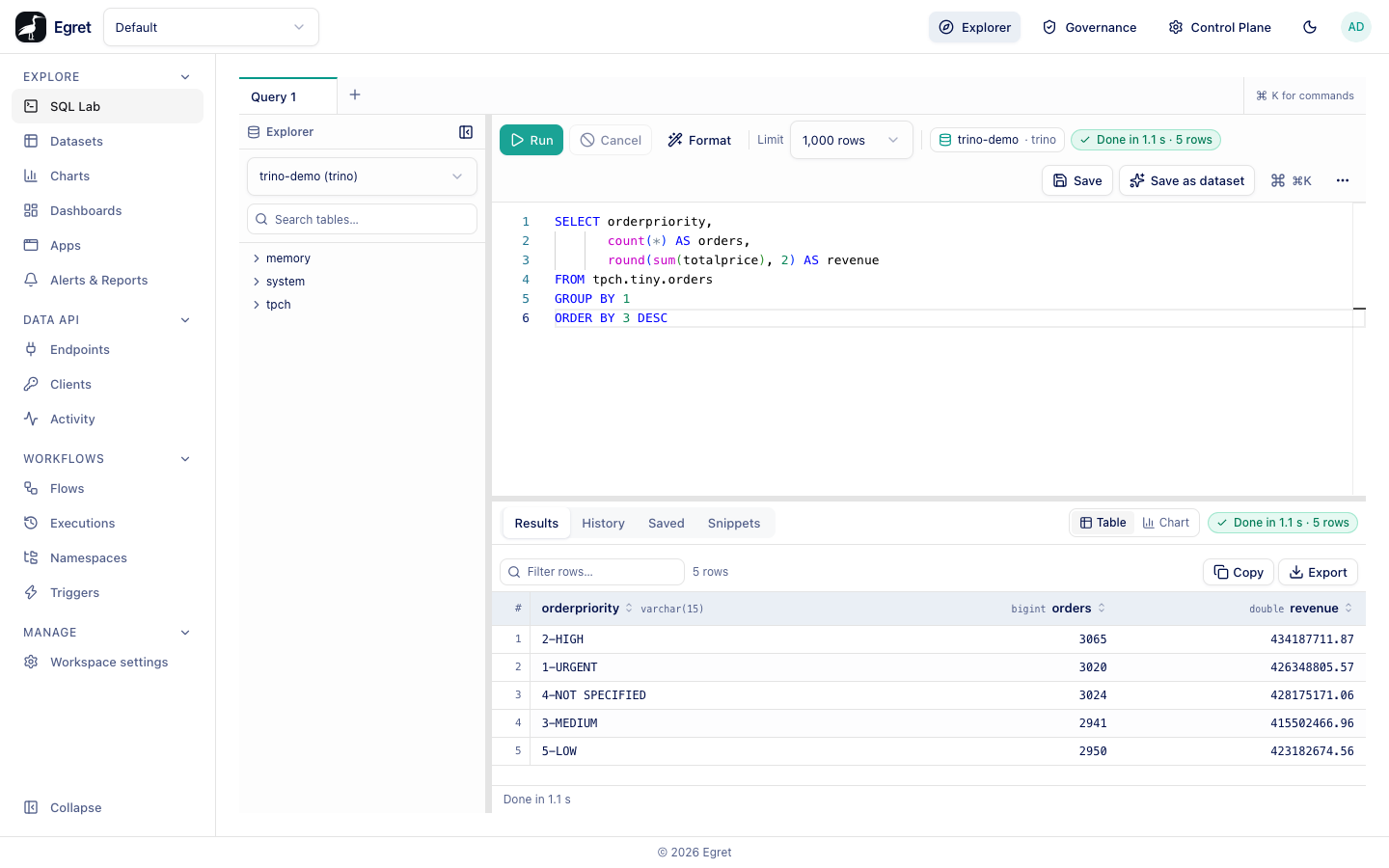
Go to Explore → SQL Lab. The left panel lists the connection's catalogs; pick the connection above the tree if you have several.
-
Type a query in the editor. This one groups the TPC-H sample orders by priority:
SELECT orderpriority,
       count(*) AS orders,
       round(sum(totalprice), 2) AS revenue
FROM tpch.tiny.orders
GROUP BY 1
ORDER BY 3 DESC -
Press Run. The results appear under Results, with the run time and row count in the toolbar.
The rows may not come back in the order of the
ORDER BY: SQL Lab wraps the query inSELECT * FROM (…) LIMIT 1000to apply the Limit, and Trino drops the ordering of a subquery. Sort a column by its header if the order matters.
3. Save the query as a dataset
A dataset makes the query reusable: charts are built on datasets, not on loose queries.
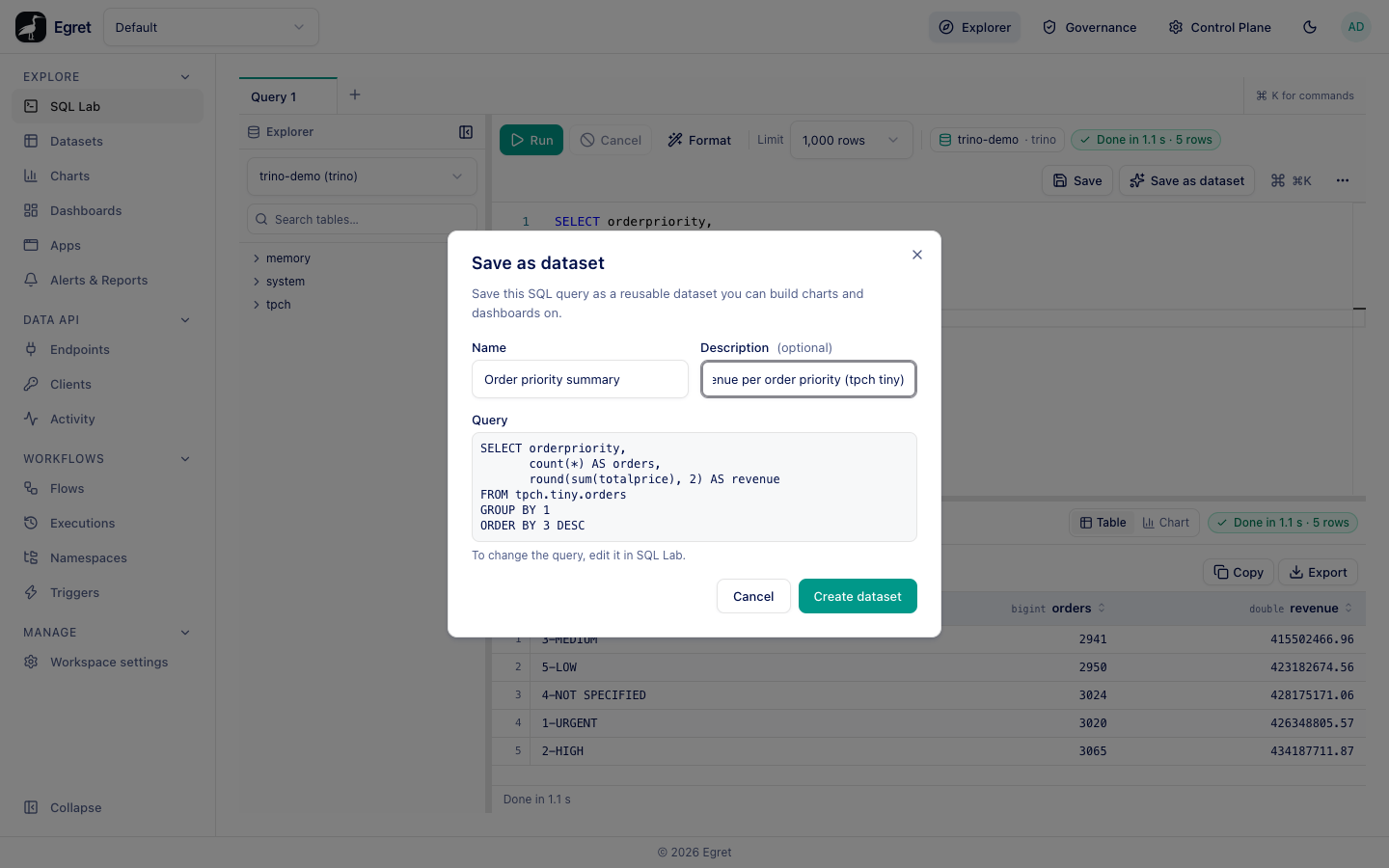
- Press Save as dataset in the toolbar.
- Enter a Name, here
Order priority summary, and an optional Description. - Press Create dataset. Egret opens the new dataset, with its three columns (
orderpriority,orders,revenue).
4. Add a metric
A bar chart needs a measure for its y-axis, and a new SQL dataset has none: the chart editor says Nothing available for y-axis until you add one.
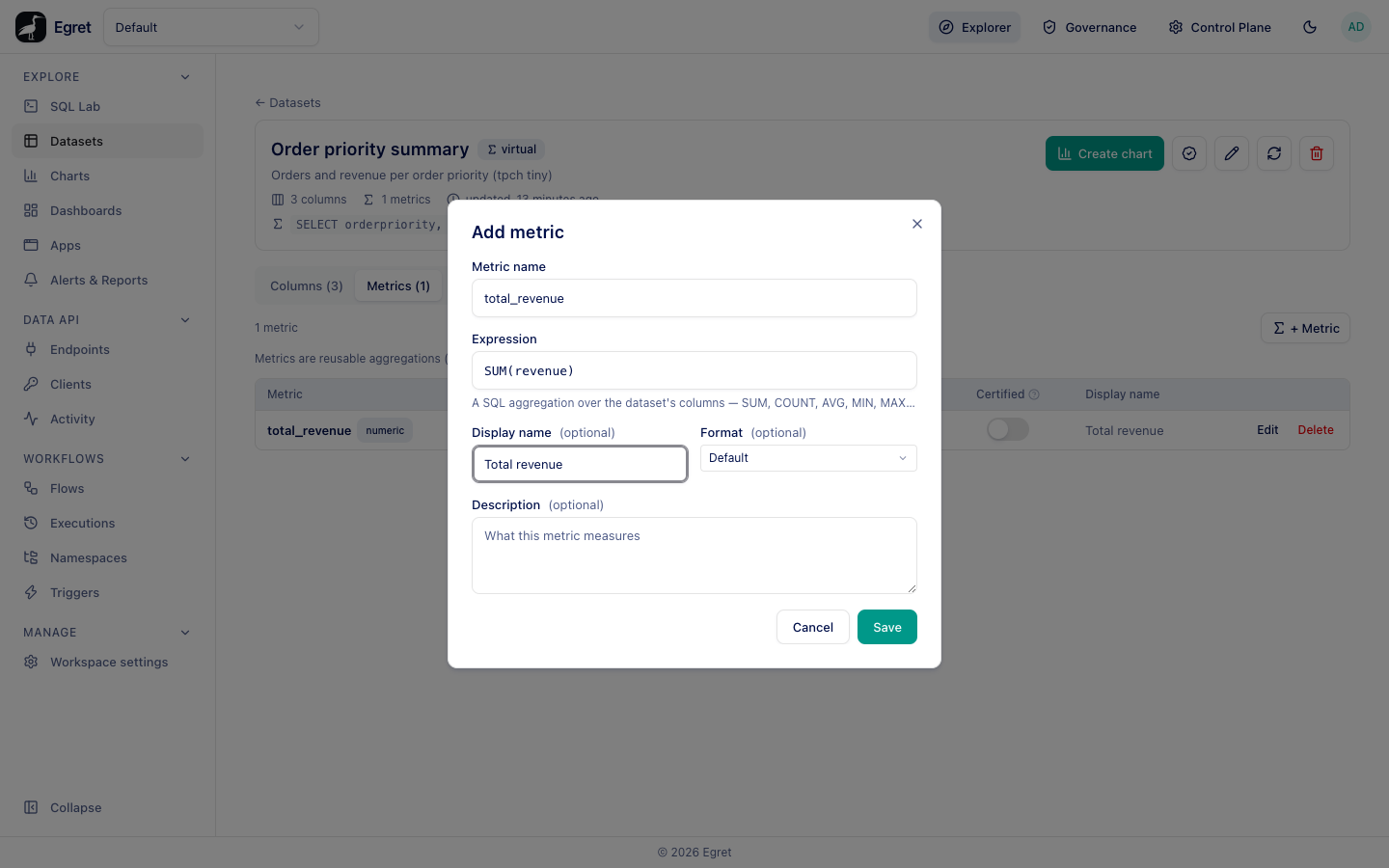
- On the dataset page open the Metrics tab and press + Metric.
- Enter Metric name
total_revenue, ExpressionSUM(revenue)and Display nameTotal revenue. - Press Save.
5. Build a chart
- On the dataset page press Create chart.
- On Choose a visualization, choose Bar. The editor opens with your dataset already selected.
- On the Data tab, set X-axis to
orderpriority, press add y-axis and choose Total revenue. With Auto on, the chart updates as you go. - Press Save. Enter a Name (
Revenue per order priority) and an optional Description, then press Save.
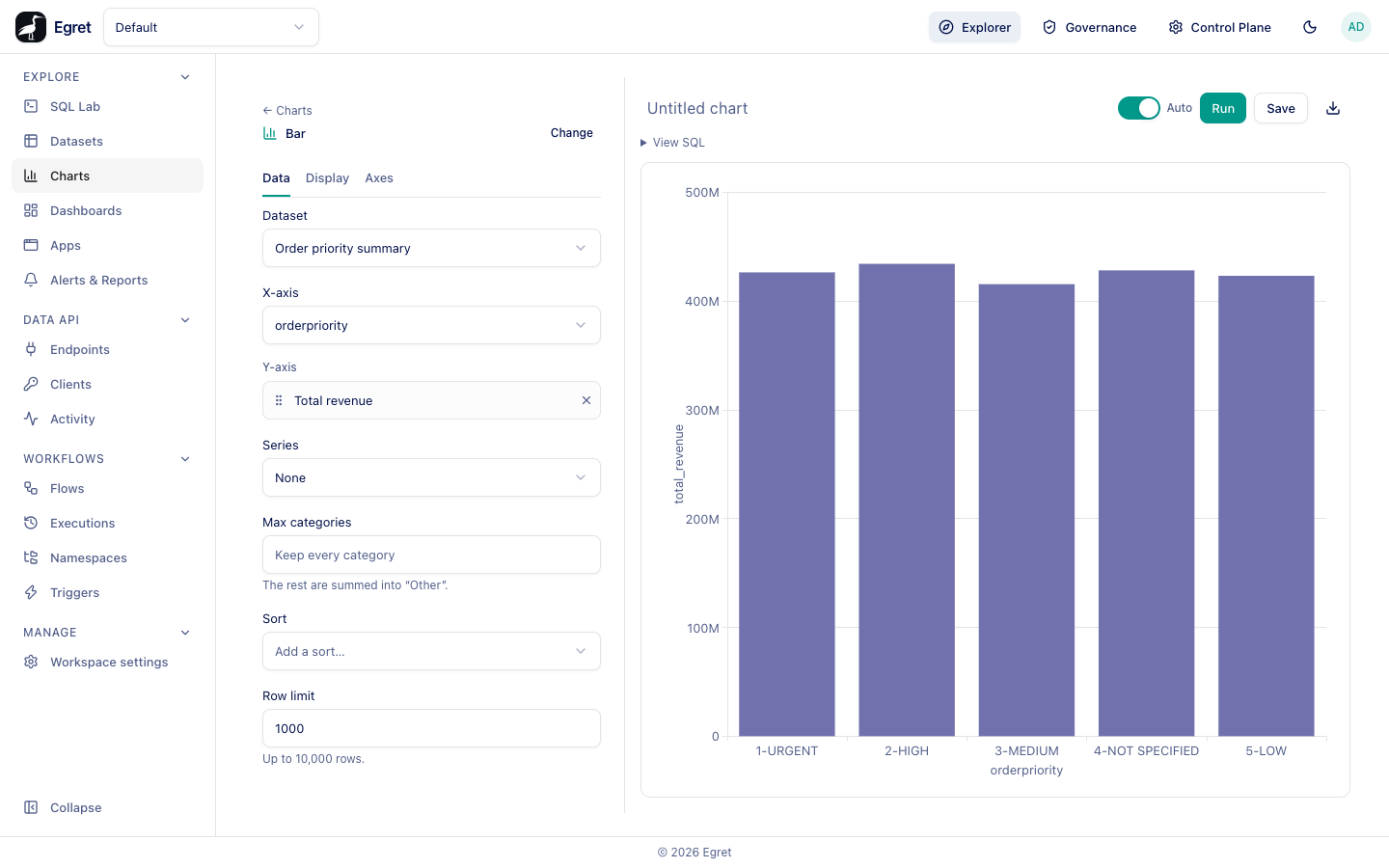
Chart names are unique within a workspace; a duplicate is rejected with conflict: a chart with that name already exists. The other tabs (Display, Axes) are covered in Charts.
6. Build a dashboard
- Go to Explore → Dashboards and press + Dashboard.
- In New dashboard, enter a name (
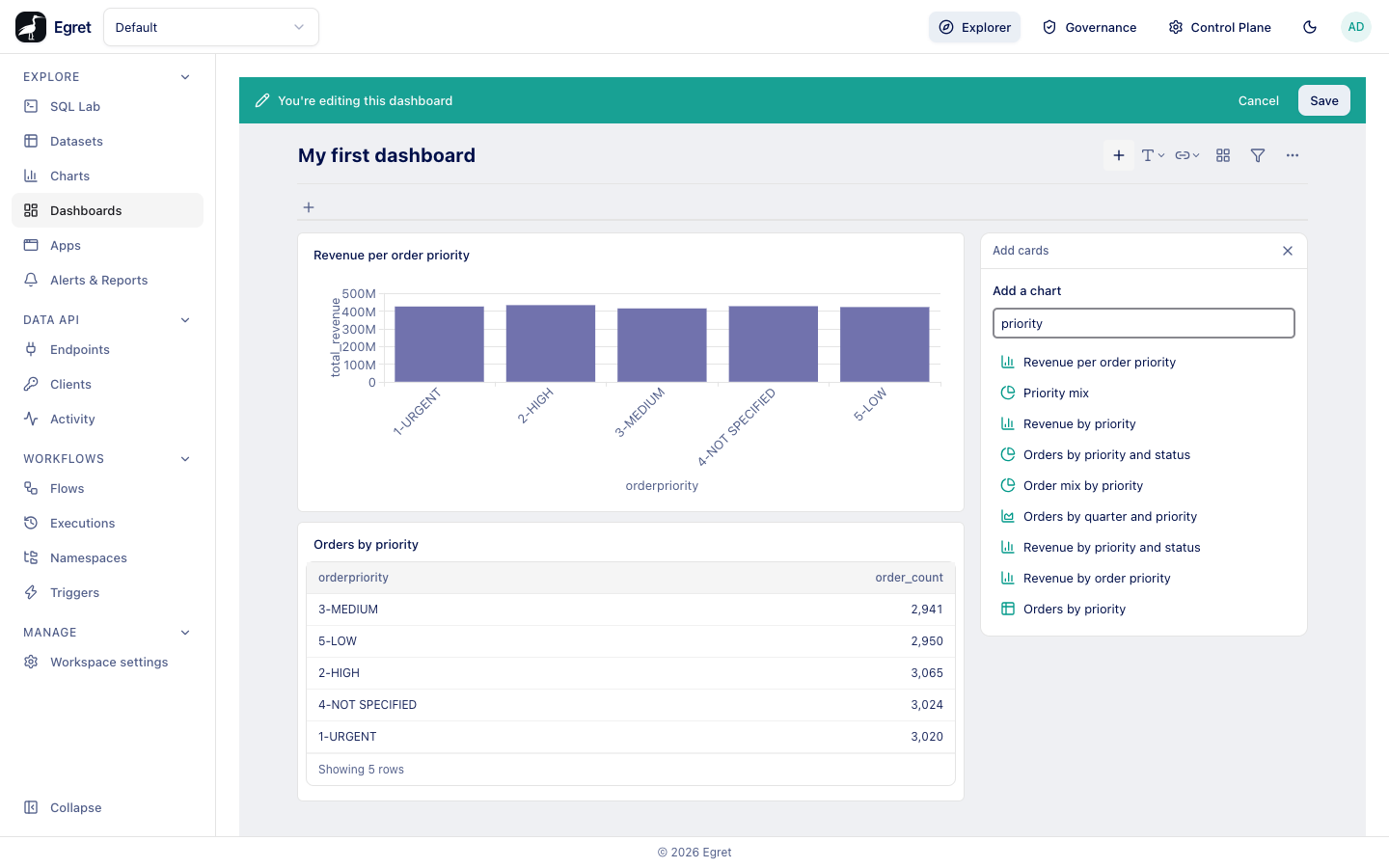
My first dashboard) and an optional Description, then press Create. The empty dashboard opens. - Press Edit, then the + in the toolbar (add chart). The Add cards panel lists the workspace's charts; type in search charts to narrow it.
- Select
Revenue per order priority, then another chart (the demo has Orders by priority). Each click adds a card. - Close the panel (×) and drag or resize the cards, then press Save. While the panel is open the cards stack in one column and cannot be moved (KI-068).
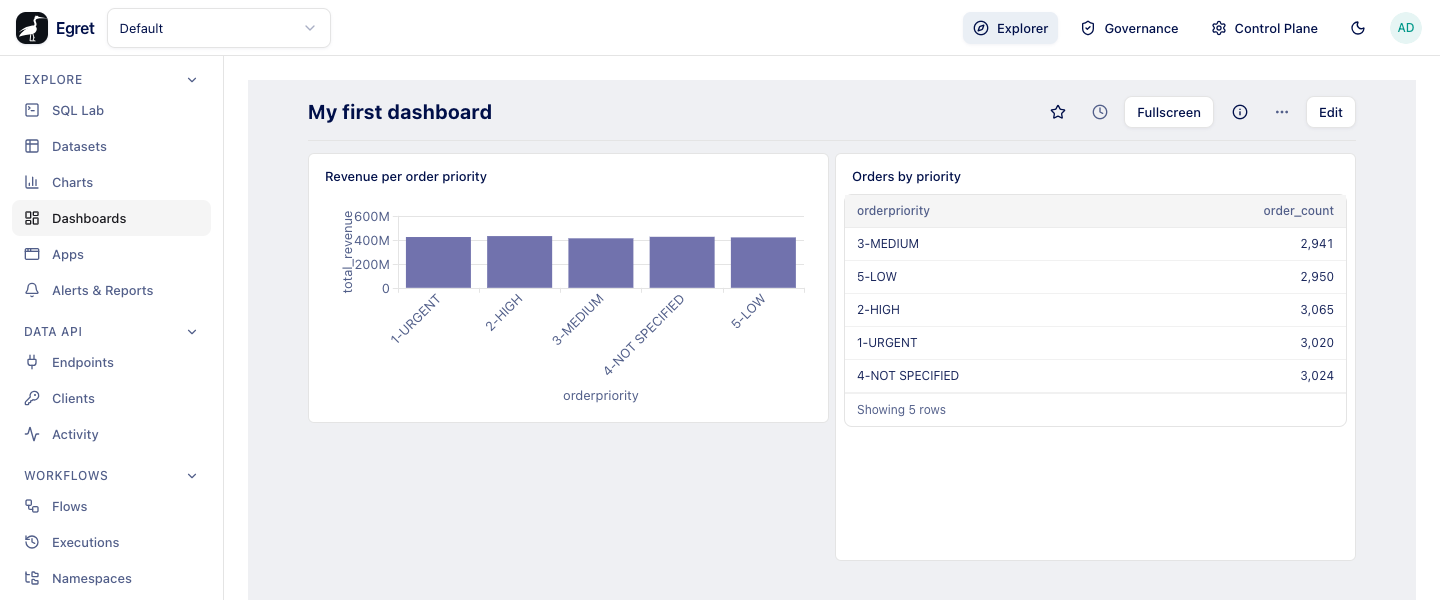
The dashboard now shows both charts:
What you built
| Object | Where it lives | Reuse it by |
|---|---|---|
| Database connection | Manage → Workspace settings → Engines | Choosing it in SQL Lab, datasets and Data API endpoints |
| Dataset with a metric | Explore → Datasets | Building more charts on it |
| Chart | Explore → Charts | Adding it to any dashboard |
| Dashboard | Explore → Dashboards | Sharing it, scheduling it as a report |
Next
- Add filters and tabs: Dashboards
- Email the dashboard on a schedule: Alerts and reports. On the demo stack the mail lands in
Mailpit at
http://localhost:8025. - Control who sees it: Shared objects