Interactivity
A dashboard is more than a wall of charts: clicking a value can open a menu of follow-up actions, set filters on the whole dashboard, or open another page. What a click does is the On click setting of each chart card. This page describes the three behaviours, the drill menu, and how to set them up.
Choose what a click does
- Press Edit and click the chart card.
- In the card's settings panel, open On click and choose a behaviour.
- Fill in the details that appear below it, then press Save.
| Behaviour | What a click does |
|---|---|
| Menu (default) | Opens the drill menu at the pointer. |
| Cross-filter | Sets dashboard filters to the clicked values. |
| Custom URL | Opens an address you define in a new browser tab. |
The setting belongs to the card, not to the chart, so the same chart can behave differently on two dashboards. Switching behaviour resets the details of the previous one.
Clicks work on bars, points and slices of the chart types that have dimensions, on maps, on the value of a number card, a gauge or a progress bar, and on grouping cells of a table or pivot table. A table that lists raw rows with no grouping does not respond to clicks. In edit mode clicks select the card instead.
The drill menu
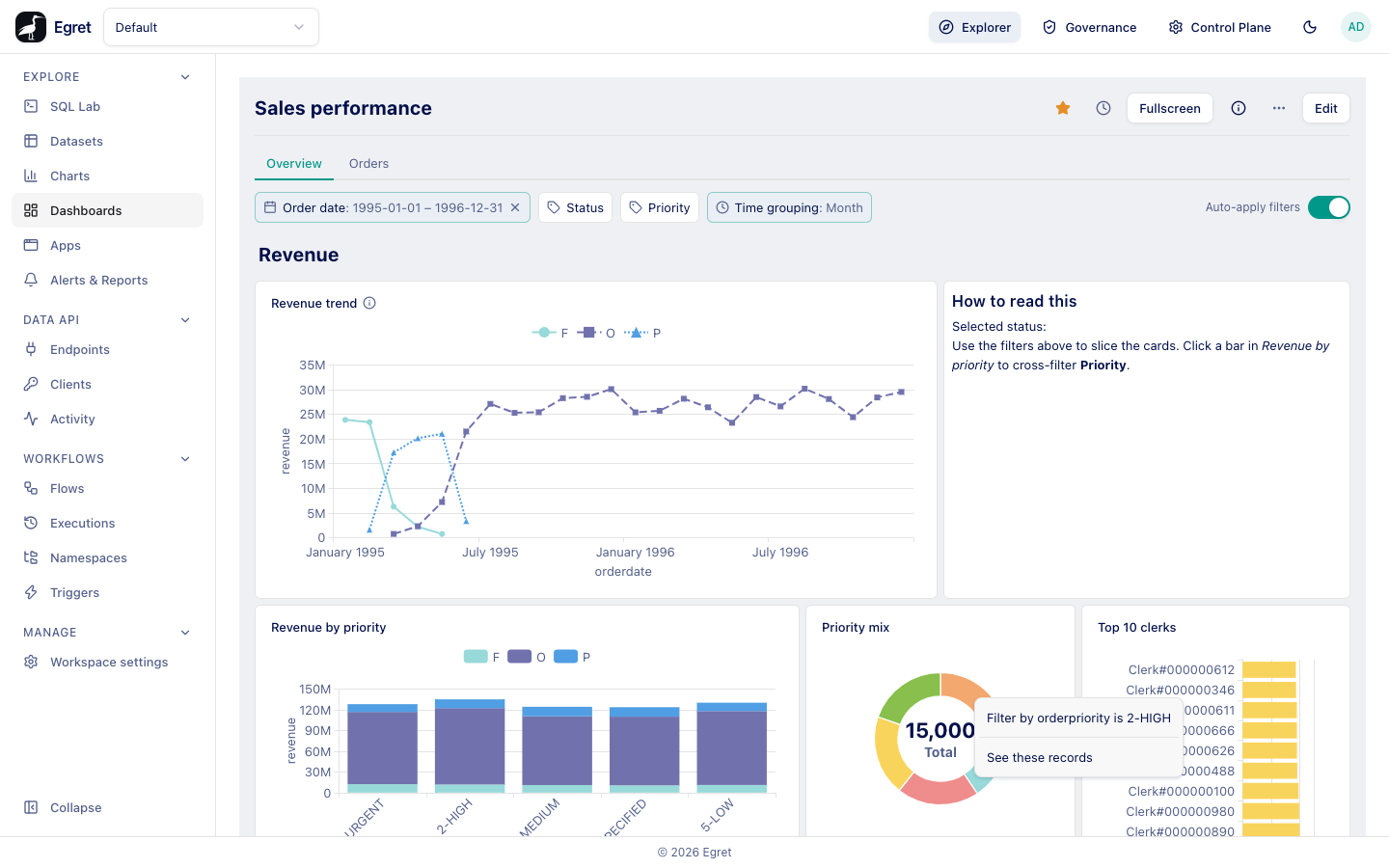
With Menu, clicking a value opens a small menu with up to two kinds of entries.
| Entry | What it does |
|---|---|
| Filter by column is value | Sets the dashboard filter that is connected to that column to the clicked value. One entry is offered for each dimension of the clicked point (for a stacked bar, both the x value and the series). For a time-grouped date it reads "column ≥ start and < end", and the filter gets the start of the period. |
| See these records | Opens a dialog titled "Records where column = value" with the matching rows of the underlying dataset. |
Filter by needs a connected filter. If no filter on the dashboard is connected to the clicked column, the entry closes the menu and nothing else happens. A filter holds a single value, so only the first condition of a bucketed value is used.
See these records shows all columns of the chart's dataset for the first 1000 rows that match the clicked value. It does not apply the dashboard's current filters, so it can show rows outside the date range you are looking at. A click on a number card has no dimension and offers only See these records, titled "All records".
The menu is placed at the pointer and is not repositioned when it would run past the right edge of the window, so on a card at the far right part of the menu can be cut off.
Cross-filter
Cross-filtering turns a chart into a filter control: click a bar and every card connected to the filter reloads.
- Add the filters you want to set and connect them to the cards (Dashboard filters).
- On the chart card that will be clicked, set On click to Cross-filter.
- The panel lists one row per dashboard filter, labelled "filter name ←". For each filter you want the click to set, choose the column of this chart whose value goes into it; leave none for the others.
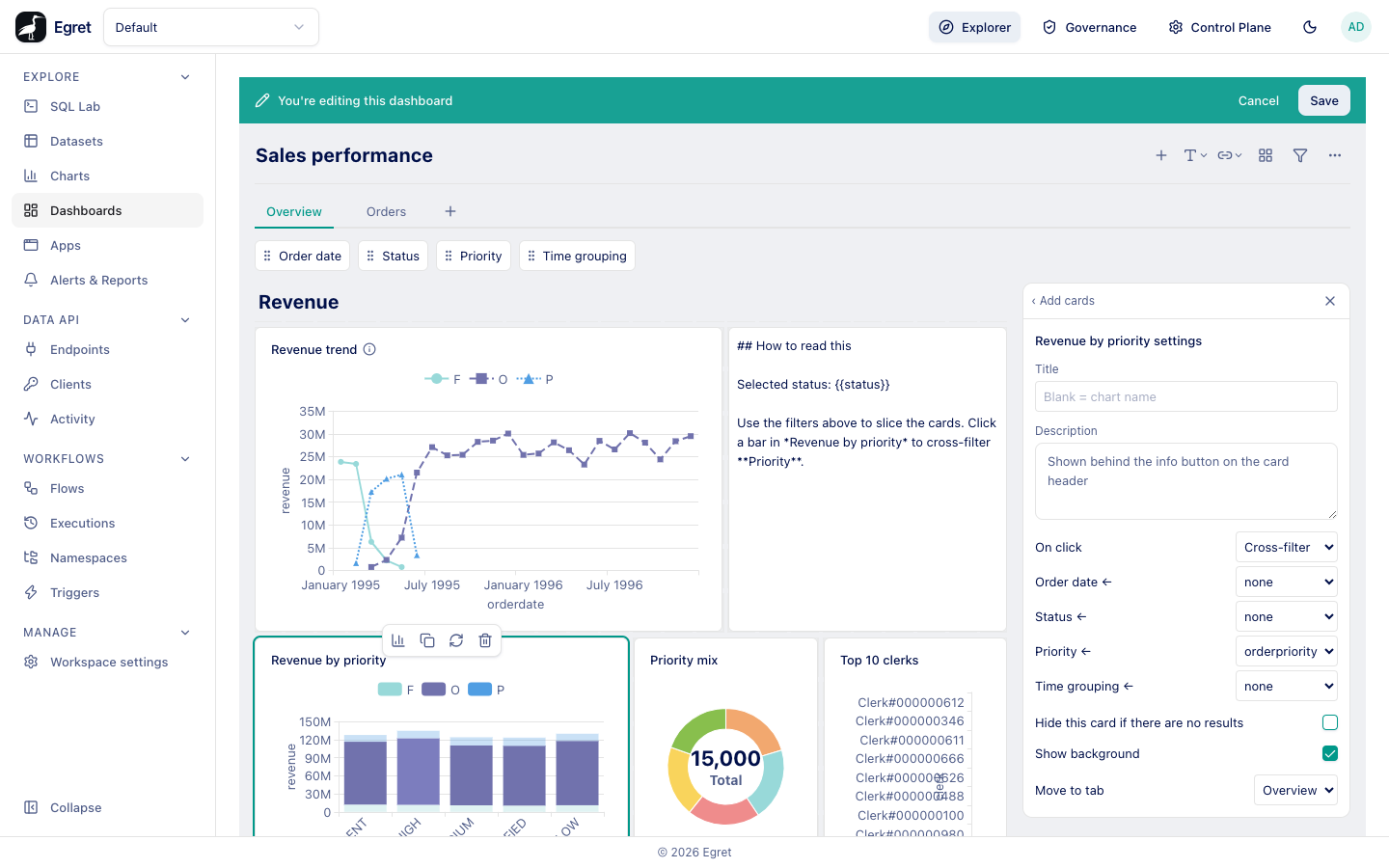
When a viewer clicks a bar, each mapped filter takes the value of the clicked point in the chosen column. All mapped filters change in one step, so the chips update together and the address carries every new value. In the demo, clicking the 1-URGENT bar of Revenue by priority sets the Priority filter to 1-URGENT:
.../dashboards/<id>?priority=1-URGENT
Details to know:
- The columns offered are the chart's dimensions and plain columns, exactly as for connecting a filter.
- A click on a point that has no value for a chosen column leaves that filter unchanged.
- With Auto-apply filters off, the click is held as a draft until you press Apply (Use filters and URL parameters).
- A cross-filter replaces the filter's value; it does not add to a multi-value selection.
Custom URL
A custom URL makes a value a link to another system, such as a ticket search or another dashboard.
- Set On click to Custom URL.
- Type the address in url template, for example:
https://tickets.example.com/search?priority={{value}}
When a viewer clicks, Egret fills in the placeholders and opens the result in a new tab (without sending a referrer).
| Placeholder | Replaced by |
|---|---|
{{value}} | The value of the first dimension of the clicked point |
{{column_name}} | The value of that dimension of the clicked point, for example {{orderpriority}} |
{{slug}} | The current value of the dashboard filter with that slug, written as for text cards |
Values are inserted as they are, without URL encoding. If a value can contain spaces, & or #, the link may break. The final address must start with http:// or https://; anything else is blocked and the click does nothing. A template that is empty does nothing.
Hover tools on every card
These do not depend on On click.
| Tool | Where | What it does |
|---|---|---|
| Pencil, Edit question | Top right of the card, on hover | Opens the chart in the chart editor. Also the card title is a link to it. |
| Download | Next to the pencil | Opens the data export (Export, reports and print). |
| Info icon | After the title | Opens the card description, if one is set. |
Limits and known issues
- A cross-filter cannot add to a multi-value selection; it replaces it.
- The records dialog ignores the dashboard filters.
- Custom URLs are not URL-encoded.