Dashboard filters
A dashboard filter lets a viewer narrow every connected card at once, for example to one order status or one date range. You add the filter in edit mode, choose its type, and connect it to a column on each card it should affect. This page covers the setup; Use filters and URL parameters covers what viewers do with them.
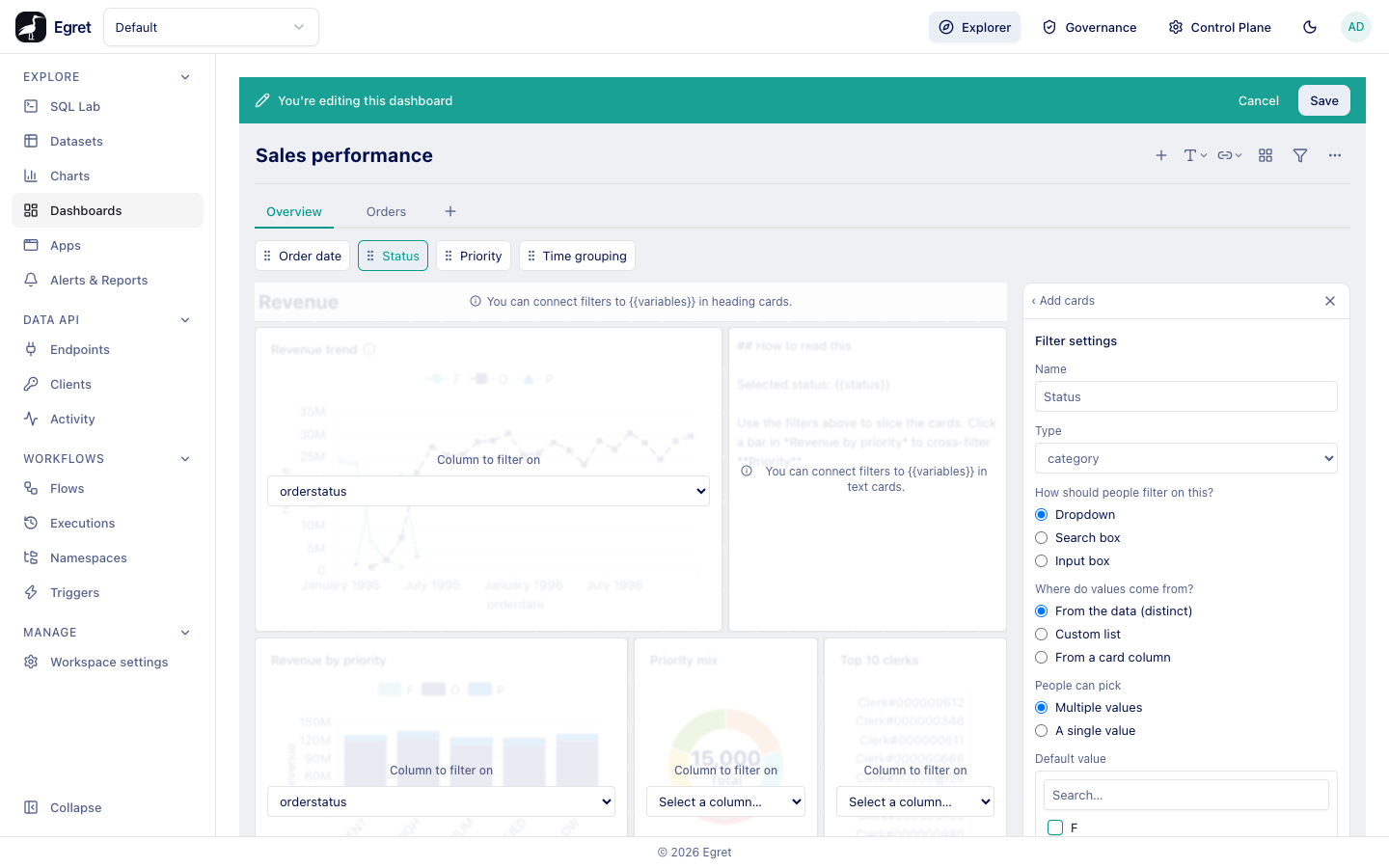
Add a filter
- Open the dashboard and press Edit.
- Press the funnel icon in the edit toolbar (or press
f). A filter named Filter, of typetext, is added after the existing ones and its settings open in the side panel. - Change the name and type, then connect it to cards, as described below.
- Press Save.
In edit mode the filters appear as chips above the grid. Click a chip to select that filter and see its settings; drag the grip at the left of a chip to reorder the filters. The order is the order viewers see.
Name and slug
The Name is the label viewers see on the filter. Each filter also has a slug, a short identifier made of lower-case letters, digits and underscores. Egret assigns it when you add the filter: filter, then filter_2, filter_3, and so on. The slug does not change when you rename the filter. It is the filter's name in links (?filter_2=…, see Use filters and URL parameters) and in text cards ({{filter_2}}). The text card settings list the slugs that exist.
Filters created through the API can set their own slug.
Filter settings
The panel is titled Filter settings. It shows only the controls that make sense for the type you selected.
Name
The label on the filter in the filter bar.
Type
The kind of value the filter holds. The select shows the internal type names.
| Type | Use it for | Operators |
|---|---|---|
text | Free text on a text column | is, is-not, contains, does-not-contain, starts-with, ends-with |
number | Numeric columns | =, !=, between, >=, <= |
date | Date and time columns | range, relative, single, month-year, quarter-year, all-options |
id | Key columns | is |
category | A column with a short list of values | is |
boolean | True or false columns | is |
location | Place names | is, is-not |
temporal_unit | The time grouping of date charts (day, month, quarter…) | is |
Changing the type resets the operator to the first one in its row.
Operator
Shown for text, number and date filters. It decides how the value becomes a condition on the connected column.
| Type and operator | Condition on the connected column |
|---|---|
text is / is-not | equals / does not equal the value |
text contains, does-not-contain | matches %value% / does not match it |
text starts-with, ends-with | matches value% / %value |
number =, !=, >=, <= | the comparison with the number |
number between | at least the first number and at most the second; either end can stay empty |
date range | between two dates, both inclusive |
date single | equals one date |
date relative | the last 7, 30, 90 or 365 days up to today |
date month-year | the whole chosen month |
date quarter-year | the whole chosen quarter of a year |
date all-options | a relative window (past, next or current n days, weeks, months, quarters, years) or a specific date (on, before, after, between). See the warning below. |
Dates are compared as calendar dates in UTC.
A viewer's choice in an all-options date filter is not kept: the picker writes it to the link as a JSON object, and Egret reads that back as plain text, so the chip shows no value and the cards are not filtered. Only a default value set by the editor works. Use range, relative, single, month-year or quarter-year for dates that viewers change.
::: id and category filters match any of the chosen values (in); an id filter with one value matches that value exactly. A boolean filter offers Any, True and False. A location filter with is-not excludes the chosen values.
A temporal_unit filter does not filter rows. It changes how a date column on the connected card is grouped, for example from month to quarter. It works only on charts whose date column is already grouped by a time unit.
How should people filter on this?
Shown for category, id, location and text filters.
| Option | Widget |
|---|---|
| Dropdown | A list of values with checkboxes (or radio dots for a single value) and a Search… box. Default for the list types. |
| Search box | Currently identical to Dropdown. |
| Input box | A plain text box where the viewer types the value. |
Where do values come from?
Shown for category, id and location filters. It decides the list a viewer picks from.
| Option | Source |
|---|---|
| From the data (distinct) | The distinct values of the column the filter is connected to, read from the dataset. Default. |
| Custom list | A list you type, one value per line. Blank lines are dropped. |
| From a card column | Pick one of the chart cards on the dashboard, then one of its columns. The values come from that column's dataset. |
For From the data, the values are read from the first card the filter is connected to. A filter that is not connected to any card has no list.
People can pick
Shown for category, location and id filters, except when the widget is Input box.
| Option | Result |
|---|---|
| Multiple values | Viewers can tick several values. Default for category and location. |
| A single value | Viewers choose one value. Default for id. |
Default value
The value the filter has when a viewer opens the dashboard without a value in the link. Set it with the same widget viewers use; Clear removes the default.
A viewer cannot clear a filter that has a default. Pressing the ✕ on its chip removes the value from the link, and the default comes back at once. Change the value instead, or ask an editor to remove the default.
Limit this filter's choices
Shown at all times, with one of four texts:
- With at least one other usable filter, a list of those filters with a checkbox each. If you tick a filter, the choices in this filter's dropdown are limited by the other filter's current value. Example: tick Status on Priority, and when a viewer picks status P the priority list shows only priorities that occur with status P.
- "If you have another dashboard filter, you can limit the choices…": there is no other filter yet.
temporal_unitfilters are not offered as limits. - "If the filter has values that are from another question or model, or a custom list, then this filter can't be limited": the values source is Custom list or From a card column.
- "This filter can't be limited by another dashboard filter because its widget type is an input box."
The limit works through a card that the limited filter and the limiting filter are both connected to.
Required
When ticked, a viewer must set a value before any card loads. Until then every card shows "Set the required filters to load this card" and the filter bar names the missing filters ("Set the required filter(s): …"). A required filter's chip carries an asterisk. Give a required filter a default value so the dashboard is not blank on first load.
Where this filter appears
Choose Top of page (default) or one of the heading and chart cards. A filter placed on a card is drawn in that card's header instead of the filter bar. See Place a filter on a card.
Delete filter
Removes the filter and, with it, its connections. The side panel goes back to Add a chart.
Connect a filter to cards
A filter does nothing until you connect it to a column on each card it should affect.
- Select the filter's chip. Every card shows an overlay.
- On each card that should react, open Column to filter on and choose a column. For a
temporal_unitfilter the select is headed Connect to and lists the card's time-grouped date columns. Leave Select a column… to leave the card unaffected. - After you connect the first card, a toast offers "Auto-connect this filter to all questions containing “column”?" (with "in the current tab" when the dashboard has several tabs). Press Auto-connect to connect every other card on the tab that has a column with the same name and no connection yet. A second toast confirms and offers Undo.
- Press Save.
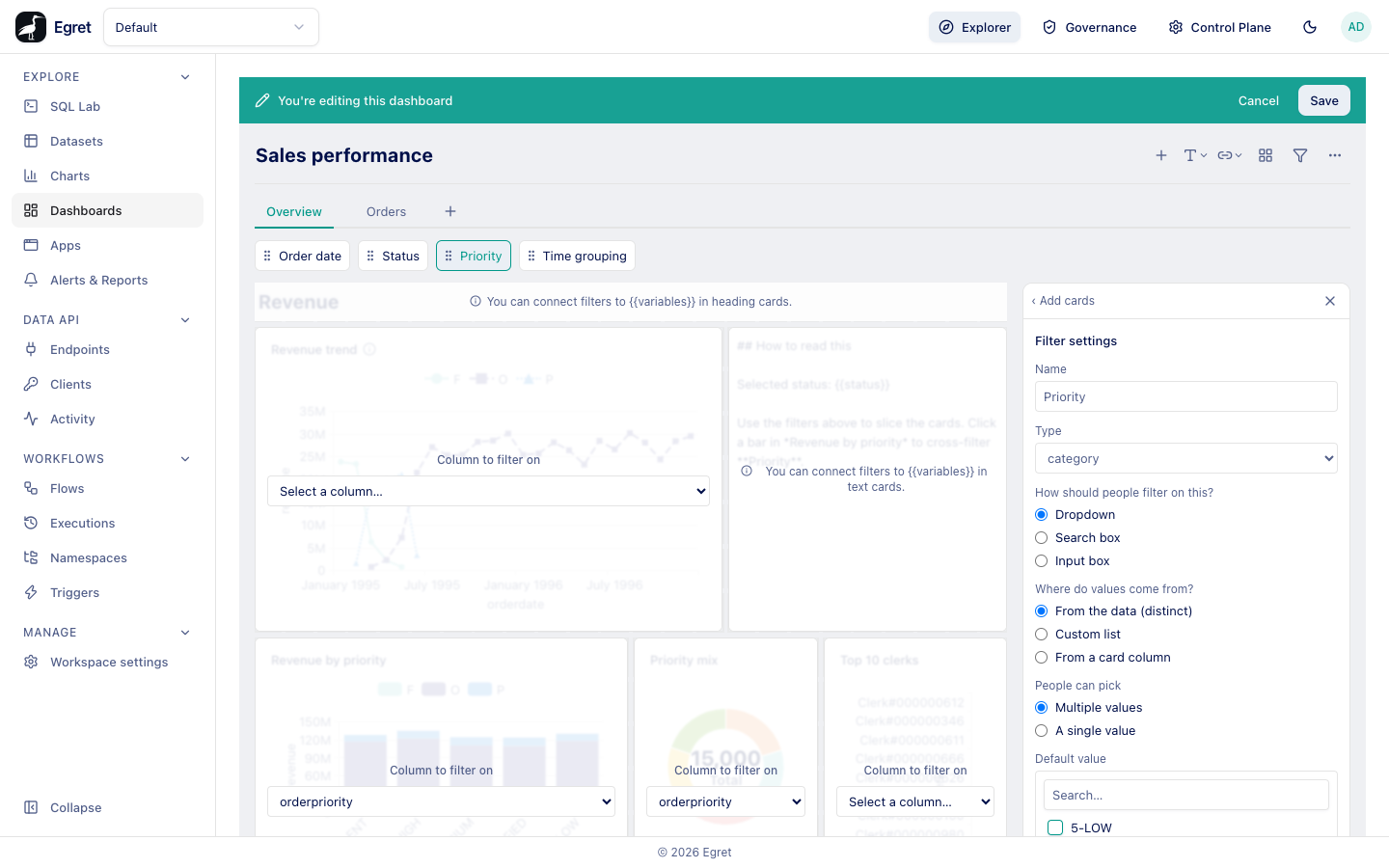
The overlay explains cards that cannot be connected:
| Message | Meaning |
|---|---|
| "This card doesn't have any fields that can be mapped to this filter." | The chart has no dimension or plain column (for example a single number). |
"You can connect filters to {{variables}} in heading cards." | Heading and text cards read filter values through {{slug}} instead. |
| "Link cards can't use a filter's value." | Link cards have no query. |
| "The selected filter is on another tab." | A filter placed on a card of another tab. |
The list of columns is the chart's own dimensions and plain columns, not every column of its dataset, and it is not narrowed by the filter's type. Add the column to the chart if you need to filter on it, and choose a column of a matching kind: a date filter connected to a text column produces a condition that fails when the query runs. Metric-only charts, such as a single-number card, therefore cannot be connected in the editor.
A card can be connected to several filters, and a filter to several cards. Connections are stored on the card (paramMappings), so replacing a card's chart clears them.
Place a filter on a card
Moving a filter onto a card puts it next to the thing it affects, saving room in the filter bar.
- Select the filter and open Where this filter appears.
- Choose a card. Chart cards and heading cards are listed, grouped by tab when the dashboard has tabs.
- The filter now sits in that card's header, at the right of the title. Its connections do not change: it still filters every card it was connected to.
Press Top of page to move it back. Removing the card removes the filters it hosts. Duplicate a card or a tab and the copy does not host the filters.
If the header is too narrow for the title and filters, the filters collapse into a single button.
Limits and known issues
- The Search box widget is the same as Dropdown.
- The
textandnumbertypes accept a single value only; a "Multiple values" choice is not offered. - A filter with a default cannot be cleared by a viewer (above).
all-optionsdate filters do not keep a value chosen by a viewer, and their{{slug}}prints[object Object]in text cards.- Limiting a filter's choices is described from the product source. It has not been verified end to end on the demo data, where every priority occurs with every status.
Further reading
- Use filters and URL parameters
- Cards and card settings
- Interactivity for filters set by clicking a chart