Edit a dashboard
Edit mode is where you add charts, arrange them on the grid, split a dashboard into tabs and set its width. Nothing you do in edit mode reaches other people until you press Save.
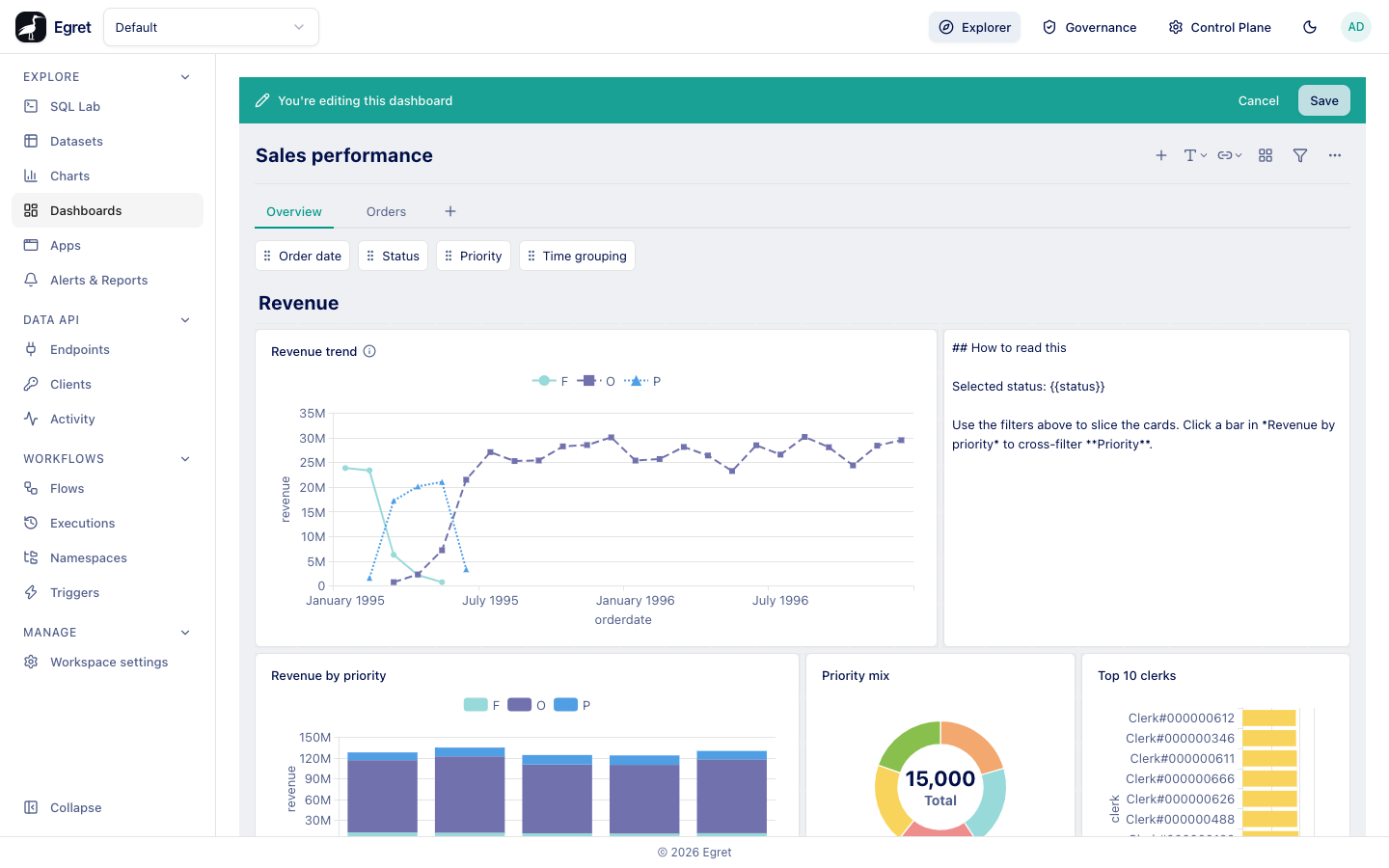
Start and finish editing
- Open a dashboard and press Edit (or press
e). The Edit button appears only if you can manage the dashboard. - A green bar reads "You're editing this dashboard" and holds Cancel and Save. The dashboard name becomes an input; click it to rename the dashboard.
- Change the dashboard.
- Press Save (or press
s). A toast says "Saved". An empty name is refused with "Dashboard name can't be empty".
Cancel (or e again) leaves edit mode. If you changed anything, Egret first asks "Discard your changes?" and offers Cancel and Discard changes. If you changed nothing, it closes without asking.
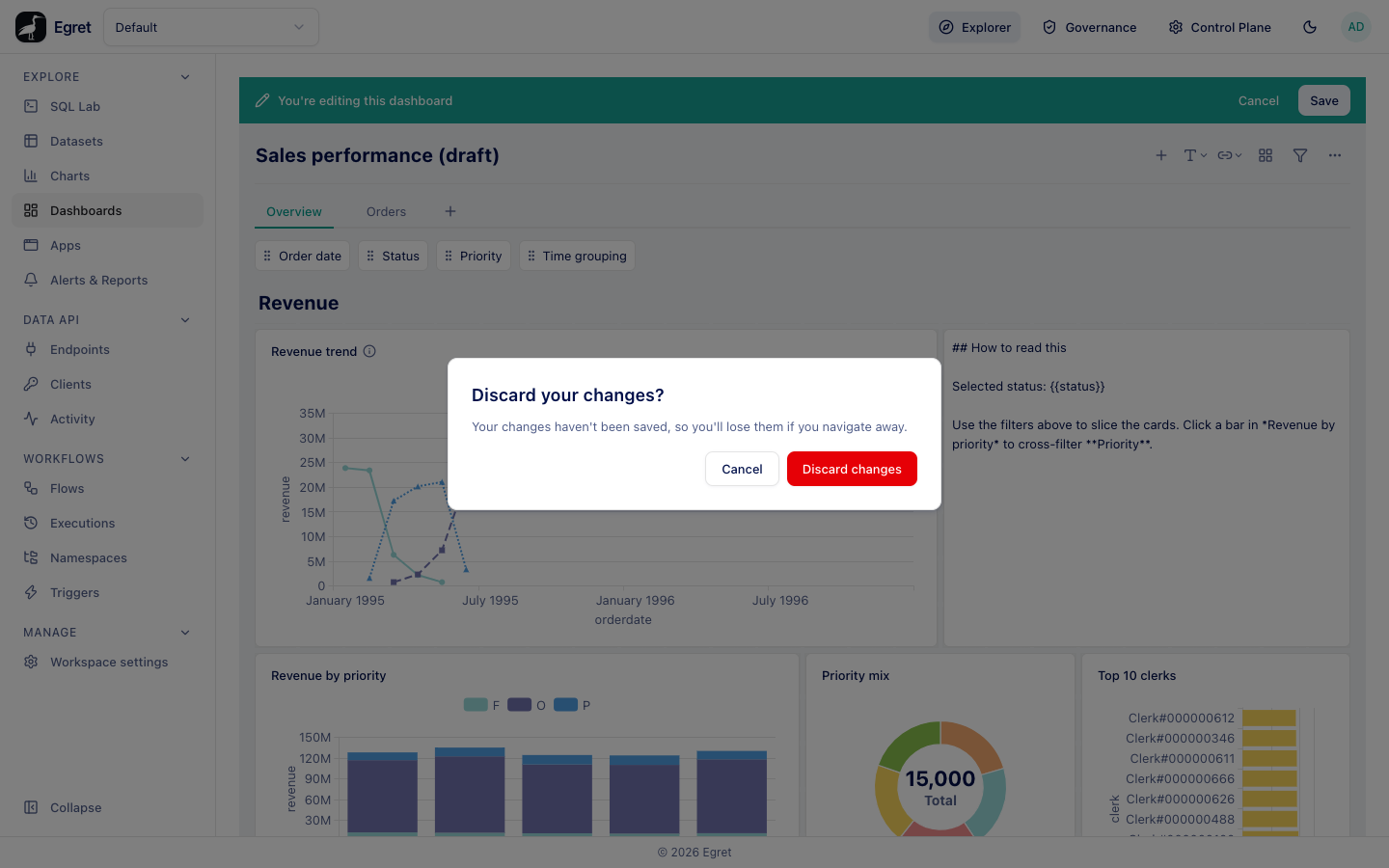
While you are in edit mode the browser also warns you when you reload or close the tab. Each Save replaces the whole layout in one request and adds an entry to the dashboard history.
The edit toolbar
The icons at the right of the title row add things to the dashboard. Hover an icon for its name.
| Icon | Name | What it does |
|---|---|---|
| + | Add a chart | Opens the Add cards panel with a searchable list of the workspace's charts (shortcut a). |
| T with an arrow | Add a heading or text | Menu with Heading and Text. |
| Link with an arrow | Add a link or iframe | Menu with Link and Iframe. |
| Grid | Add a section | Adds a heading and a block of empty chart slots. See Sections. |
| Funnel | Add a filter | Adds a dashboard filter (shortcut f). |
| ⋯ | Dashboard actions | Holds the Full width switch. |
Add a chart
- Press + (or
a). The side panel shows "Add a chart" and a Search charts… box. - Type part of a chart name, then click the chart. It is added at the first free spot on the grid, scanning left to right and top to bottom, at the default size for its type.
- Add more charts the same way, or close the panel with ✕.
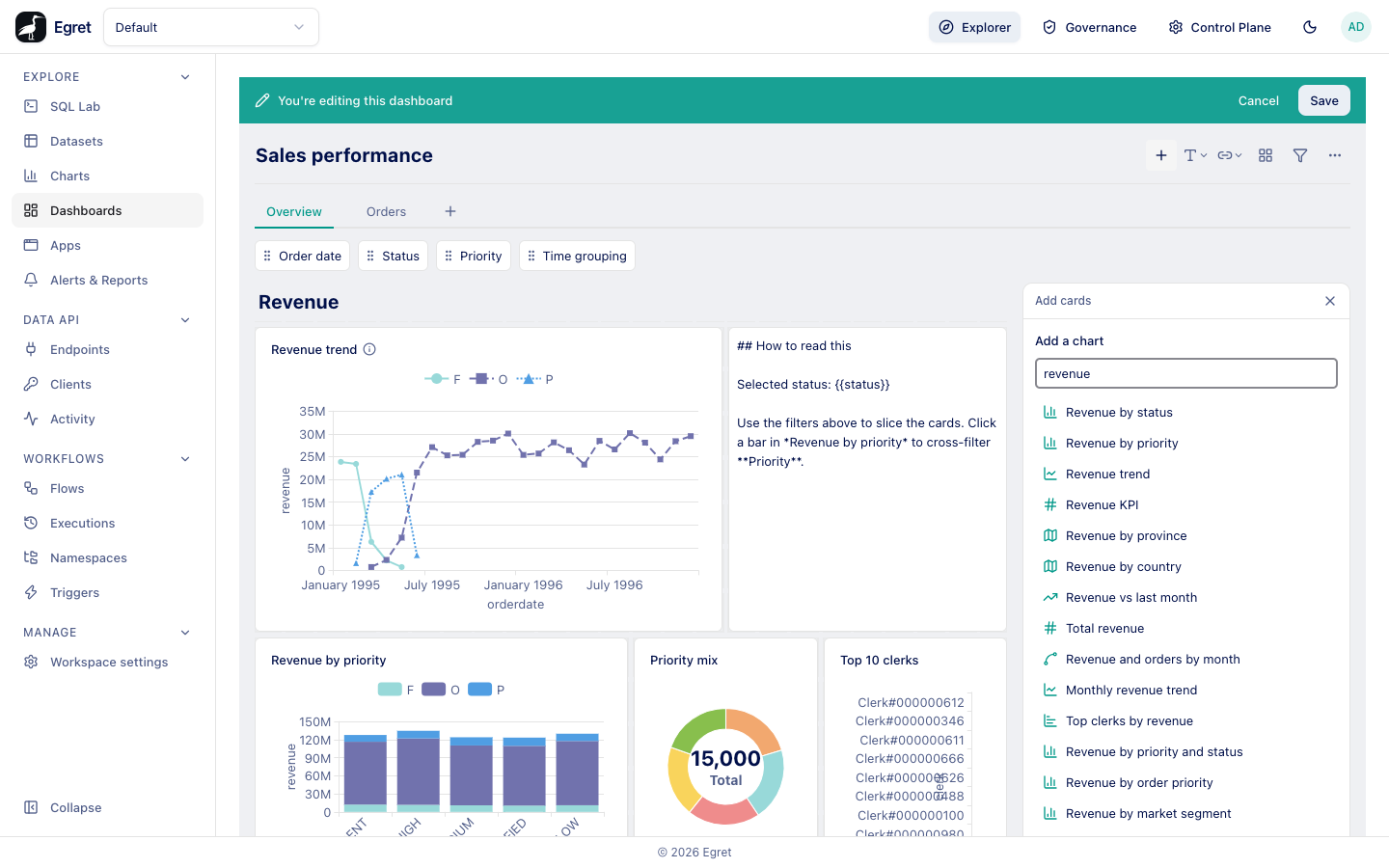
The list shows every chart in the workspace, not only charts on the current dataset. A chart can appear on any number of dashboards, and the same chart can appear twice on one. Charts are referenced, not copied: editing the chart later changes every dashboard that uses it.
Move and resize cards
The grid has 24 columns. A card's position and size are stored in grid units (grid_col, grid_row, size_x, size_y), so a card that is 12 wide takes half the canvas at any screen size. A row is a little shorter than a column is wide (the cells have a 10:9 aspect ratio) and never shorter than 40 px, and a 6 px gap separates cards.
- Move: press the mouse on the top strip of a card (about 24 px tall, except under the floating toolbar in the middle) and drag. Other cards move out of the way and the grid compacts upward, so there are no vertical gaps.
- Resize: drag the small handle in the bottom-right corner of a card.
- While you edit, a faint grid shows the free cells.
Default and minimum sizes, in columns by rows:
| Card | Default | Minimum |
|---|---|---|
| Table, pivot table | 12 × 9 | 4 × 3 |
| Bar, row, line, area, scatter, combo, progress, gauge, funnel | 12 × 6 | 4 × 3 |
| Pie | 12 × 8 | 4 × 3 |
| Waterfall | 14 × 6 | 4 × 3 |
| Sankey | 16 × 10 | 4 × 3 |
| Map | 16 × 10 | 6 × 4 |
| Number (scalar), trend (smart scalar) | 6 × 3 | 2 × 2 |
| Text | 12 × 3 | 1 × 1 |
| Heading | 24 × 1 | 1 × 1 |
| Link | 8 × 1 | 1 × 1 |
| Iframe | 12 × 8 | 4 × 3 |
| Any other chart type | 12 × 6 | 4 × 3 |
When the canvas is narrower than 753 px, the grid switches to a one-column layout: every card is full width, stacked in reading order. You cannot move or resize cards in that layout, and Egret does not save it over your desktop layout. Opening a side panel (card settings, filter settings, Add cards) takes about 350 px from the canvas, so a fixed-width dashboard (1048 px) drops into the one-column layout while a panel is open, and a full-width one does too on a narrow window. Close the panel, or switch Full width on, to move cards.
Card toolbar
Hover a card in edit mode and a small toolbar appears above its top edge.
| Button | What it does |
|---|---|
| Visualization (chart cards only) | Opens the per-card visualization settings. See Cards and card settings. |
| Duplicate | Adds a copy at the bottom of the grid. The copy does not keep filters that were placed on the original card. |
| Replace chart (chart cards only) | Opens a picker; the card keeps its position but loses its card settings, except the filters placed on it. A toast says "Chart replaced" with Undo. |
| Remove | Deletes the card. A toast says "Removed card" with Undo. Filters placed on that card are deleted with it. |
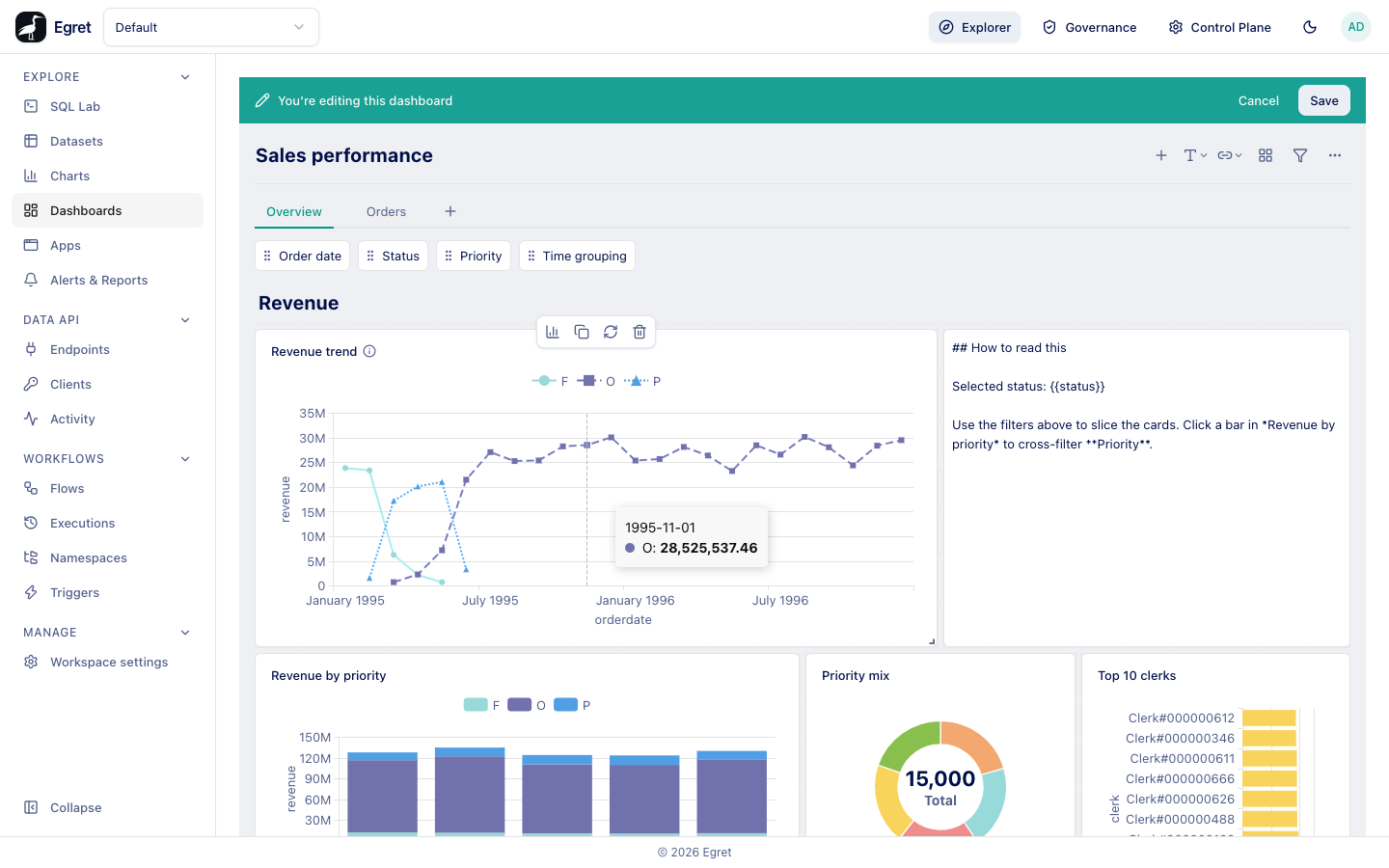
Click anywhere else on a card to open its settings in the side panel. Clicking right after a drag also opens the panel.
Sections
Add a section inserts a heading card (full width, one row) followed by empty slots for charts. Pick one of three layouts:
| Layout | Slots |
|---|---|
| KPI grid | Four slots, 12 × 5 each, in two rows of two |
| Large chart with KPIs on the right | One 18 × 9 slot and three 6 × 3 slots stacked on its right |
| KPIs with large chart below | Four 6 × 3 slots in a row and one 24 × 9 slot below |
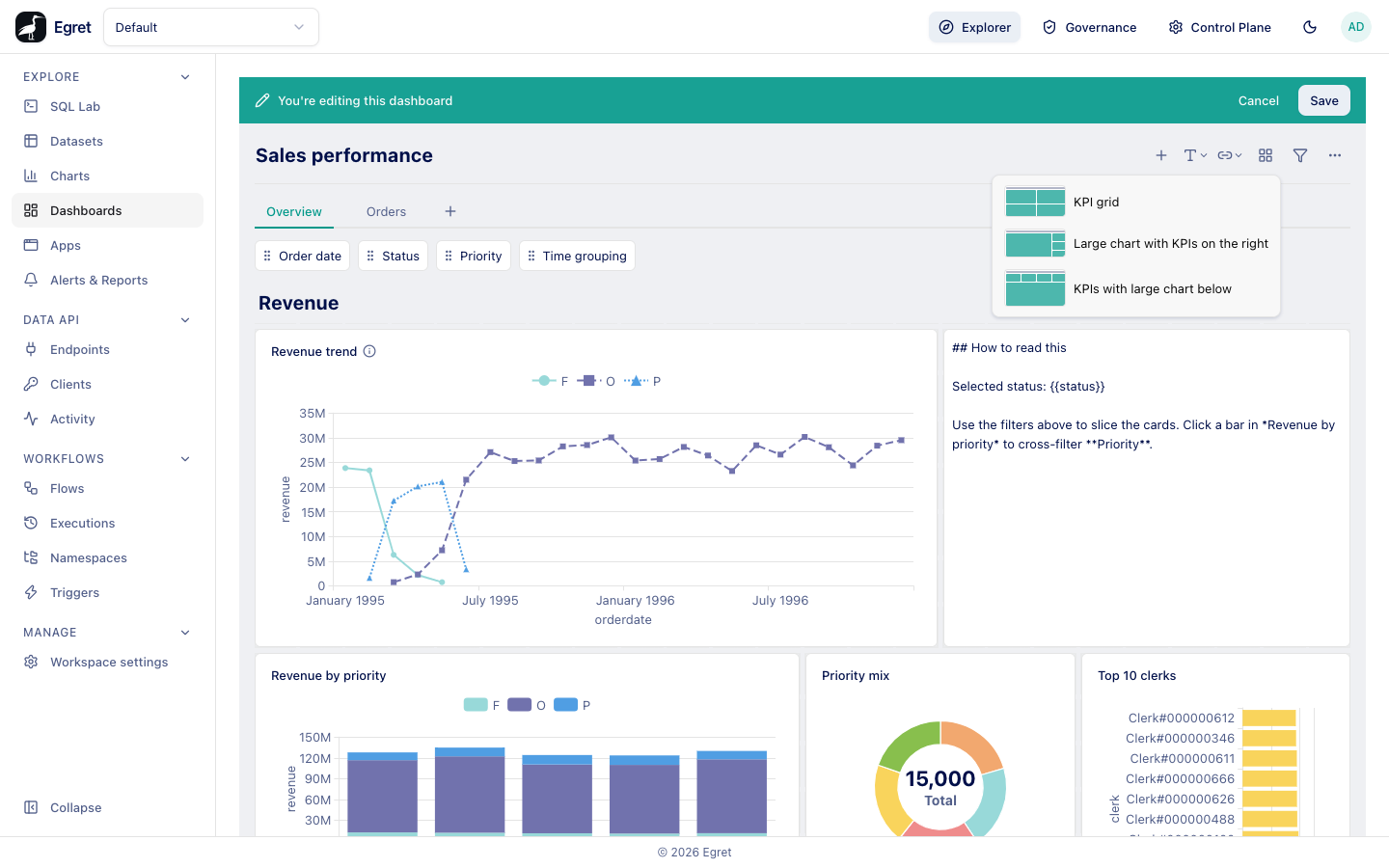
Each slot is a dashed box labelled Add a chart. Click it, pick a chart, and the chart fills the slot. Slots you leave empty are not saved.
Tabs
Tabs split a long dashboard into pages that share the same filters.
- In edit mode, press + at the right of the tab bar. On a dashboard without tabs, Egret creates Tab 1 (holding all existing cards) and an empty Tab 2, and opens Tab 2. Later presses add Tab 3, Tab 4, and so on.
- Double-click a tab name, or choose Rename from the tab's menu, to rename it. Press Enter to confirm or Esc to cancel.
- Drag a tab onto another to reorder.
- Open the tab's menu (shown on hover) for Rename, Duplicate and Delete. Duplicate adds "name copy" after the tab with copies of its cards. Delete is available only while there are two or more tabs.
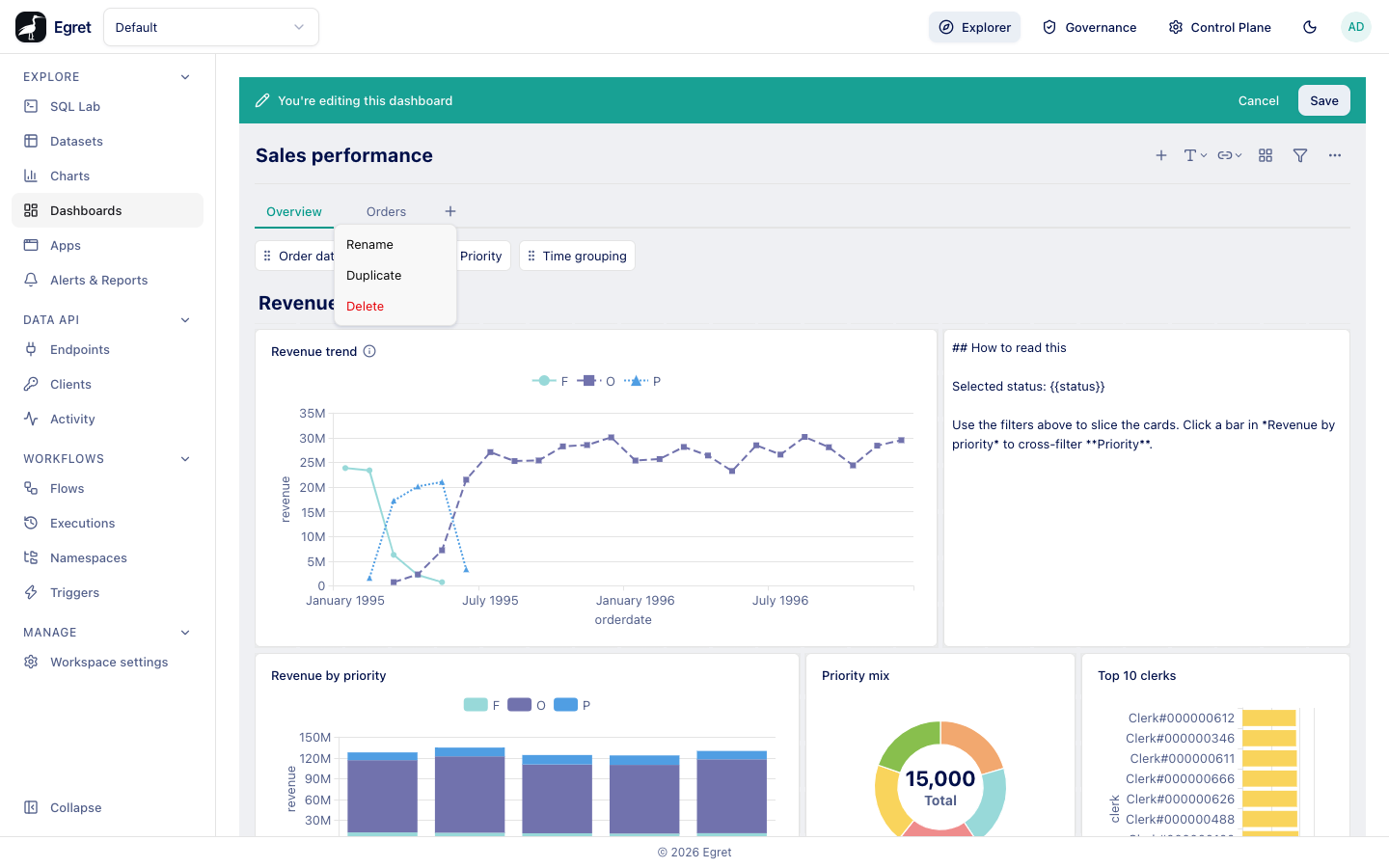
If the tab you delete has cards, a Delete tab dialog asks what to do: reassign and delete moves the cards to the tab you choose (stacked below its existing cards), and delete cards too removes them. A toast with Undo follows. To move one card to another tab, open the card's settings and use Move to tab.
In view mode the tab bar appears only when the dashboard has two or more tabs. Keys 1 to 9 switch to the first nine tabs. Filter values are shared by all tabs. Cards added with the toolbar go to the tab that is open.
Width
Open ⋯ in the edit toolbar and use the Full width switch.
| Setting | Result |
|---|---|
| Off (fixed) | The canvas is at most 1048 px wide and centred. This is the default for a new dashboard. |
| On (full) | The canvas uses all the width of the page. |
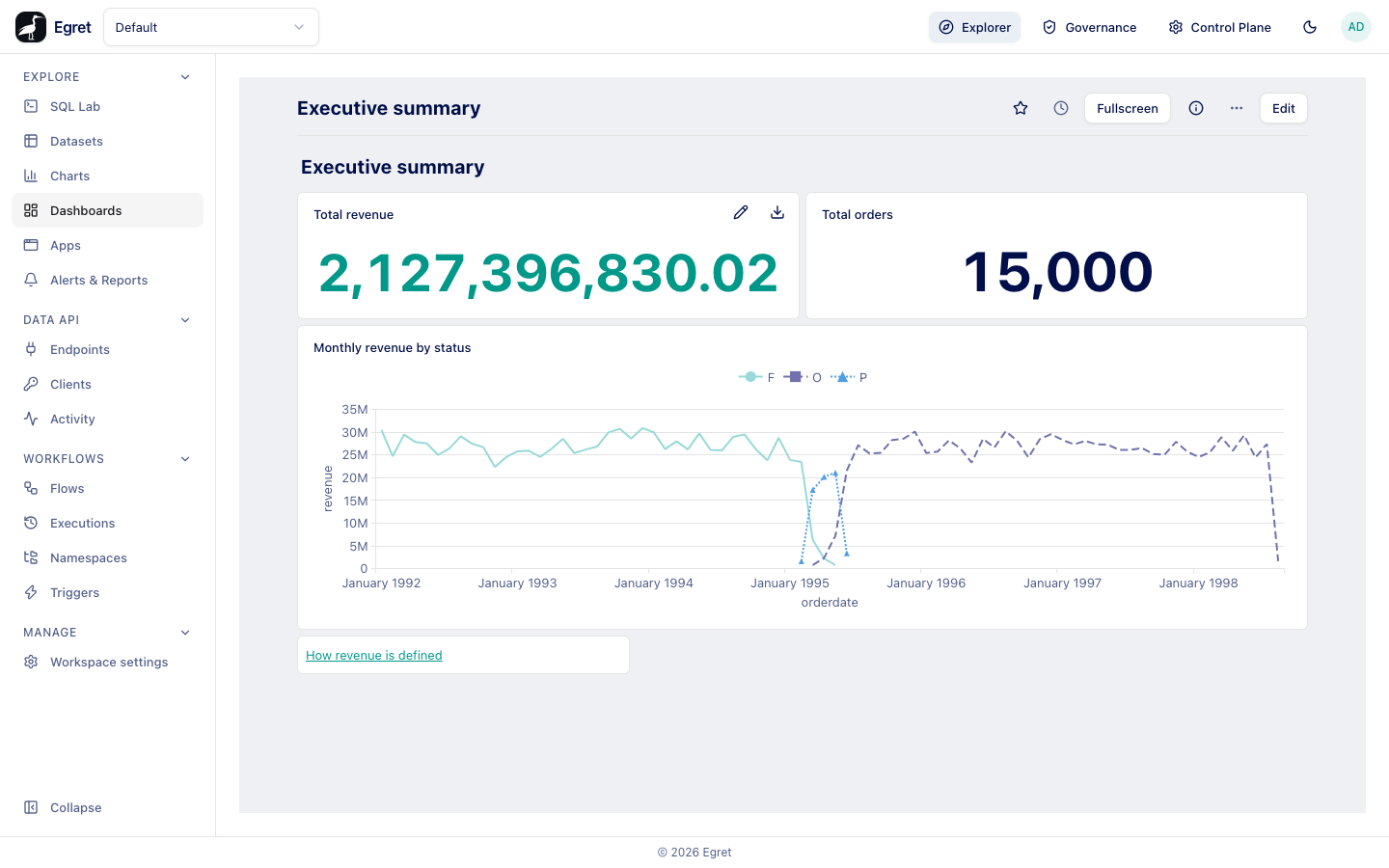
The choice is saved with the dashboard and applies to every viewer.
Keyboard shortcuts
Shortcuts work when focus is not in a text field, and not with Ctrl, Cmd or Alt held.
| Key | When | Action |
|---|---|---|
e | Viewing or editing | Start editing; cancel editing (asks first when there are changes). |
s | Editing | Save. |
a | Editing | Open Add a chart. |
f | Editing | Add a filter. |
o | Viewing | Bookmark or unbookmark. |
] | Viewing | Open or close the info sidebar. |
1 to 9 | Viewing or editing | Select that tab, if it exists. |
Limits and known issues
- In edit mode, a space or Enter typed into a heading or text card is not inserted, because the card treats those keys as "open settings". Paste text that already contains spaces and line breaks. This is recorded in the project backlog.
- Scalar cards (a single number) and any chart whose columns are only metrics cannot be connected to a filter in the editor. See Dashboard filters.