Info, history and certification
The info sidebar answers three questions about a dashboard: what is it for, who made and last changed it, and can I trust it. It also holds the History tab, where you can see every saved version and go back to an earlier one.
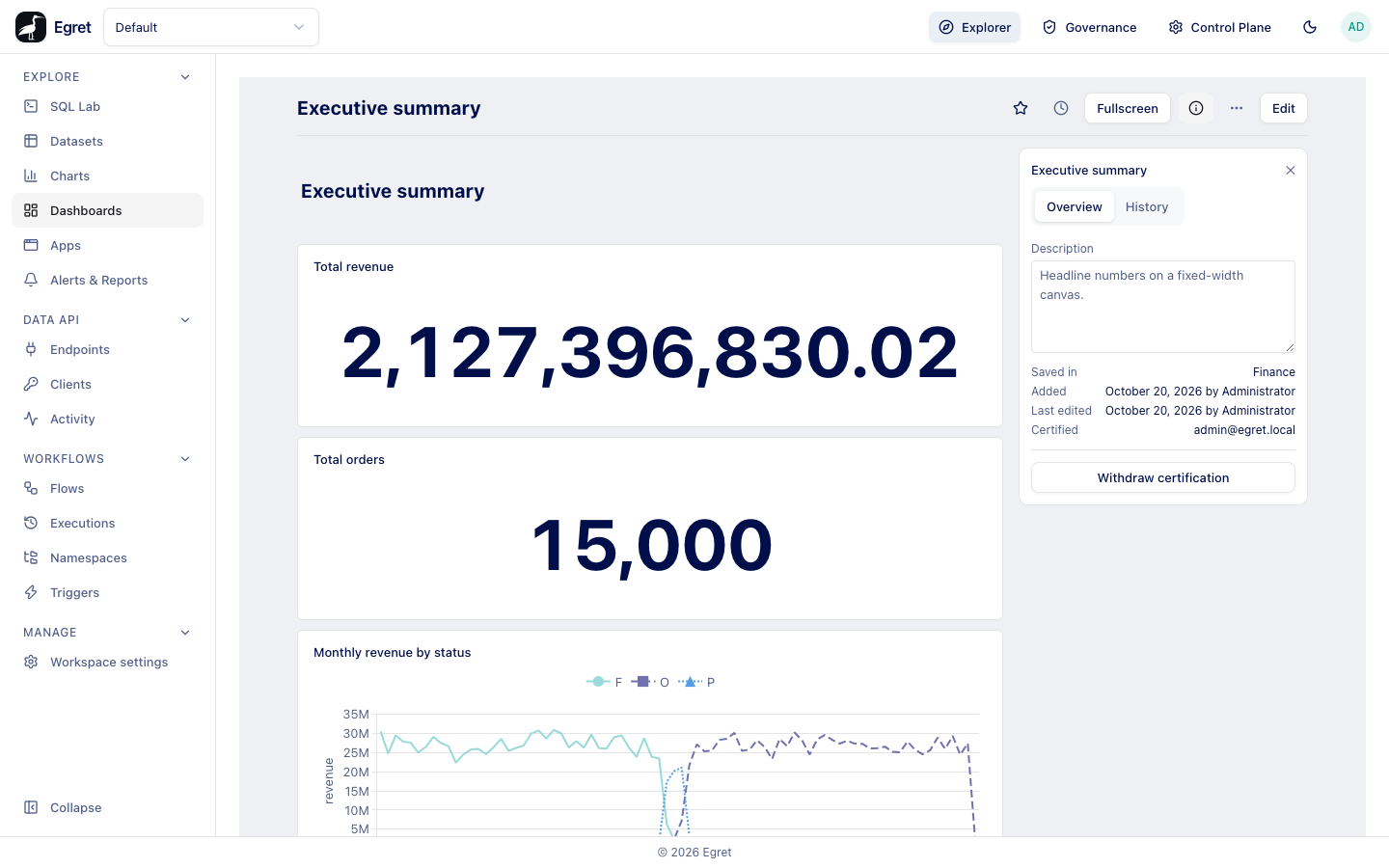
Open the info sidebar
Press the info button (the circled "i") in the dashboard header, or press ]. The sidebar opens at the right of the cards and shows the dashboard name with a ✕ to close it. It has two tabs, Overview and History. The sidebar is available in view mode only.
Overview
Description
The Description box shows the description entered when the dashboard was created, and you can edit it in place. Click into the box, type, and click away: the text is saved when the box loses focus, and a toast says "Saved". Saving the description also adds a step to the history.
If you cannot manage the dashboard, the save is refused with an error toast.
Facts
| Row | Meaning |
|---|---|
| Saved in | The folder the dashboard is in, as a link to the Dashboards list with that folder expanded, or "Uncategorized". |
| Added | The date the dashboard was created and who created it, for example "October 19, 2026 by Administrator". Not shown for dashboards created before creation dates were recorded. |
| Last edited | The date of the last save and who saved. If nobody has saved since editors were recorded, the creator is shown. |
| Certified | Shown only when the dashboard is certified: the email of the person who certified it. Hover it to read the certifier's note. |
History
The History tab lists the saved versions of the dashboard, newest first. Each entry says who did what and when:
| Entry | Created by |
|---|---|
| "name created this" | The first state recorded for the dashboard |
| "name edited this" | Pressing Save in edit mode, or editing the description |
| "name reverted to an earlier version" | Pressing Revert |
The newest entry is the live version and has no Revert button. Every other entry has one.
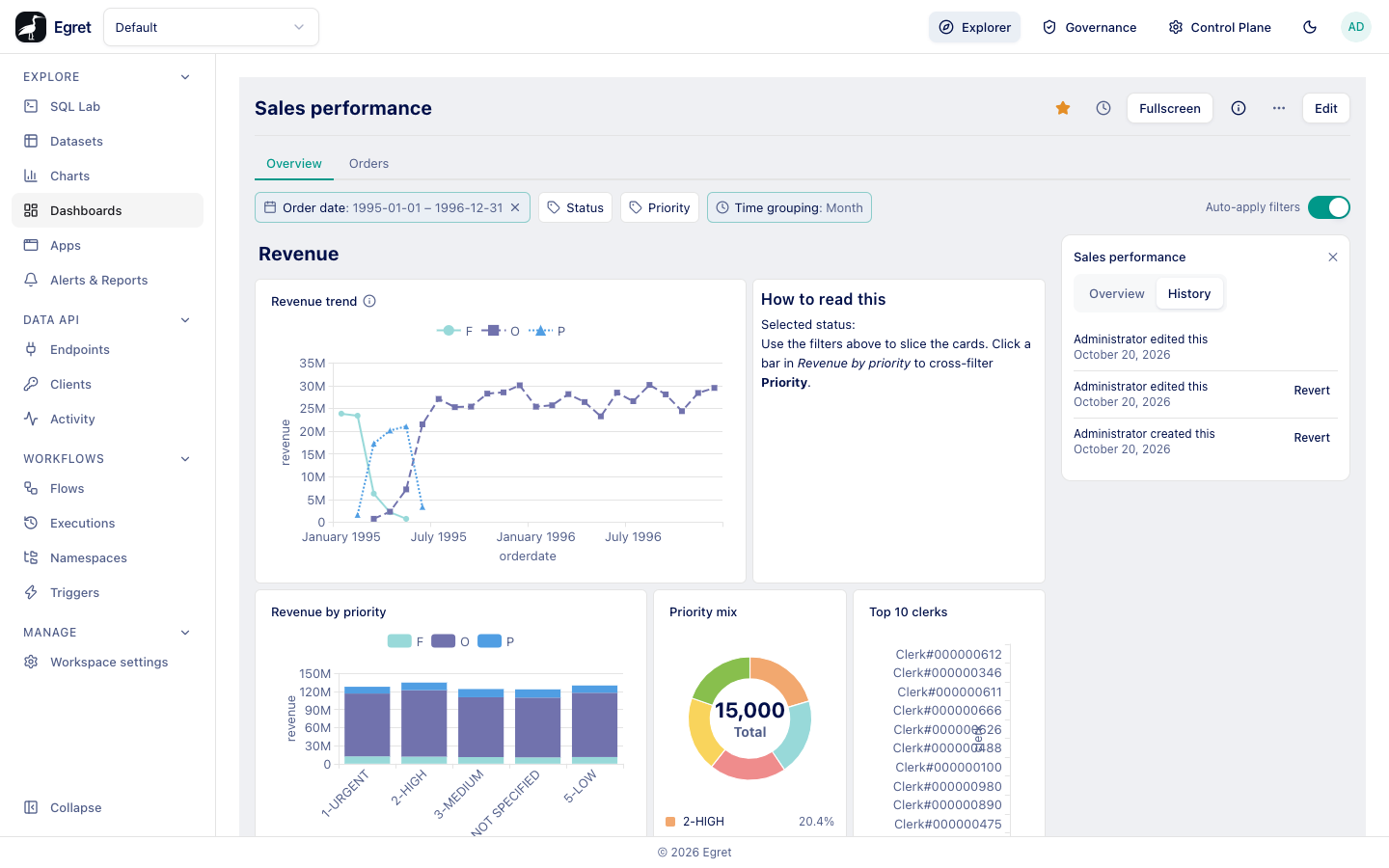
Revert to an earlier version
- Open History.
- Press Revert on the version you want.
- A toast says "Reverted". The dashboard now has that version's name, description, filters, tabs, width and cards.
A revert asks for no confirmation. It is itself recorded as a new "reverted" entry at the top, so you can undo a revert by reverting again. Nothing is deleted when you revert; the versions that were newer than the one you chose stay in the list.
What a version contains
A version is a snapshot of everything you can save in the editor: the dashboard's name, description, filters, tabs, width and every card with its position, size and settings. It does not include the charts themselves. If a chart was edited or deleted after the version was saved, the reverted card shows the chart as it is now, or "Chart not found".
Egret keeps the 20 most recent versions of each dashboard and drops the oldest ones. History starts when the dashboard is first saved after revisions were introduced; for an older dashboard that has not been saved since, the tab says "No history yet — this dashboard hasn't been saved since revisions were turned on."
Reading the history needs the dashboard:read permission, and the names shown are the people who saved. Revert needs dashboard:manage, because it writes.
Certification
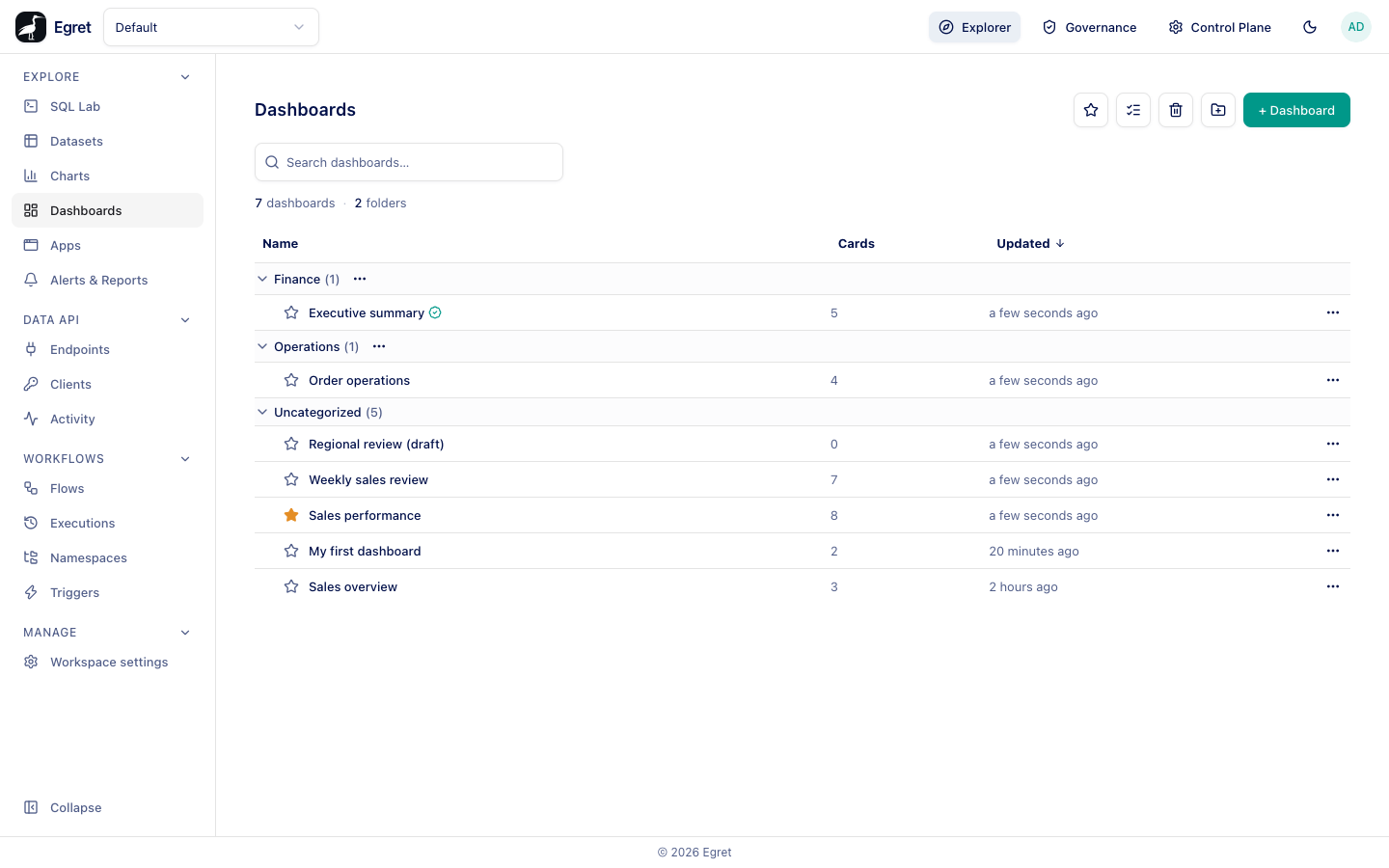
A certified dashboard carries a green check mark in the Dashboards list and a Certified row in the info sidebar. It tells readers that someone with the authority to say so has reviewed it.
Certify a dashboard
- Open the info sidebar.
- In Overview, optionally type a reason in the box "Why is this trusted? (optional)".
- Press Certify this dashboard. A toast says "Certified".
To withdraw, press Withdraw certification; the toast says "Certification withdrawn".
Certifying needs the platform permission dashboard:certify. Being allowed to edit a dashboard does not imply it, so an editor cannot certify their own work. Platform administrators have the permission. People without it do not see the certification controls at all, but they do see the check mark and the Certified row.
Certification is changed only through this control, never by saving the dashboard, so editing a certified dashboard does not withdraw its certification and does not add a history entry. Each change is recorded in the audit log as dashboard:certify or dashboard:uncertify. The certification date is not shown, and the note appears only in the tooltip of the Certified row.
Limits and known issues
- The info sidebar is not shown while you are editing.
- History keeps 20 versions per dashboard; there is no way to pin one.
- A card's own settings changes are part of the version; chart edits are not.