Schedules and limits
The Schedule tab of the alert or report editor says when the item runs and how it behaves around that moment: how long it stays quiet after firing, how long a stuck run may hold, and how long history is kept. Alerts, Data API alerts and reports share this tab.
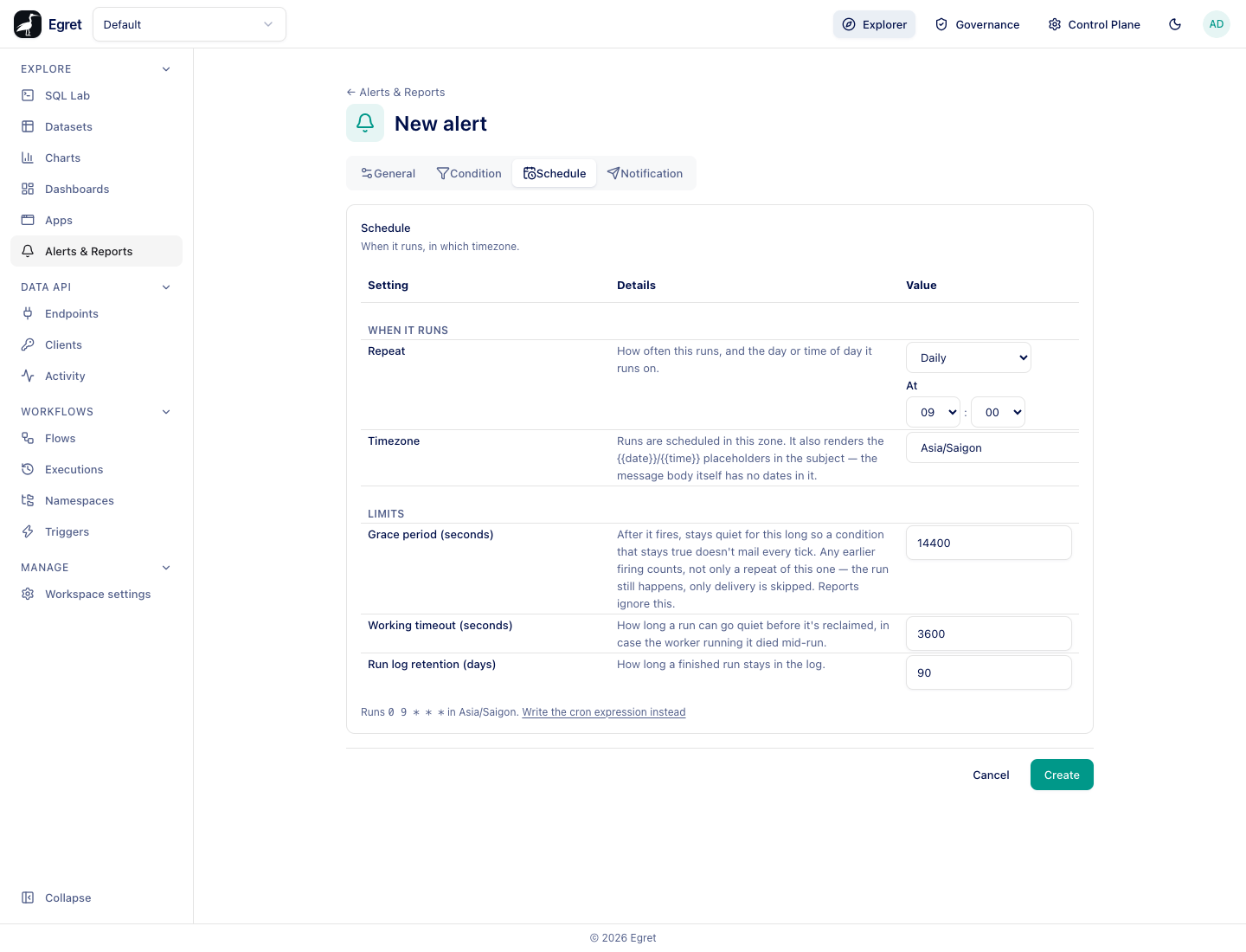
When it runs
Repeat
Choose how often the item runs. The form builds a cron expression from your choice.
| Repeat | Extra choices | Cron it builds |
|---|---|---|
| Every N minutes | Every: 1, 2, 5, 10, 15, 20 or 30 minutes. | */15 * * * * |
| Hourly | Every: 1, 2, 3, 4, 6, 8 or 12 hours, and At a minute past the hour (00, 05, 10 … 55). | 30 * * * * for every hour, 30 */4 * * * for every four hours |
| Daily | At: an hour (00 to 23) and a minute (in steps of five). | 0 9 * * * |
| Weekly | On: a weekday, and At an hour and minute. | 0 8 * * 1 |
| Monthly | On day: a day from 1 to 28, and At an hour and minute. | 0 8 1 * * |
An N-hour schedule counts from midnight, so every four hours runs at 00:30, 04:30, 08:30 and so on. Monthly stops at day 28 so the schedule exists in every month.
A new item defaults to Daily at 09:00. The line under the form shows what you chose, for example Runs 0 9 * * * in Asia/Saigon, with a link Write the cron expression instead.
Cron expression
The link switches to a Cron expression box. It takes five fields, as in crontab: minute, hour, day-of-month, month, day-of-week. Use it for a schedule the form cannot express, such as every weekday at 08:30 (30 8 * * 1-5). An invalid expression is refused when you save: invalid crontab: Invalid pattern: Pattern must have between 5 and 7 fields. An existing item that was saved with a custom expression opens in this box.
The list shows each item's schedule in words (Every 15 minutes, Every day at 08:00) and its Next run.
The scheduler checks for due items on a fixed interval, 30 seconds by default (automation.tick_interval_secs). An item runs at its next tick after it becomes due, so a run can start up to one interval late. Items that fall due together run one after another: on the demo stack twelve items due at 12:10:00 started between 12:10:18 and 12:11:21, the slow PNG and PDF renders holding up the rest. While an item waits its turn the list shows Working.
Timezone
Runs are scheduled in this zone, so "daily at 09:00" stays at 09:00 local time across daylight-saving changes. The timezone also renders the {{date}} and {{time}} placeholders in the email subject. New items default to the browser's zone. An unknown zone is refused: unknown timezone: Mars/Base.
Limits
Grace period (seconds)
After an alert fires, it stays quiet for this long so a condition that stays true does not send a message on every run. Any earlier firing inside the window counts, not only a repeat of the same one. During the grace period the run still happens and is recorded as On grace; only delivery is skipped.
The default in the editor is 14,400 seconds (four hours). Set 0 to notify on every run that meets the condition. Reports ignore the grace period.
A run counts as having fired once the condition was met, even if delivery then failed. A destination that was down therefore still starts the grace period.
Working timeout (seconds)
How long a run can go quiet before it is reclaimed, in case the worker running it died. Default 3,600 seconds. A run older than this is released and can be picked up again.
Run log retention (days)
How long a finished run stays in the run log. Default 90 days.
What a manual run does
Run now in the list runs the item immediately through the same code the scheduler uses. It is subject to the same condition test and the same grace period.
Limits and known issues
- The schedule is evaluated by the Egret server's scheduler; if the scheduler is disabled (
automation.enabled = false), nothing runs and Next run keeps counting down. - Items run no more often than the scheduler tick.