Reports
A report delivers a dashboard or a chart to a list of recipients on a schedule, so people who never open Egret still see the numbers. Use a report for the Monday sales summary or a daily CSV of one chart's data.
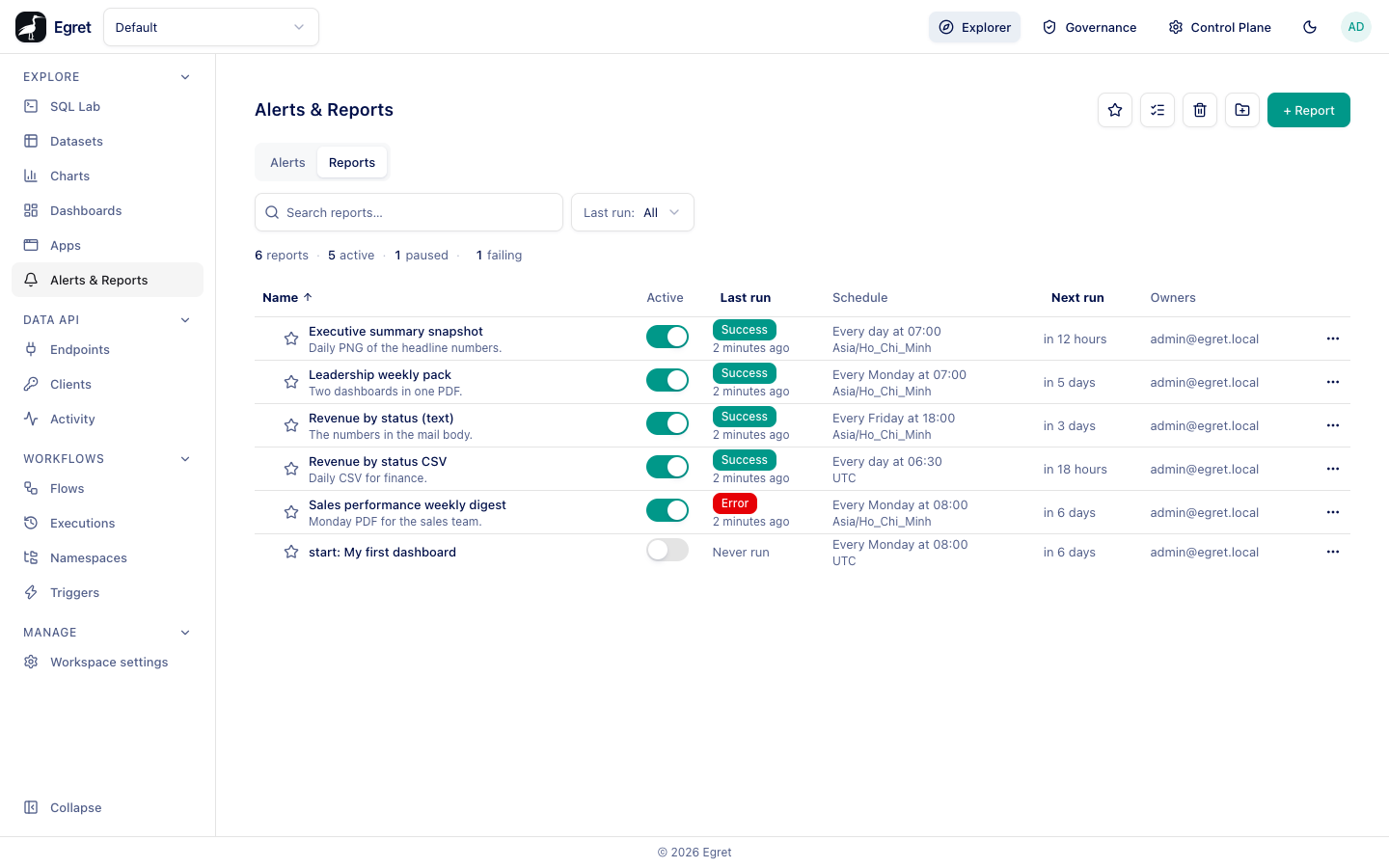
Create a report
- Go to Explore → Alerts & Reports, open the Reports tab and press + Report.
- On General, name the report and choose its owners.
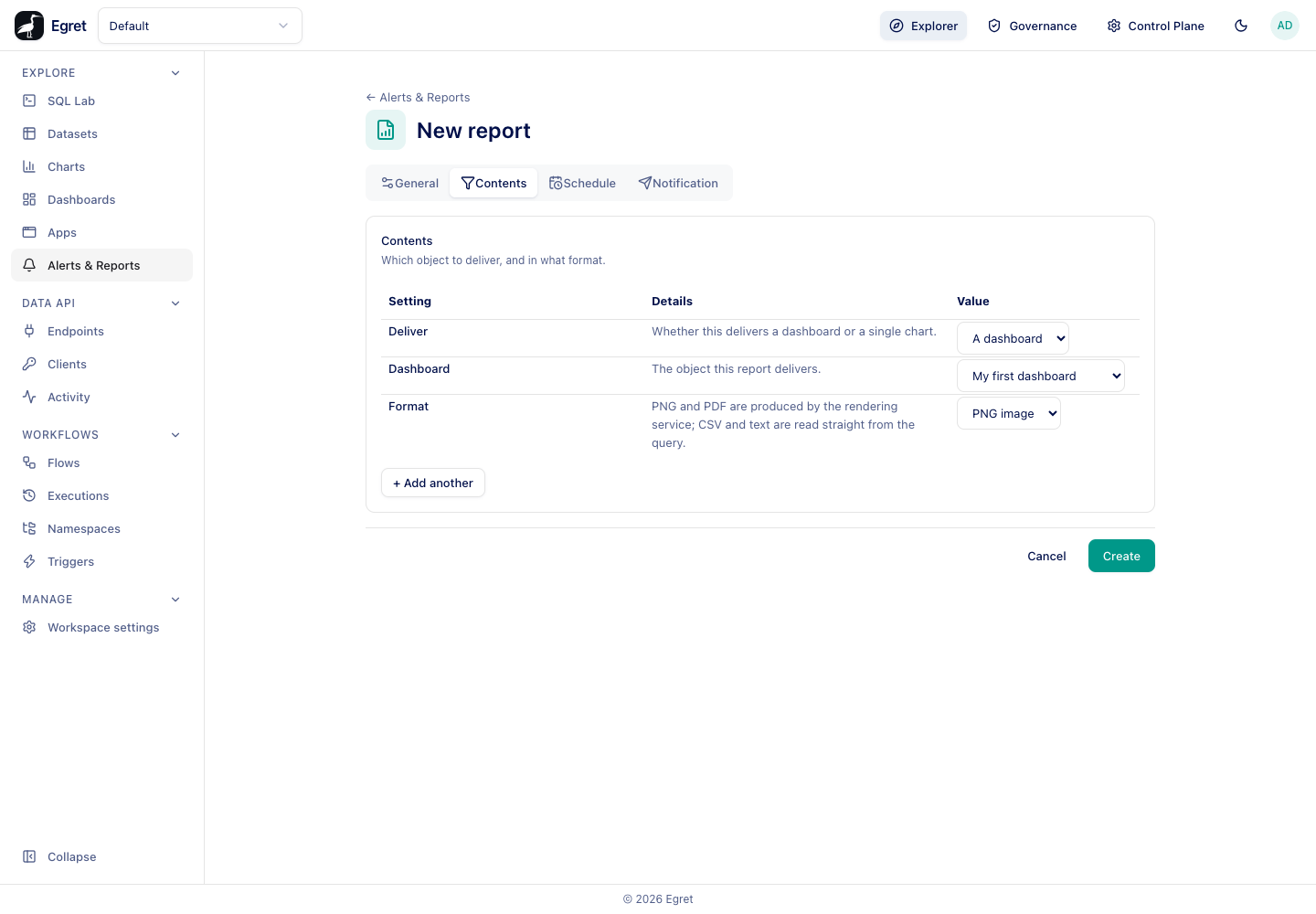
- On Contents, choose what to deliver and in which format.
- On Schedule, choose when it runs. See Schedules and limits.
- On Notification, add destinations and write the message. See Notifications.
- Press Create.
The General tab is the same as for an alert. A report has no condition: it delivers on every run. You can also start a report from a dashboard: Subscribe… in the dashboard's row menu opens this form with the dashboard already chosen.
Contents
| Setting | What it does |
|---|---|
| Deliver | A dashboard or A chart. |
| Dashboard or Chart | The object to deliver. The label follows the choice above. |
| Also include dashboard or Also include chart (via + Add another) | Adds another object of the same kind as an extra page of the same document. One report cannot mix dashboards and charts. |
| Format | PNG image, PDF, CSV data or Text. |
Formats
| Format | What recipients get | Needs the renderer |
|---|---|---|
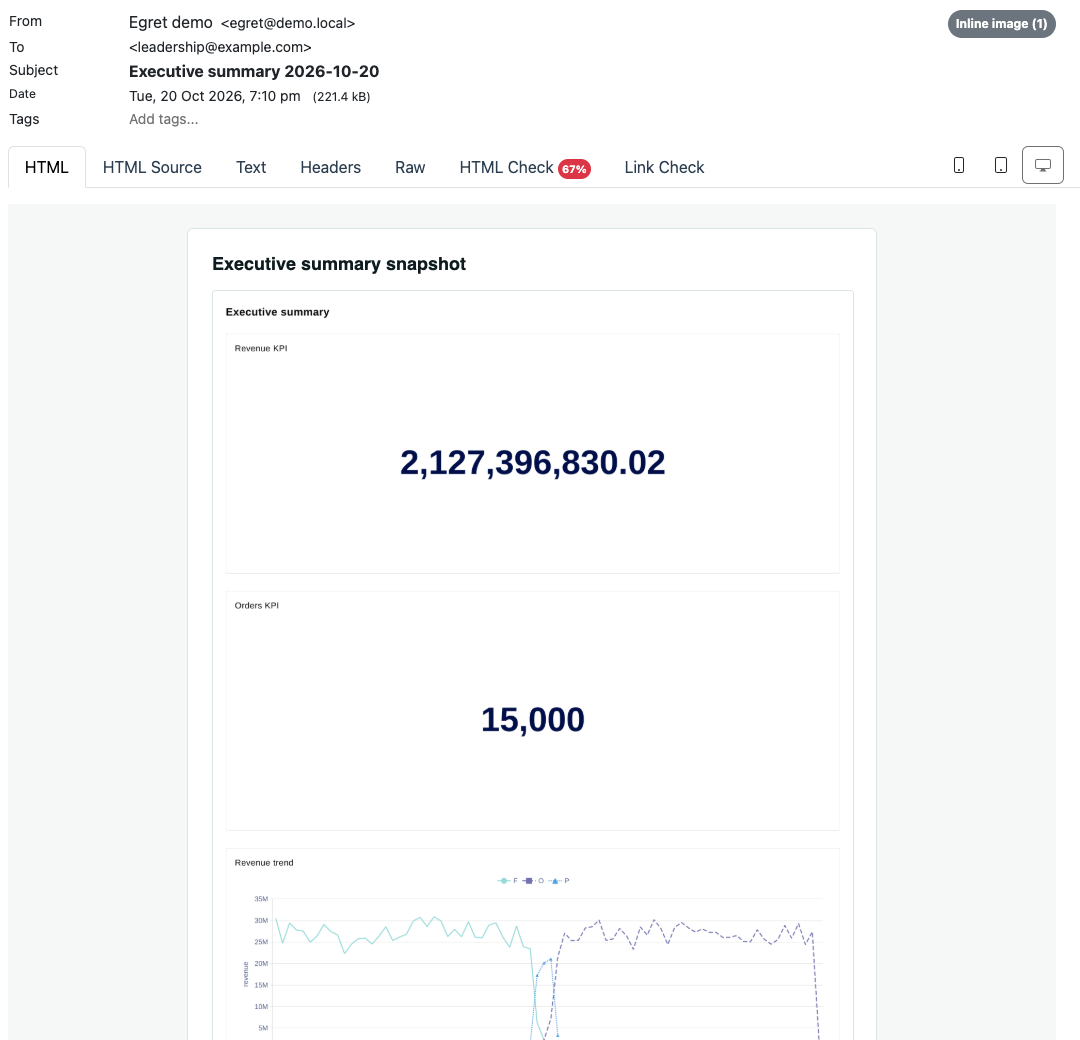
| PNG image | The picture inside the email body, not as a file. | Yes |
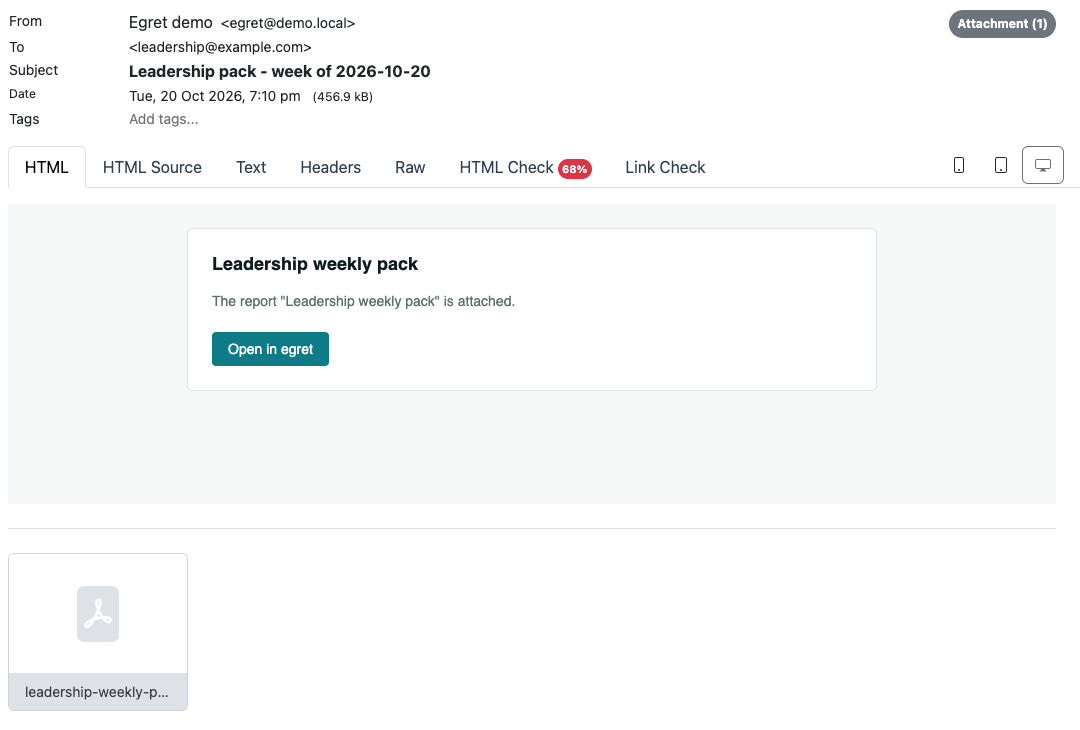
A file attached to the email and named after the report, for example leadership-weekly-pack.pdf. Several objects are always delivered as one PDF with one sheet per object, so the format switches to PDF when you add a second object. | Yes | |
| CSV data | The data behind the chart as an attached .csv file with a header row. | No |
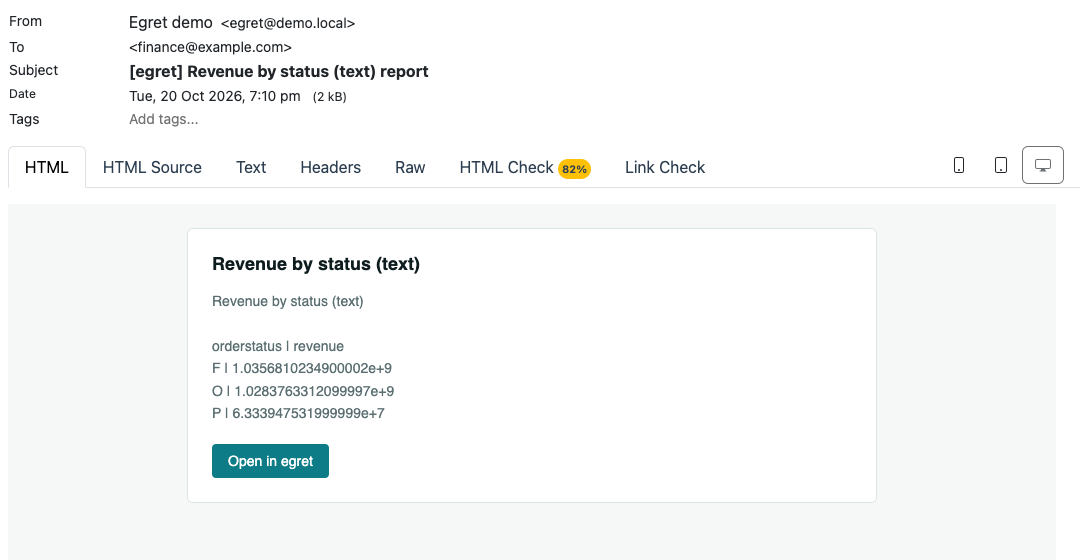
| Text | The data as a plain table in the message body, one row per line, for example F | 1.0356810234900002e+9. | No |
CSV and text read the chart's query result directly. Numbers are written as the engine returned them, so a large decimal appears in scientific notation (1.0356810234900002e+9) instead of 1,035,681,023.49 (KI-169).
What recipients get
A report sends one email to all the addresses of an email destination. The subject is your Email subject, or [egret] <report name> report when you leave it blank. The body has the report name as a heading, your Opening note, the result (the picture for PNG, a line saying the file is attached for PDF and CSV, the table for text), your Closing note, and an Open in egret button that links to the first object.
PNG and PDF need the renderer
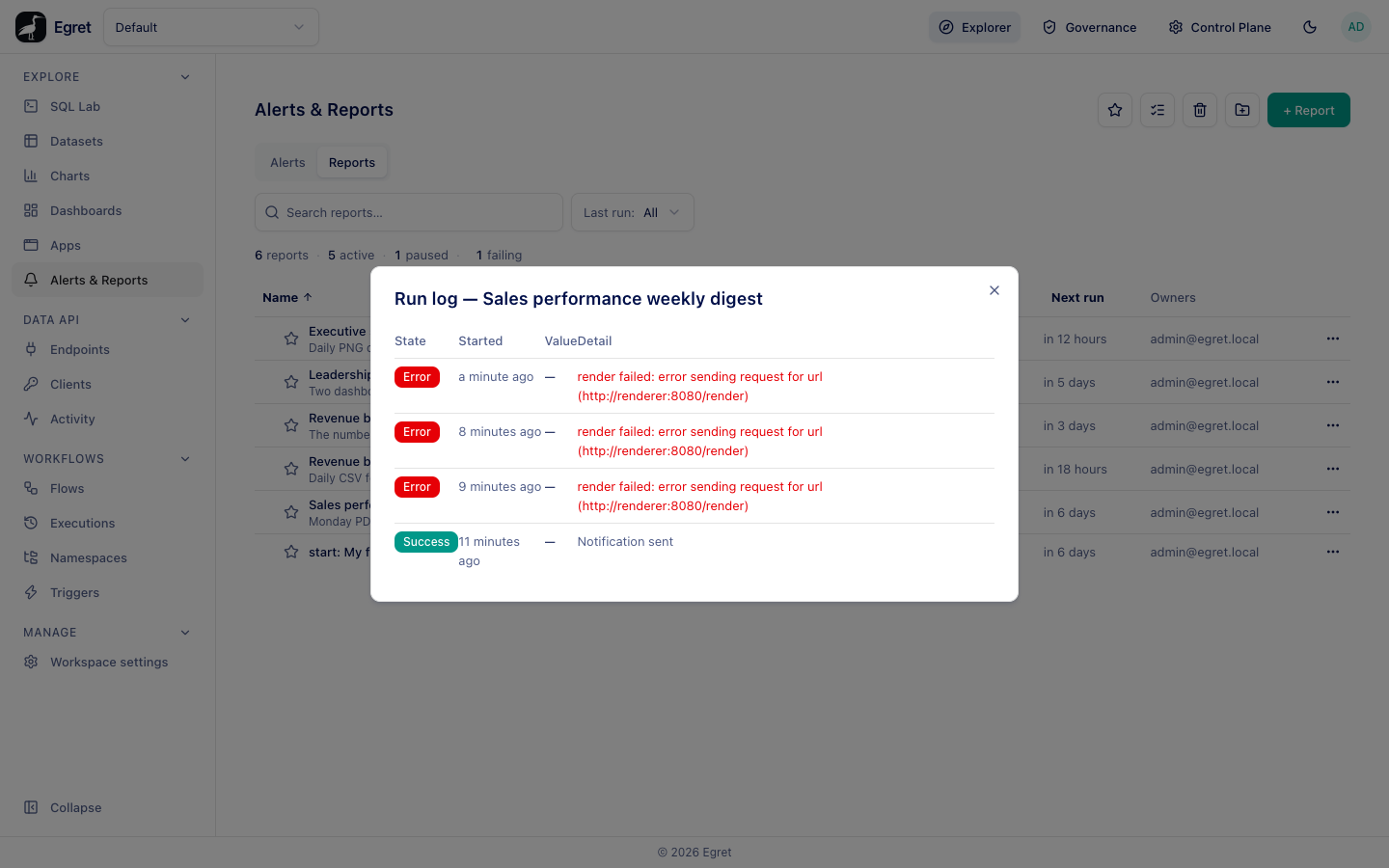
Charts and dashboards are drawn in a browser, so PNG and PDF reports are produced by a separate rendering service (egret-renderer). Egret asks it to open a print page for each object (what the print page draws), waits until every chart has drawn, and captures the page. If the service is not deployed or cannot be reached, the run fails and the run log shows the cause, for example render failed: error sending request for url (http://renderer:8080/render).
The Docker demo stack runs the renderer and sends every email to Mailpit (http://localhost:8025), which is where the pictures on this page come from. Nothing leaves the machine.
On the demo stack a one-dashboard PNG took about 10 seconds, and the six-card Sales performance dashboard about 20 seconds as a PDF. Egret waits at most 30 seconds for the whole render, and the renderer draws the objects of a multi-object PDF one after the other. A report whose objects together take longer fails with the same render failed: error sending request … message although the renderer is up (KI-167).
A worked example
These reports were created on the demo workspace and run with Run now and on their schedule:
| Report | Deliver | Format | Result |
|---|---|---|---|
| Revenue by status CSV | Chart Revenue by status | CSV data | Success. finance@example.com received revenue-by-status-csv.csv. |
| Revenue by status (text) | Chart Revenue by status | Text | Success. The three rows were in the message body. |
| Executive summary snapshot | Dashboard Executive summary | PNG image | Success. The picture was in the message body. |
| Leadership weekly pack | Dashboards Executive summary and Weekly sales review | Success. A two-page PDF, one dashboard per page, rendered in about 26 seconds. | |
| Sales performance weekly digest | Dashboards Sales performance and Executive summary | Error on every run: render failed: error sending request for url (http://renderer:8080/render), the 30-second limit above. |
A successful run shows Notification sent in the run log's Detail column; a failed one shows the error. See Run history.
Reports and grace
Reports ignore the grace period. A report that runs on its schedule always delivers.
Limits and known issues
- The rendered pages show chart cards only, each under its chart's own name. Text and heading cards, card title overrides and tabs are not reproduced; see Export, reports and print (KI-073).
- A multi-object PDF fails when its renders take longer than 30 seconds together (KI-167).
- CSV and text reports write unformatted numbers (KI-169).
- The opening and closing notes appear in the HTML part of the email only; the plain-text part has the result line alone (KI-170).
- Report subjects accept the same placeholders as alerts, for example
Weekly sales overview - {{date}}.