Access Explorer
The Access Explorer answers "what can this person reach?" and "who can reach this object?" with full provenance: for every line it says whether the access is direct, comes through a group, or comes through workspace membership. Use it before you grant access, and when someone reports they can see (or cannot see) something.
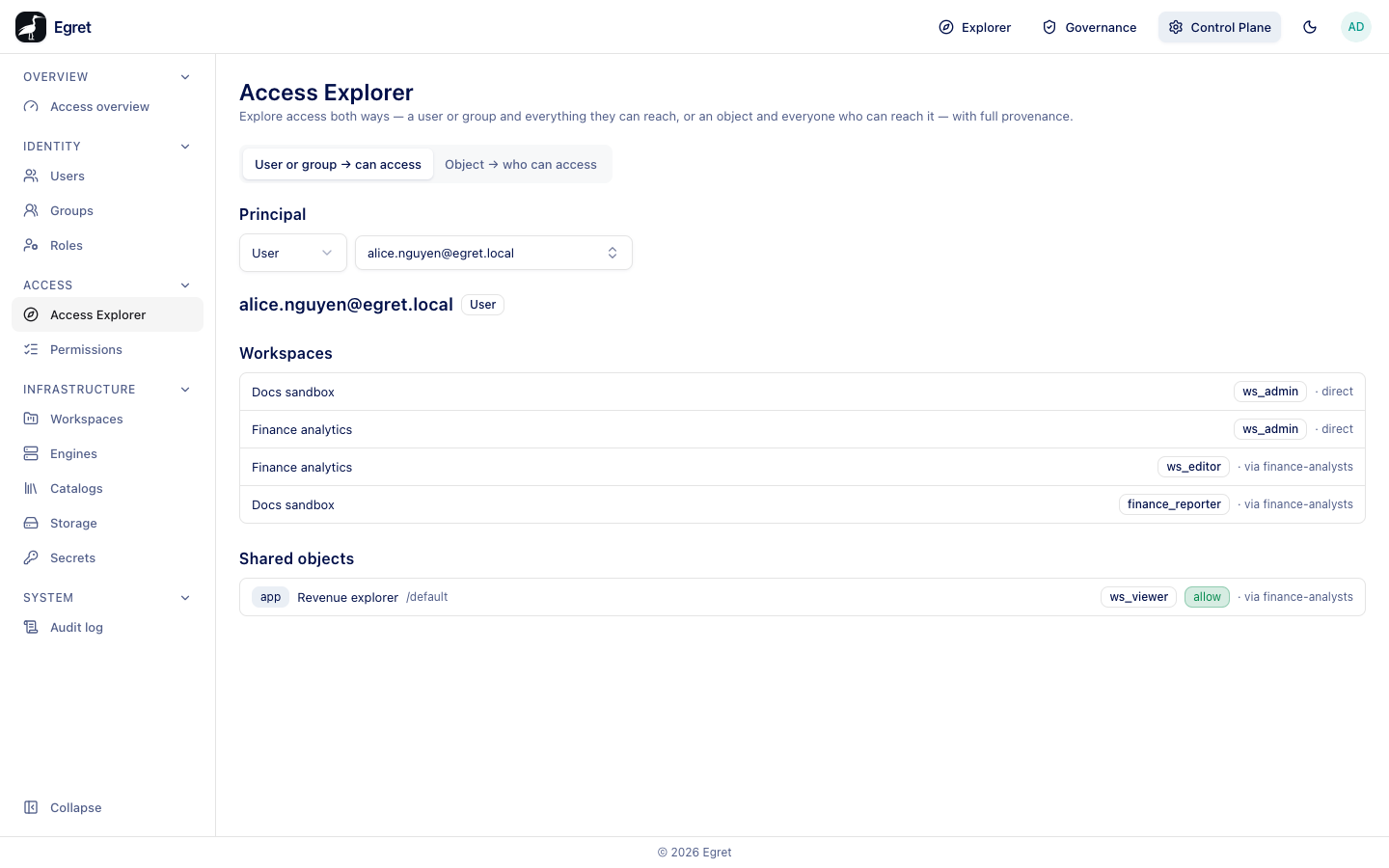
You need role:read to open the page. Two tabs switch the direction.
User or group → can access
- Open Control Plane → Access → Access Explorer.
- Under Principal, choose User or Group.
- Open the picker (Select a user…), search, and pick a person or group.
The result has two sections:
| Section | What it lists |
|---|---|
| Workspaces | Each workspace the principal belongs to, with the workspace role and where it comes from. |
| Shared objects | Each object shared with the principal: the kind (dashboard, folder, and so on), the name, the workspace, the role, the allow or deny effect and the source. |
The source reads direct for access given to the person, or via <group> when it comes through a group. For example, alice.nguyen@egret.local holds ws_admin on Docs sandbox and Finance analytics directly, ws_editor on Finance analytics and finance_reporter on Docs sandbox via finance-analysts, and sees an app shared with that group.
Object → who can access
- Select the Object → who can access tab (
?dir=object). - Choose the workspace (Select a workspace…).
- Choose the object (Select an object…), for example dashboard · Finance KPIs.
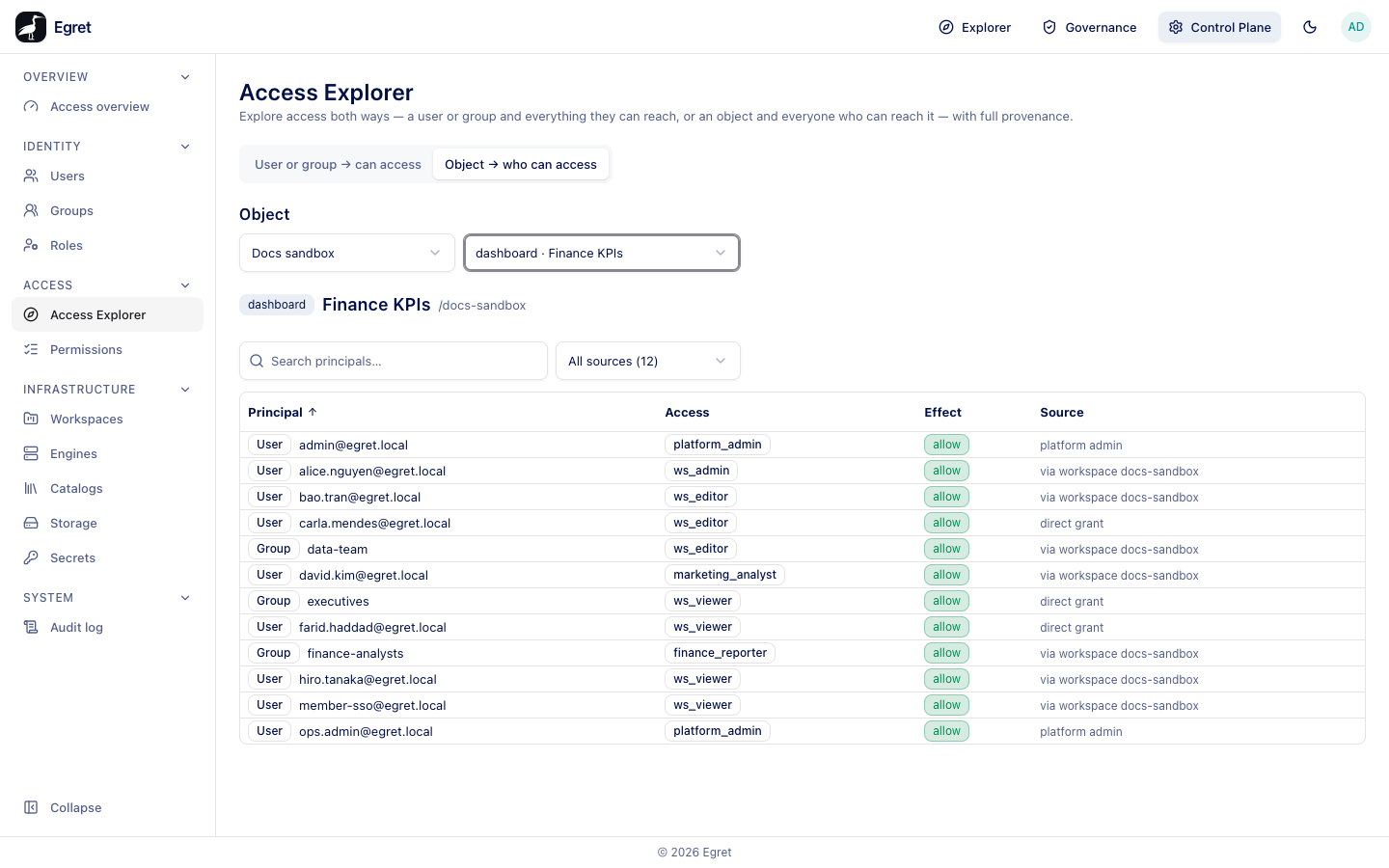
The result lists every principal that can reach the object. The header shows the kind, name and workspace. A filter, All sources (10) for Finance KPIs on the demo stack, narrows by source. The columns are:
| Column | Meaning |
|---|---|
| Principal | A User or Group. |
| Access | The role: platform_admin, ws_editor, ws_viewer. |
| Effect | allow (or deny for a blocked principal). |
| Source | platform admin, direct grant, or via workspace <slug>. |
The same person can appear several times when they reach the object by more than one route, for example a group that has both a direct grant and a workspace role.
The Shared objects page of a workspace links here: Actions → Who can access? opens this tab with the object preselected.
What the Explorer covers
The Explorer answers about the platform layers: identity, workspace roles and object grants. It does not evaluate data-plane access to tables and columns. For that, use Explain access in Governance.
Examples
- A user reports they cannot open a dashboard. Open the object direction, pick the dashboard, and look for the user or one of their groups. If the line is missing, share the object or add them to the workspace. If it is there with a blocked effect, remove the block.
- Offboarding. Pick the user and read every workspace and shared object. Remove or disable accordingly.
Limits and known issues
- The object list shows objects of the workspace you pick; it does not search across workspaces.
- The Explorer shows access, not a history. Use the Audit log to see who changed it.