Fullscreen and auto refresh
A dashboard on a wall screen or a second monitor needs two things: it should fill the screen, and it should keep itself up to date. Egret has a Fullscreen button and an auto-refresh timer for this. Both are options of the page you are looking at, not settings saved with the dashboard.
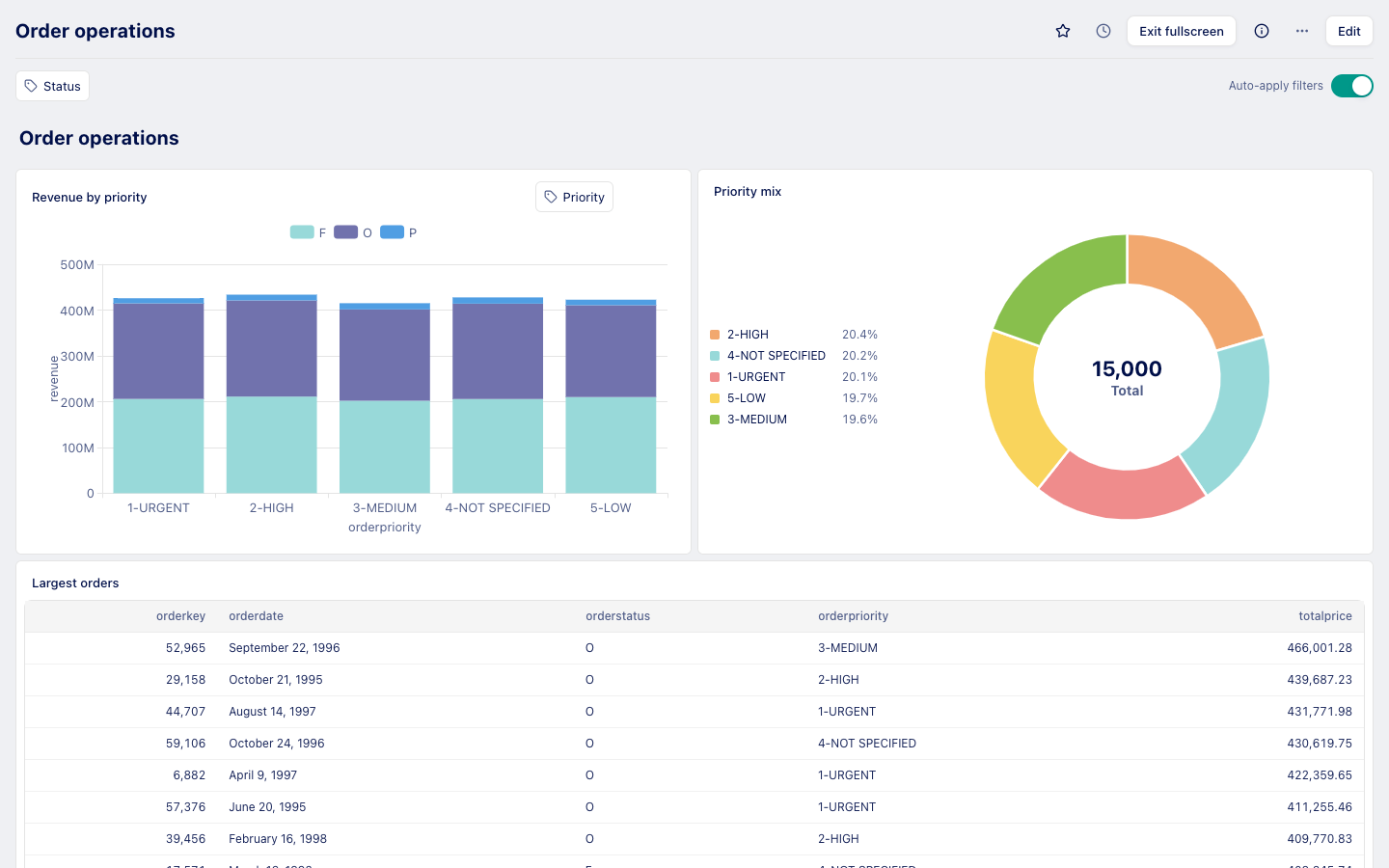
Show a dashboard fullscreen
- Open the dashboard.
- Press Fullscreen in the header. The sidebar and top bar disappear and the dashboard fills the window. Egret also asks the browser to switch to its own fullscreen mode, which some browsers refuse without a recent click; the dashboard fills the window either way.
- Press Exit fullscreen (the same button) to go back to the normal page.
The header keeps the bookmark star, the refresh clock, Exit fullscreen, the info button, ⋯ and Edit, so you can still change filters and refresh in fullscreen. Filters stay above the cards.
Fullscreen is stored in the address as fullscreen=true. Open a link that contains it and the dashboard starts fullscreen.
Refresh the cards
The clock button in the header opens a popover with two parts.
| Control | What it does |
|---|---|
| Refresh now | Runs every card's query again immediately. |
| Auto Refresh | Runs every card's query again on a timer. Choose Off, 1 minute, 5 minutes, 10 minutes, 15 minutes, 30 minutes or 60 minutes. A check mark shows the active choice. |
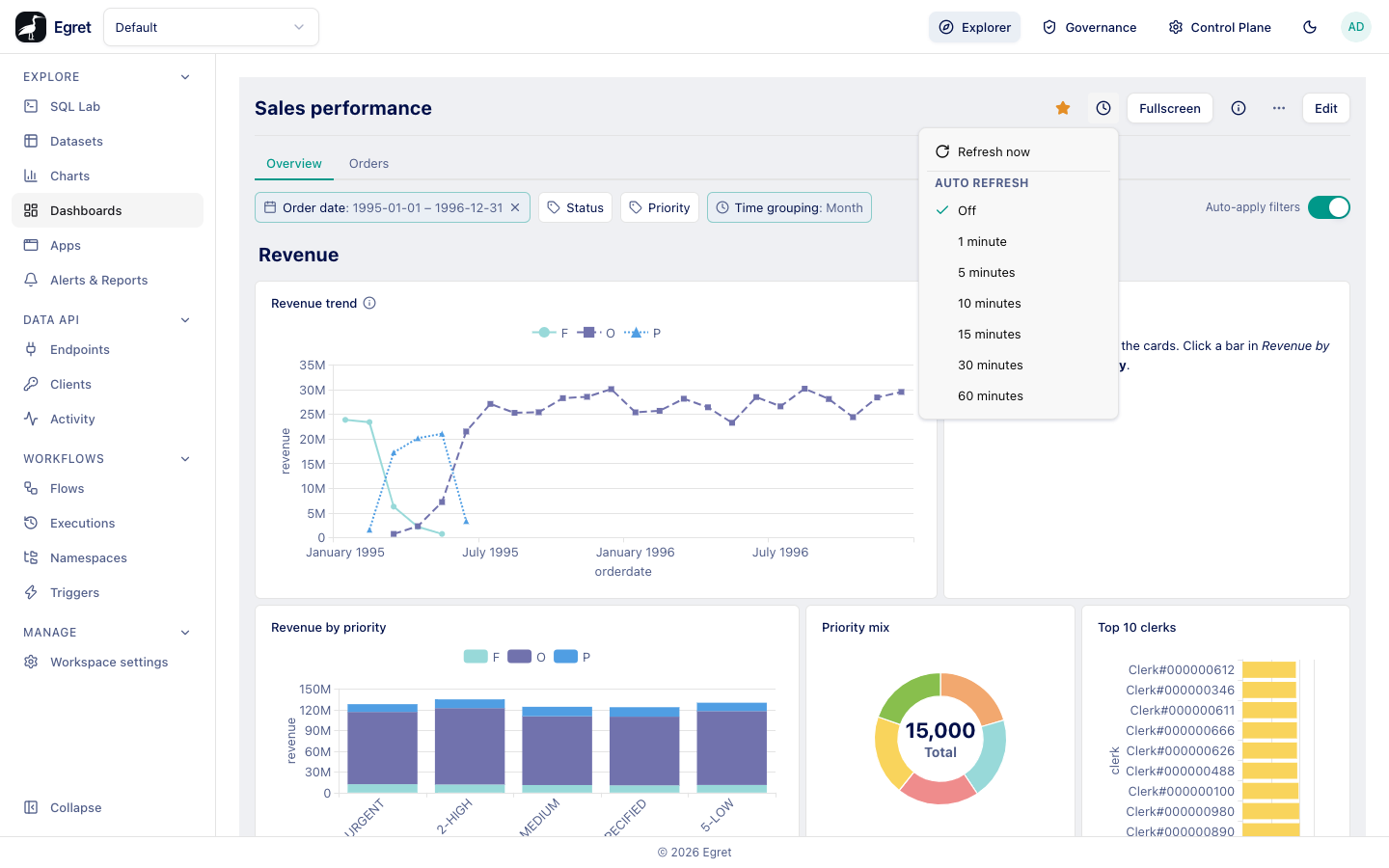
When auto refresh is on, the clock icon becomes a ring that empties as the next refresh approaches. Hover the button to read "Refreshing in m:ss". Each refresh restarts the countdown, and so does choosing a different period.
Auto refresh is stored in the address as refresh=<seconds>, for example refresh=300 for five minutes. A value that is not a positive whole number is ignored. Because the choice lives in the address, it is not saved on the dashboard, other people are not affected, and it is gone when you open the dashboard from the list again.
What a refresh does
A refresh sends the query of every card again with the current filter values; the page, the filters and the layout are not reloaded. A card that is hidden because it has no results (Cards and card settings) is checked again too, so it can reappear.
There is no dashboard-level cache setting. Egret does not hold a result between refreshes; each request runs the query on the engine, so a short refresh period on a slow query adds load there.
Set up a wall display
To make a dashboard that refreshes by itself on a screen:
- Set the filters the way the screen should show them.
- Press Fullscreen and choose an auto refresh period.
- Copy the address. It now holds
fullscreen=true,refresh=…and the filter values. - Open that address on the screen's browser, signed in as a person who can view the dashboard.
There is no separate kiosk mode: the screen uses an ordinary signed-in browser session. When the session expires, the cards cannot reload until someone signs in again.
Other view options
- Narrow screens. When the canvas is narrower than 753 px, as on a phone, the cards stack in one column in reading order, and the header wraps so that every control stays reachable.
- Theme. The sun and moon button in the top bar switches between the light and dark theme for the whole app, including dashboards.
- Width. The dashboard's fixed or full width is chosen by its editors (Edit a dashboard).
- Shortcuts.
eedits,obookmarks,]opens the info sidebar,1to9select a tab. See Edit a dashboard.
Limits and known issues
- Auto refresh and fullscreen are per address, not per dashboard or per person.
- There is no choice shorter than one minute and no custom period in the menu; the address accepts any positive number of seconds.