Cards and card settings
Everything on a dashboard grid is a card. A card is either a saved chart or one of four content cards: heading, text, link and iframe. This page lists what each card does and every setting you can change on it in edit mode.
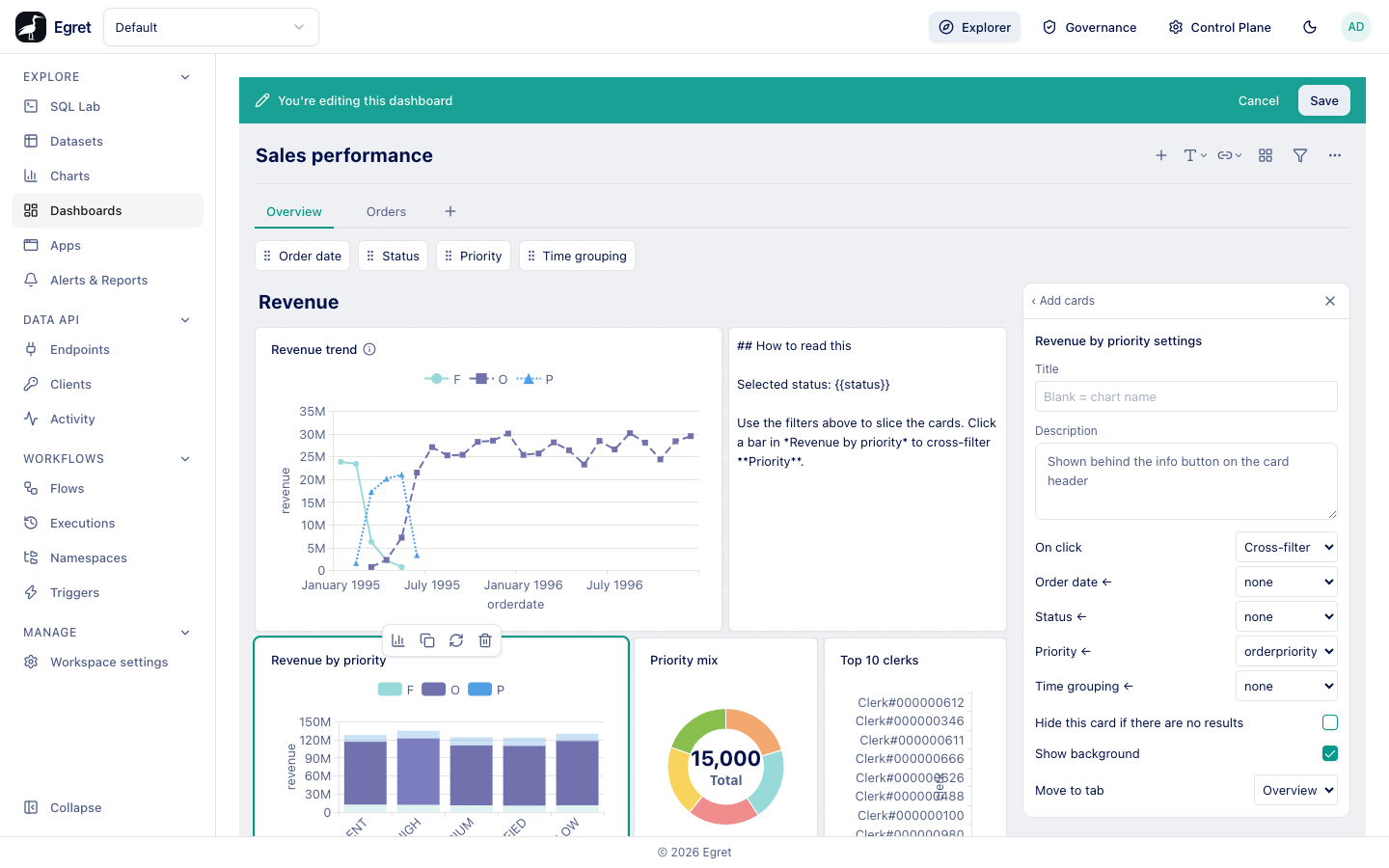
Open the settings of a card
- Press Edit on the dashboard.
- Click the card. A ring marks it and the side panel shows its settings, headed "chart name settings" for a chart card, or Heading, Text, Link or Iframe for the others.
- Change the settings. Changes are part of the draft until you press Save.
The panel has a ‹ Add cards link at the top to go back to the chart list.
Chart cards
A chart card shows a saved chart with its own data. When the dashboard has filters, the card's query runs with the values of the filters that are connected to it (Dashboard filters).
On the card in view mode:
- The title is the chart's name unless you set a different one. A small info icon after the title opens the card description.
- On hover, a pencil (Edit question) opens the chart in the chart editor, and a download button opens the data export (Export, reports and print). The pencil and the title link are not shown if the title is hidden.
- Clicking a value follows the card's click behaviour (Interactivity).
If the chart has been deleted, the card shows "Chart not found". If a required filter has no value, it shows "Set the required filters to load this card".
Settings
The settings appear in this order.
| Setting | What it does | Default |
|---|---|---|
| Title | Replaces the chart's name as the card caption. | Chart name |
| Description | Text shown in a popover behind the info icon in the card header. Line breaks are kept. | None |
| On click | What clicking a value does: Menu, Cross-filter or Custom URL. With Cross-filter the panel lists one row per dashboard filter ("filter name ←") to choose the clicked column; with Custom URL it shows a url template box. See Interactivity. | Menu |
| Hide this card if there are no results | Removes the card from the dashboard while its query returns no rows. | Off |
| Show background | Draws the white card with a border. Off leaves the card on the dashboard background. | On |
| Move to tab | Moves the card to another tab. Shown only when the dashboard has two or more tabs. | Current tab |
Two more settings exist on some chart cards: Auto height, which is only offered for table and pivot table charts, makes the card as tall as its content while you edit and locks its height; and the Visualization button on the card toolbar, described below.
The Title box shows the hint "Blank = chart name", but this holds only until you type in it. Once you have typed and then cleared the box, the card stores an empty title and hides its caption (and with it the description icon and the title link). To get the chart name back, retype it.
Hide a card when it has no results
With Hide this card if there are no results on, the card disappears in view mode when its query returns zero rows, and reappears when rows come back, for example after you change a filter. Cards below it move up to close the gap, but a card beside it does not slide sideways, so a hole can remain in a row.
- In edit mode the card is always shown, so you can configure it.
- While the first result is loading, the card is hidden, and appears when it turns out to have rows.
- If every card on the tab hides itself, the page says "No results, so every card on this dashboard is hidden."
- A card is never hidden because a required filter is empty: it shows the required-filter message instead.
Visualization settings for one card
Press Visualization on the card toolbar to open the Visualization panel. It shows the display controls of the chart's type, such as series, legend, data labels and number formats, with the chart's current values. Change a control to override it on this card only.
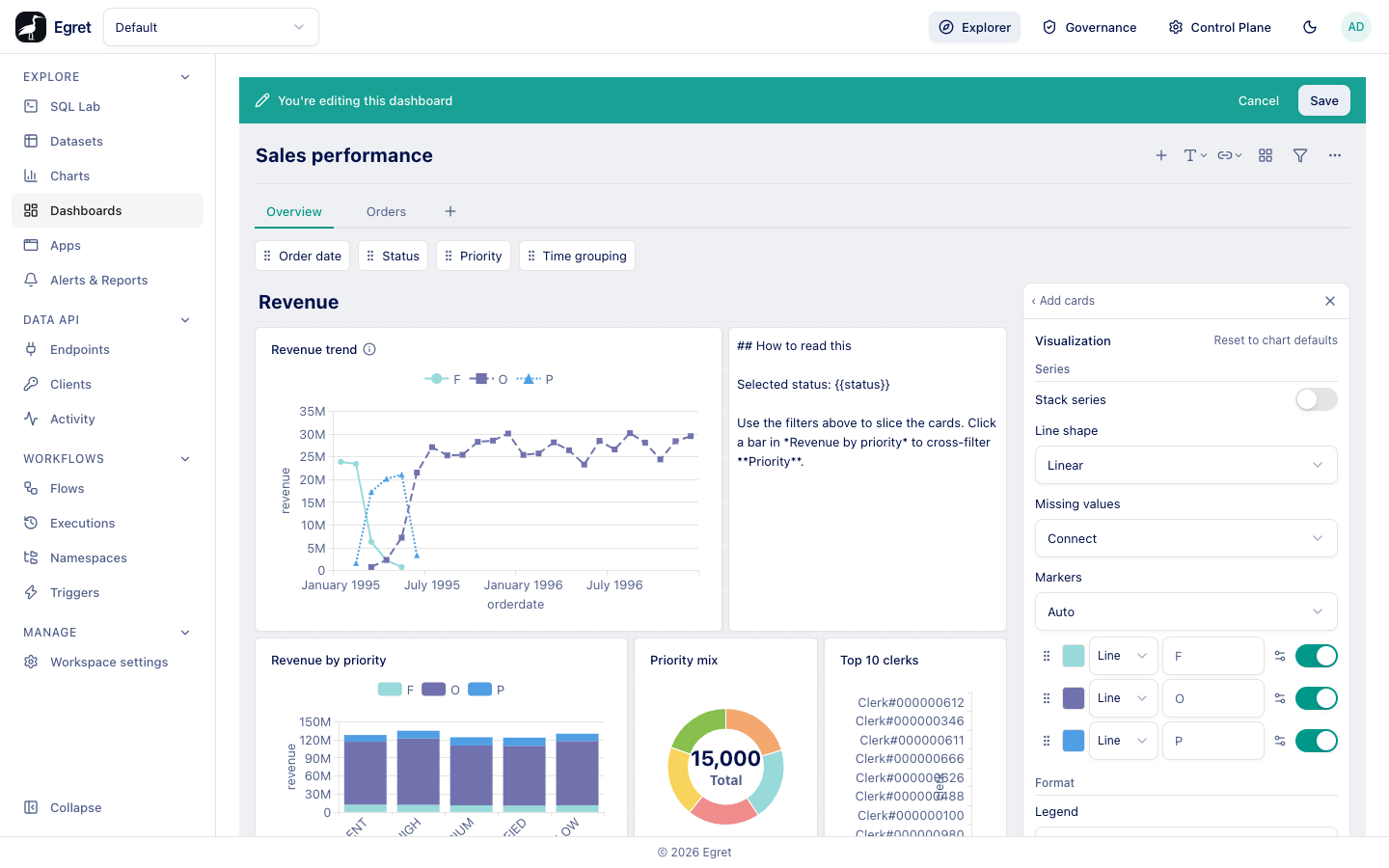
An override stores only the settings you changed, so the card keeps following the chart for everything else. The query (metrics, dimensions, filters, row limit) cannot be overridden here; edit the chart for that. Reset to chart defaults at the top of the panel removes all overrides on the card. The panel's number formats and slice lists use the card's own result, so they reflect the data under the current filters.
Heading cards
A heading is one line of large bold text, drawn without a card background (switch Show background on to add one). Press Heading in the edit toolbar's T menu, then type directly on the card. A heading can host dashboard filters at its right edge (Dashboard filters).
Text cards
A text card shows GitHub-flavoured Markdown: headings, lists, bold and italic, links, tables, code. Raw HTML is not rendered. In edit mode the card is a plain text box that shows the Markdown source; the rendered result appears in view mode.
Show a filter value in text
Write {{slug}} where slug is the filter's slug (see Dashboard filters). In view mode the placeholder is replaced by the current value, and the card's settings panel lists the slugs you can use. For example:
## Sales for status {{status}}

Showing {{order_date}}.
How values are written into the text:
| Filter value | Text shown |
|---|---|
| No value | Nothing (an empty string) |
| One value | The value |
| Several values | The values joined with a comma and a space, for example O, P |
A date filter of type all-options | [object Object] (a known defect; use a different date type if you need the value in text) |
An unknown slug is left as typed. Text cards cannot be connected to a column like chart cards; they only read filter values.
Link cards
A link card is a clickable tile to an external page.
| Setting | What it does |
|---|---|
| link url | Must start with http:// or https://. Anything else shows "No URL set". |
| link label | Optional text for the tile. Blank shows the URL. |
In view mode the link opens in a new tab. In edit mode clicking the tile opens its settings instead of following the link. Link cards cannot use a filter's value in their URL.
Iframe cards
An iframe card embeds a page from another site, such as a video or a shared document.
- In the edit toolbar open the link menu and choose Iframe. The settings panel opens.
- Paste a page address, or paste an embed snippet that starts with
<iframe, into iframe url or embed code.
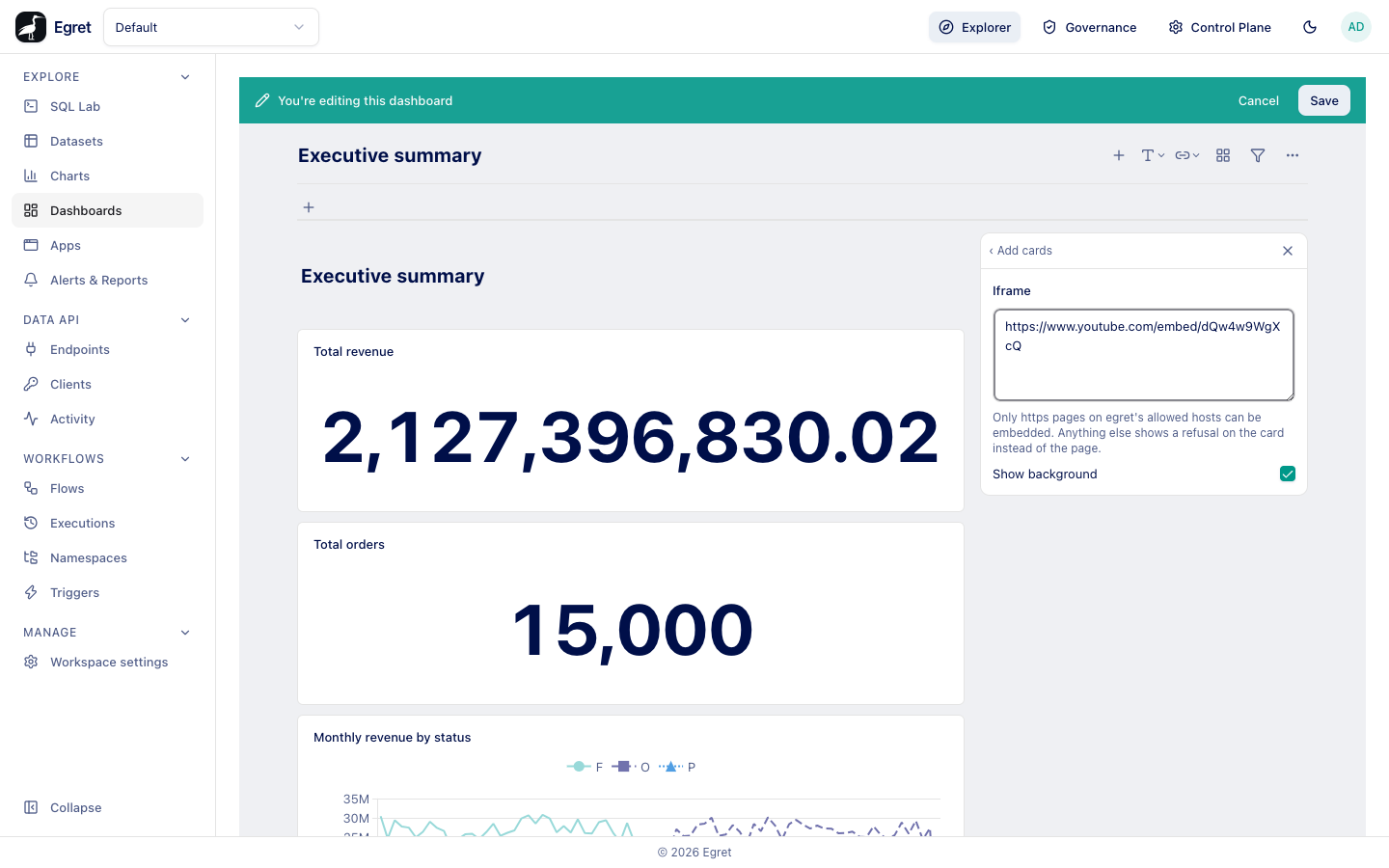
Only pages on an allow-list of hosts (and their subdomains) can be embedded; anything else shows "host can't be embedded in an iframe card" while you edit, and "There was a problem rendering this content." to viewers. A page on Egret's own address is refused too.
The allow-list is fixed in the product: youtube.com, youtu.be, loom.com, vimeo.com, docs.google.com, calendar.google.com, airtable.com, typeform.com, canva.com, codepen.io, figma.com, grafana.com, miro.com, excalidraw.com, notion.com, atlassian.com, trello.com, asana.com, gist.github.com, linkedin.com, twitter.com and x.com. YouTube, Loom and Vimeo share links are rewritten to their embed form. From a pasted snippet, Egret keeps the address, the allowfullscreen flag and a safe subset of the allow list (autoplay, clipboard-write, encrypted-media, fullscreen, picture-in-picture and a few others); it drops everything else, so a snippet cannot request camera or microphone access. The frame is sandboxed and cannot navigate the Egret tab.
Iframe cards have no title, no description, no auto height and cannot host filters. They have Show background and Move to tab.
Common settings of content cards
| Card | Settings |
|---|---|
| Heading | Auto height, Show background (off by default), Move to tab |
| Text | Auto height, Show background, Move to tab |
| Link | link url, link label, Auto height, Show background, Move to tab |
| Iframe | iframe url or embed code, Show background, Move to tab |
Limits and known issues
- A space or Enter typed into a heading or text card in edit mode is not inserted; paste the text instead. See Edit a dashboard.
- The card description supports plain text only.
- Text cards show
[object Object]forall-optionsdate filters.