Use filters and URL parameters
When you open a dashboard that has filters, you see them as chips above the cards. This page explains how to set them, how changes reach the cards, and how to share a dashboard with the filters already set. To add filters to a dashboard, see Dashboard filters.
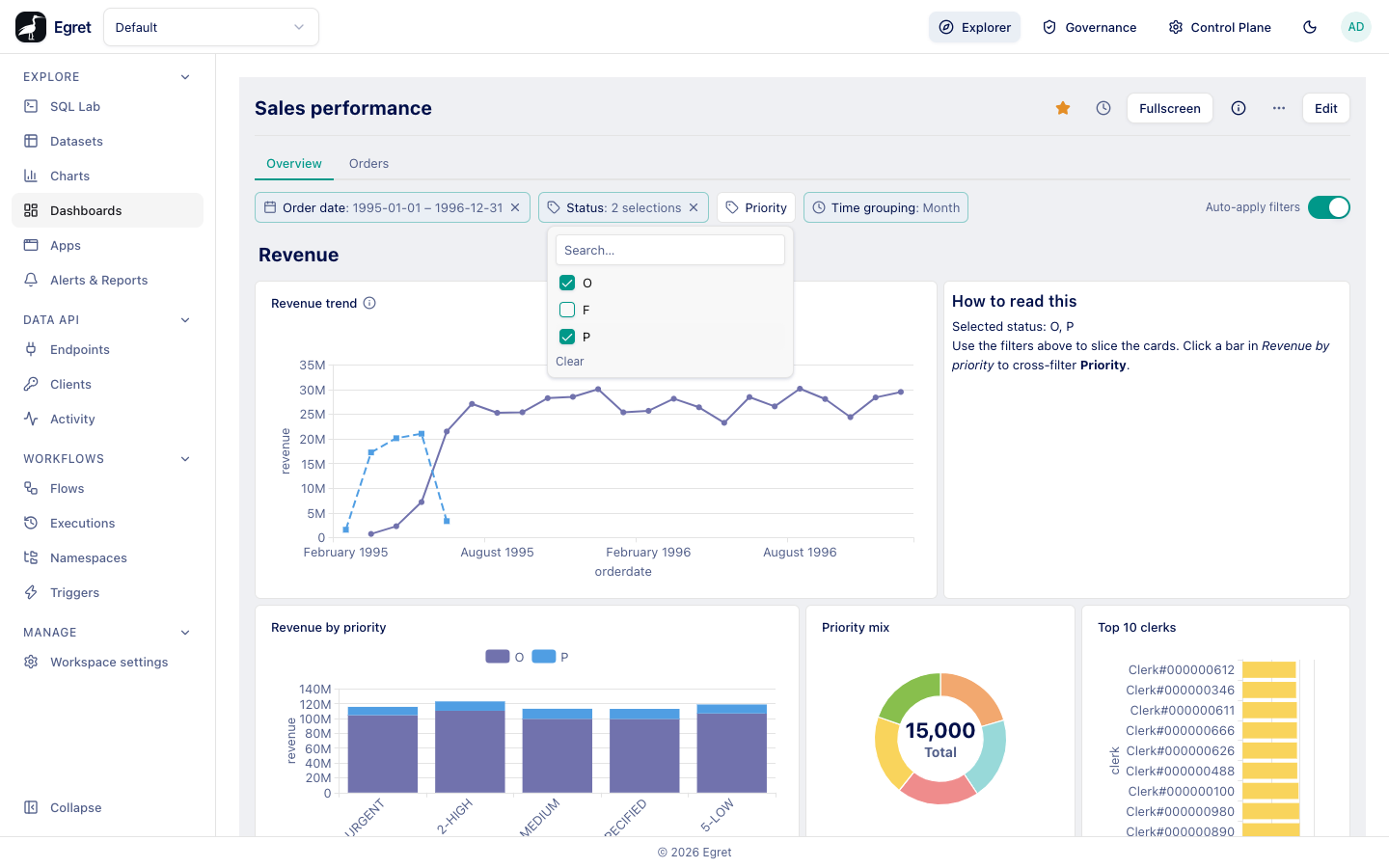
Set a filter
- Click a chip. A popover opens with the filter's widget.
- Choose a value. With Auto-apply filters on, the cards reload at once.
- Click outside the popover, or press Esc, to close it.
A chip with a value is shaded and shows Name: value; a chip without a value shows only its name. A required filter has an asterisk. The ✕ at the right of a chip clears its value.
The widget depends on the filter's type.
| Filter | Widget | Chip text |
|---|---|---|
| Category, location, id (with a value list) | Search… box and a scrolling list of values, checkboxes when several values are allowed, with Clear | The value, or "n selections" |
| Text, id (no list), or any list filter set to Input box | A text box | The text |
| Number | A number box; with between, a minimum and a maximum | The number, or min – max |
| Boolean | A select with Any, True, False | True or False |
Date, range | Two date boxes | start – end |
Date, single | One date box | The date |
Date, relative | Last 7 days, Last 30 days, Last 90 days, Last 365 days | The label |
Date, month-year | A month box | The month, 2026-03 |
Date, quarter-year | A year and Q1 to Q4 | Q2 1996 |
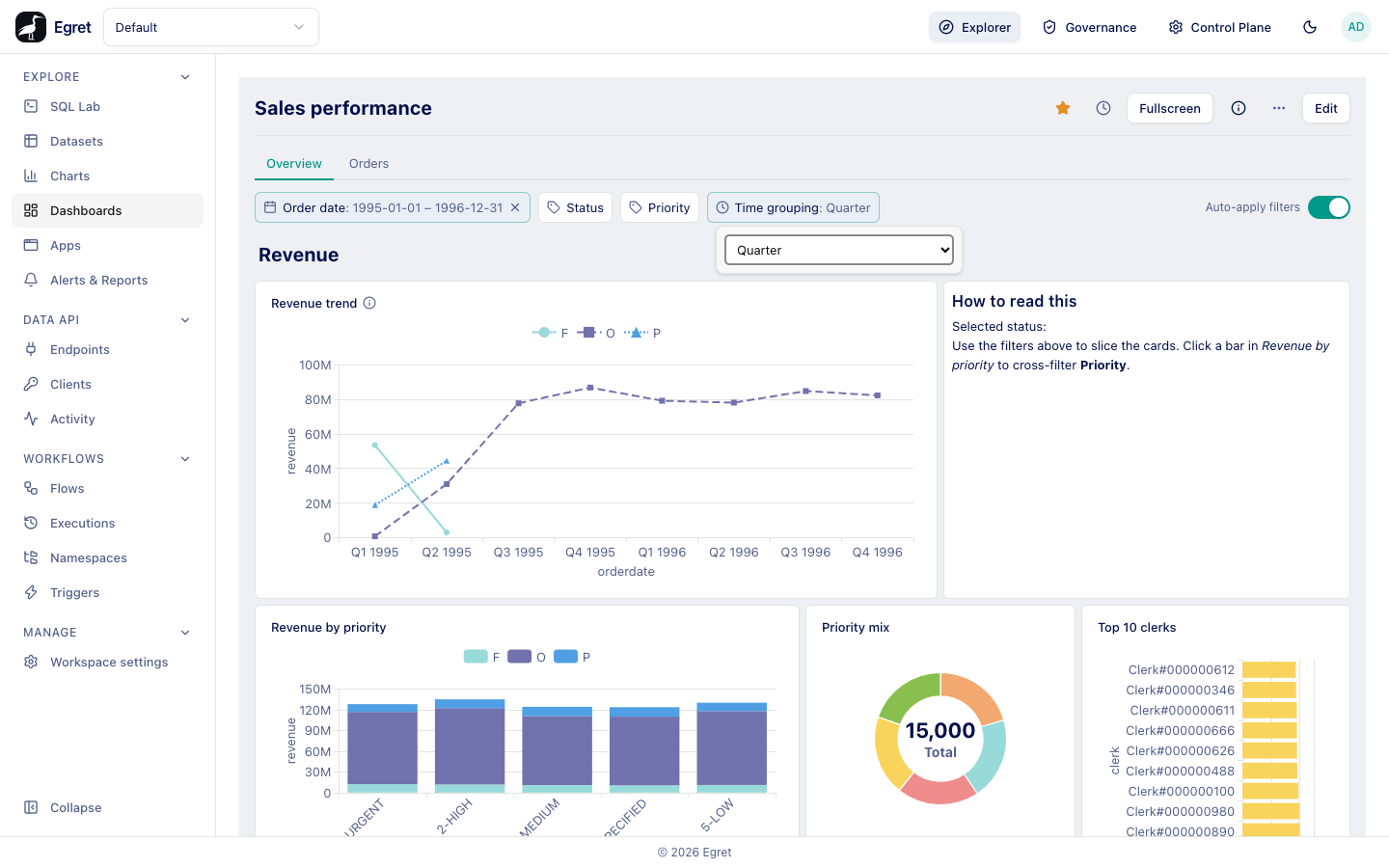
Time grouping (temporal_unit) | A select with two groups: Group by (Minute, Hour, Day, Week, Month, Quarter, Year) and Extract (Minute of hour, Hour of day, Day of week, Day of month, Day of year, Week of year, Month of year, Quarter of year) | The unit, for example "Quarter" |
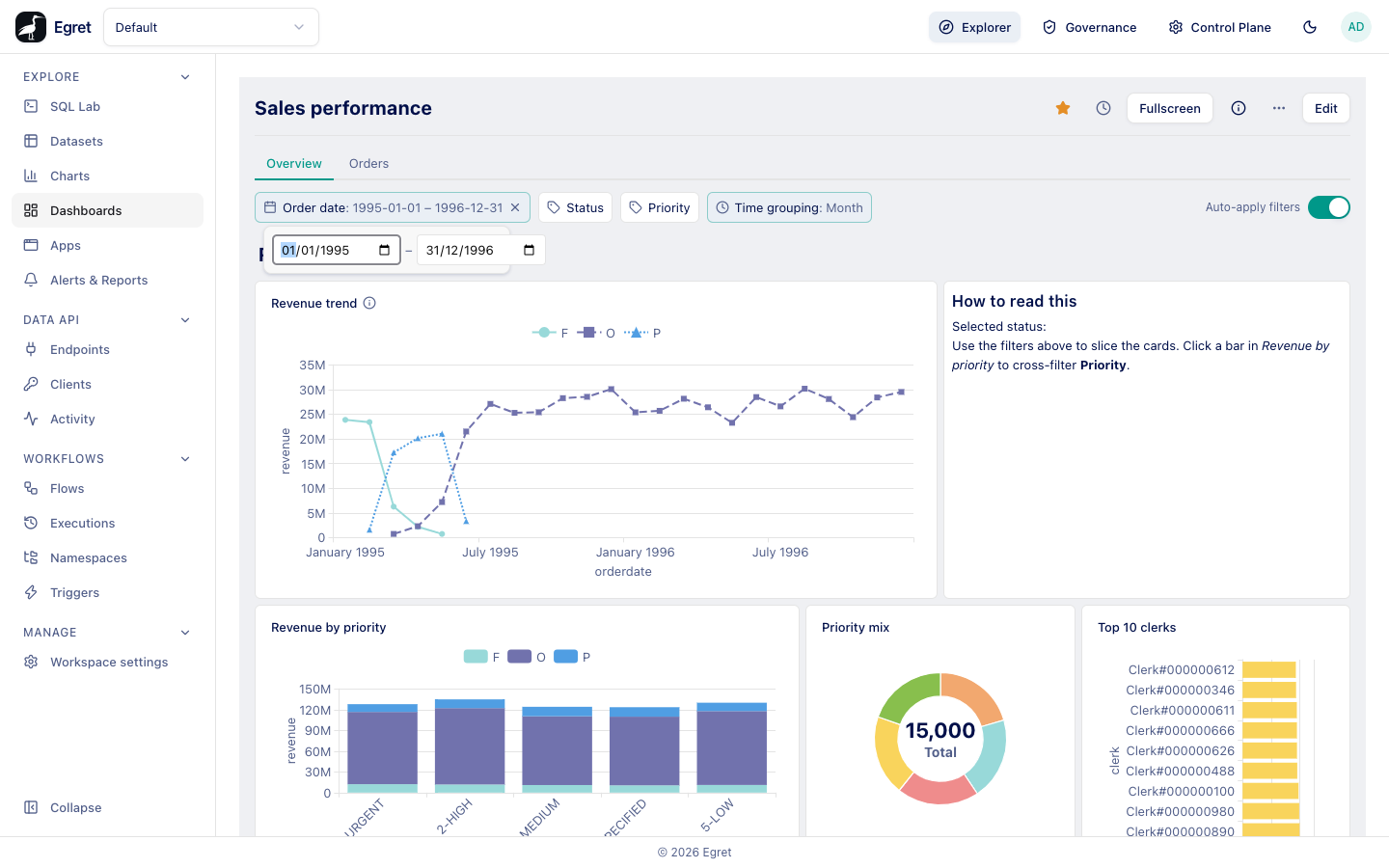
A Time grouping chip always has a value (its default, or Month when none is set) and has no ✕.
Time grouping
A Time grouping filter re-buckets the dates on every card it is connected to. In the demo dashboard, switching it from Month to Quarter changes the x axis of Revenue trend from months to quarters.
Auto-apply and the Apply bar
The Auto-apply filters switch at the right of the filter bar decides when a change takes effect.
| Setting | What happens when you change a value |
|---|---|
| On (default) | The cards reload immediately. |
| Off | The chip shows your choice, but the cards keep their old values. A bar at the bottom of the page says "1 filter changed" or "n filters changed" with Cancel and Apply. |
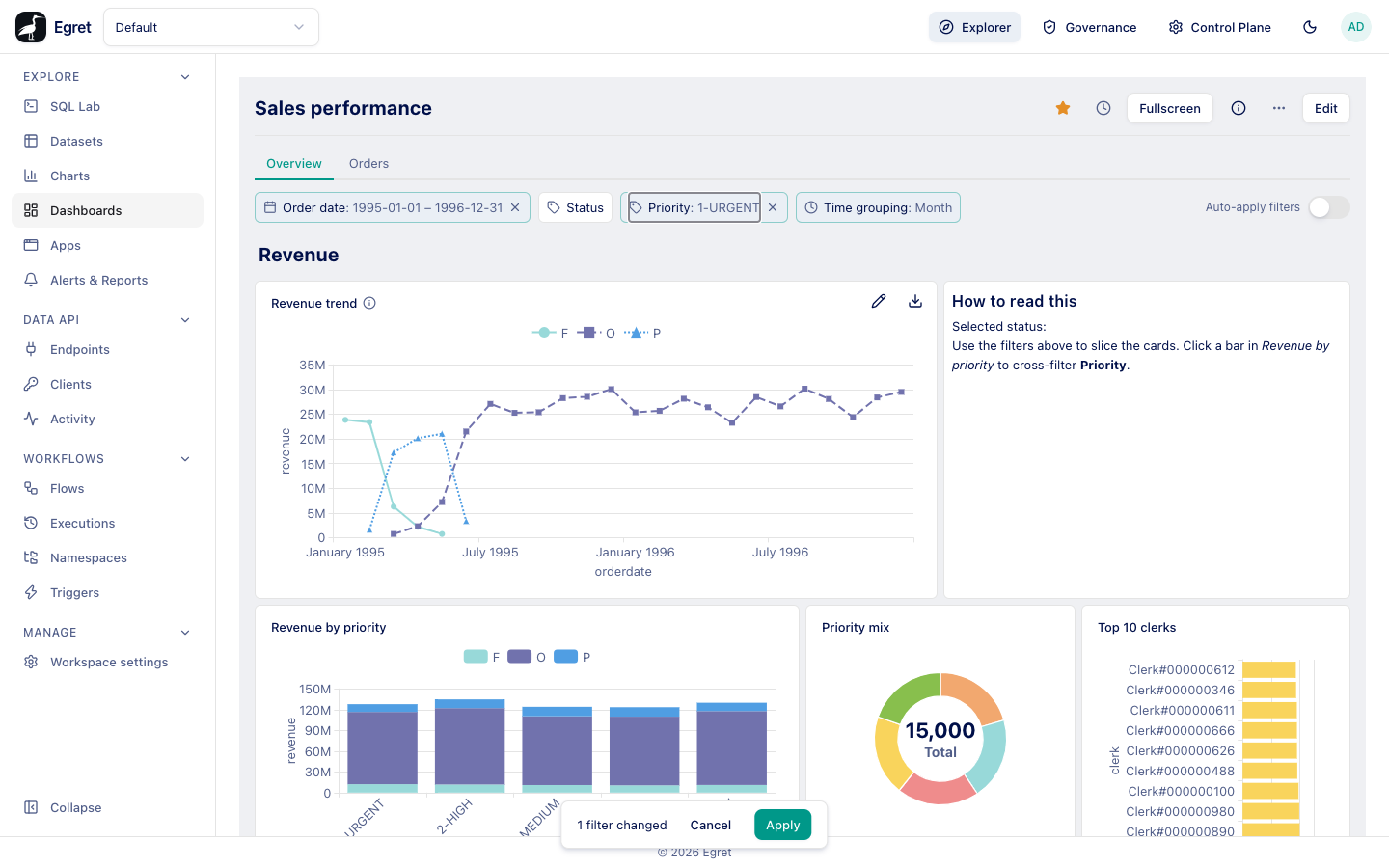
Apply writes all pending changes at once. Cancel throws them away. Switching Auto-apply filters back on applies pending changes. Hover the switch to read its tooltip: "Saved in this browser, for this dashboard". The setting belongs to your browser and to that dashboard; it does not change what other people see.
Reset all filters
Open ⋯ in the dashboard header and choose Reset all filters. It removes the values from the link. The item is shown only when the link carries at least one value; a filter that shows only its default value does not count.
URL parameters
The values of the filters live in the address bar, so you can bookmark or share a dashboard with filters set. Each filter is one query parameter, named after its slug (Name and slug).
/explore/default/dashboards/<id>?status=["O","P"]&priority=1-URGENT&order_date=["1995-03-01","1995-03-31"]
Egret writes the address with the usual percent-encoding; the example is decoded for reading.
| Filter value | How it is written |
|---|---|
| One value | The text itself: priority=1-URGENT |
Several values, or a pair (number between, date range) | A JSON array: status=["O","P"] |
| No value | The parameter is absent |
The rules:
- A parameter in the link beats the filter's default. A filter without a parameter takes its default value, if it has one.
- Changing a filter updates the address without adding a history entry, so the browser's Back button leaves the dashboard.
- Unknown parameters are ignored. A value that is not valid for the type produces an empty or failing condition, not an error message.
- Two other parameters control viewing:
refresh=<seconds>andfullscreen=true(Fullscreen and auto refresh). - Cross-filter clicks and Filter by in the drill menu write into the same parameters (Interactivity).
- Scheduled reports and image exports do not read the link: they use each filter's default value (Export, reports and print).
Limits and known issues
- A filter that has a default cannot be cleared with its ✕; the default returns.
- A viewer's value in an
all-optionsdate filter is lost (Dashboard filters). - Auto-apply is stored in the browser, so it is not shared and is lost when you clear site data.