Share a dashboard
Who can open a dashboard, and who can change it, comes from two places: the workspace role a person holds, and object grants that you add to one dashboard (or to a folder of dashboards) from the Share… dialog. Use grants to let one person or group see a single dashboard without making them a workspace member with wider rights.
Who can do what
| Action | Permission | Held by default by |
|---|---|---|
| See the list, open a dashboard, read its history | dashboard:read | ws_viewer, ws_editor, ws_admin |
| Create, edit, duplicate, move, trash and delete dashboards; share them; revert history | dashboard:manage | ws_editor, ws_admin |
| Certify a dashboard | dashboard:certify (a platform permission) | Platform administrators |
The defaults can be changed; see Roles and permissions and the permission reference. The two dashboard permissions are checked on the individual dashboard, so an object grant gives them for that dashboard alone.
People who can read but not manage see a reduced interface rather than disabled buttons: the list has no + Dashboard, Bulk select, New folder and no Share…, Duplicate, Move or Subscribe… in the row menu, and the dashboard page has no Edit.
Viewers need no chart permission
The data of a card is requested through the dashboard, and that request is authorised by the dashboard grant alone. A person with dashboard:read on the dashboard therefore sees its cards without a separate grant on each chart, and without the right to run queries of their own. Keep that in mind when you share: a grant on the dashboard exposes the data of every card on it.
Share a dashboard
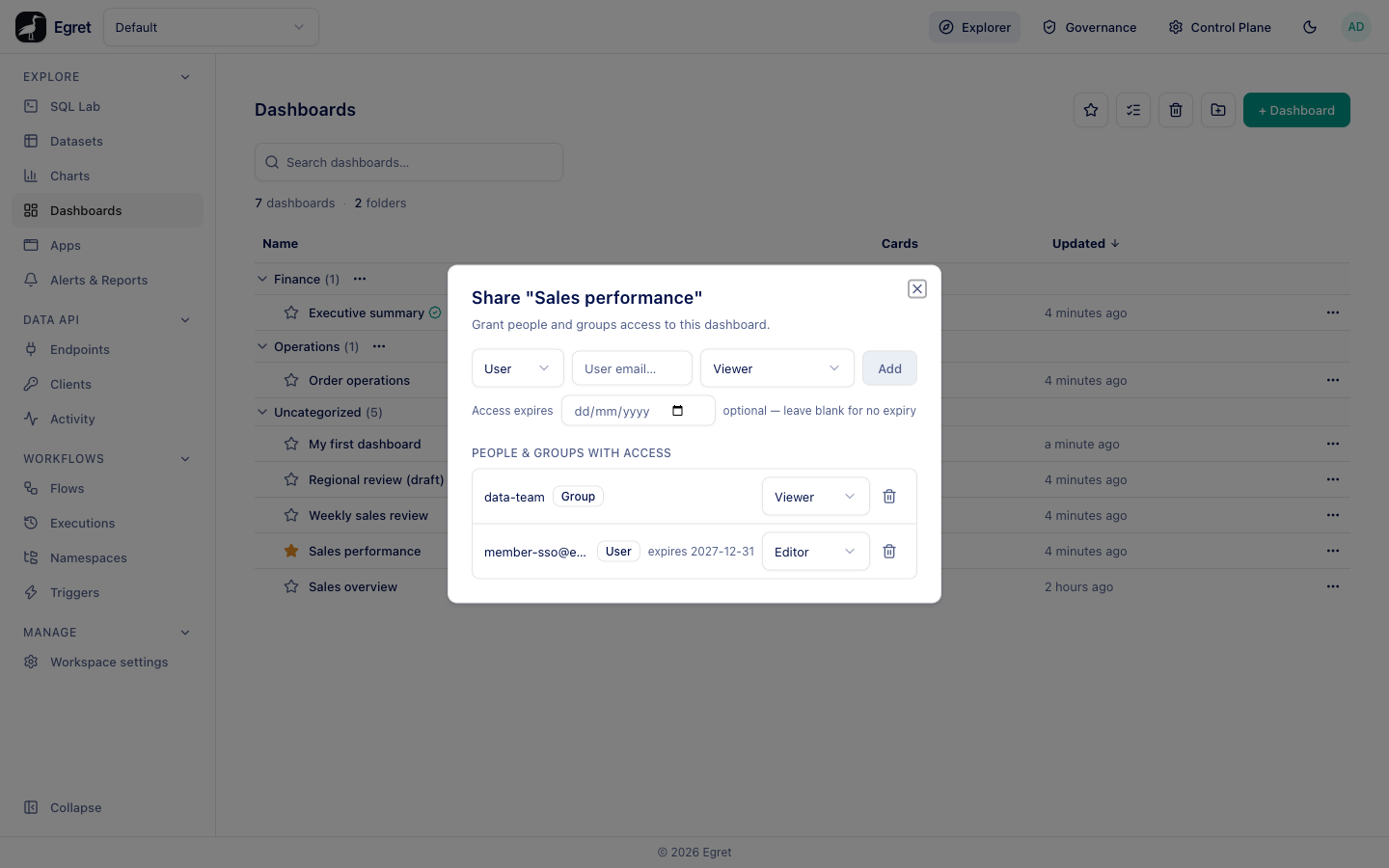
- In Explore → Dashboards, open the ⋯ menu of the dashboard and choose Share…. The menu item is available if you can manage the dashboard.
- In the first row choose User or Group, type a name in User email… or Group name… (matching people and groups are suggested as you type), and choose a role.
- Optionally choose a date in Access expires.
- Press Add. A toast says "Access granted".
| Role | Effect |
|---|---|
| Viewer | The person or group can open the dashboard and see its data. |
| Editor | The person or group can also change the dashboard, share it and delete it. |
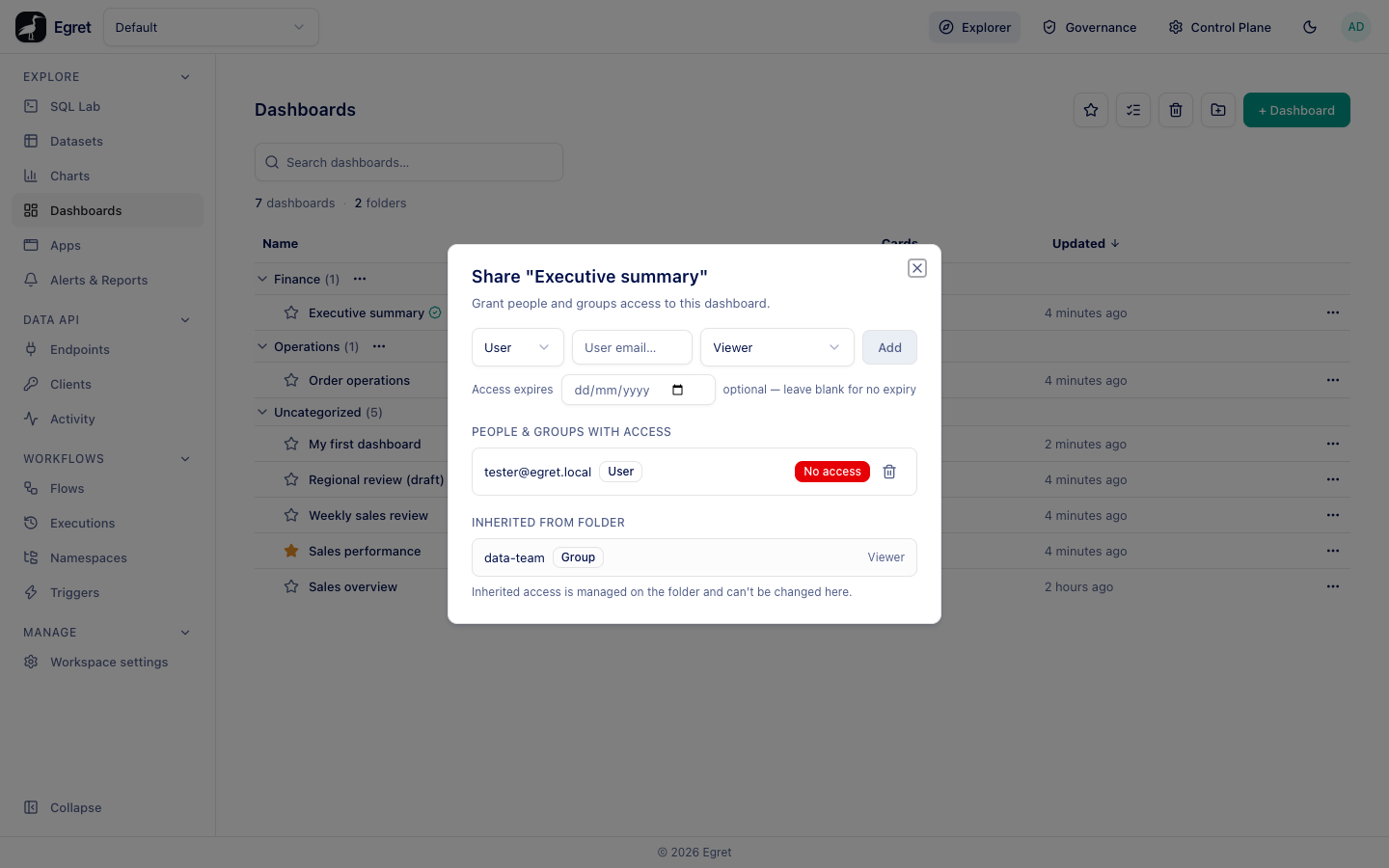
| Blocked (No access) | The person or group is denied access to this dashboard, even if their workspace role or a folder grant would allow it. A deny wins over any allow. |
The list People & groups with access shows each grant with a User or Group badge. Use the role select on a row to change a Viewer into an Editor, or the trash button to remove the grant (toast "Access removed"). A blocked grant shows a red No access badge and has no role select; remove it to lift the block.
Expiry
A grant with a date shows "expires yyyy-mm-dd" and stops working at the end of that day (in your local time zone). The date can be set only when you add the grant. To change it, remove the grant and add it again with the new date. Leave the field empty for no expiry.
Access inherited from a folder
If the dashboard is in a folder, the dialog also shows Inherited from folder: the grants that apply through the folder, read-only. Grants on a folder apply to every dashboard in it (Organize dashboards). Change them in the folder's own Share… dialog, opened from the ⋯ next to the folder heading in the list.
Where to see everything that is shared
Workspace settings → Shared objects lists the shares across the workspace; see Shared objects. Granting and removing access is recorded by the audit system (see Audit log).
Sharing outside Egret
Sharing here is for people who sign in to Egret. The dashboard page offers no public link, no embedding option and no anonymous view. To send a dashboard's contents to someone without an account, set up a scheduled report (Export, reports and print), which emails an image or PDF.
Limits and known issues
- Only the roles Viewer and Editor can be granted on an object; other workspace roles cannot.
- The dialog is for people who can manage the dashboard. If the server refuses to list the grants, the dialog says "You don't have permission to manage sharing for this dashboard."
- An expiry cannot be edited in place.
- Giving someone Viewer on a dashboard does not give them the underlying charts or datasets.