Export, reports and print
You can take a dashboard's data out of Egret in three ways: download the data of a single card, subscribe to the whole dashboard so that it is delivered on a schedule, or, for the system itself, render the dashboard as a page for an image or PDF. This page covers each.
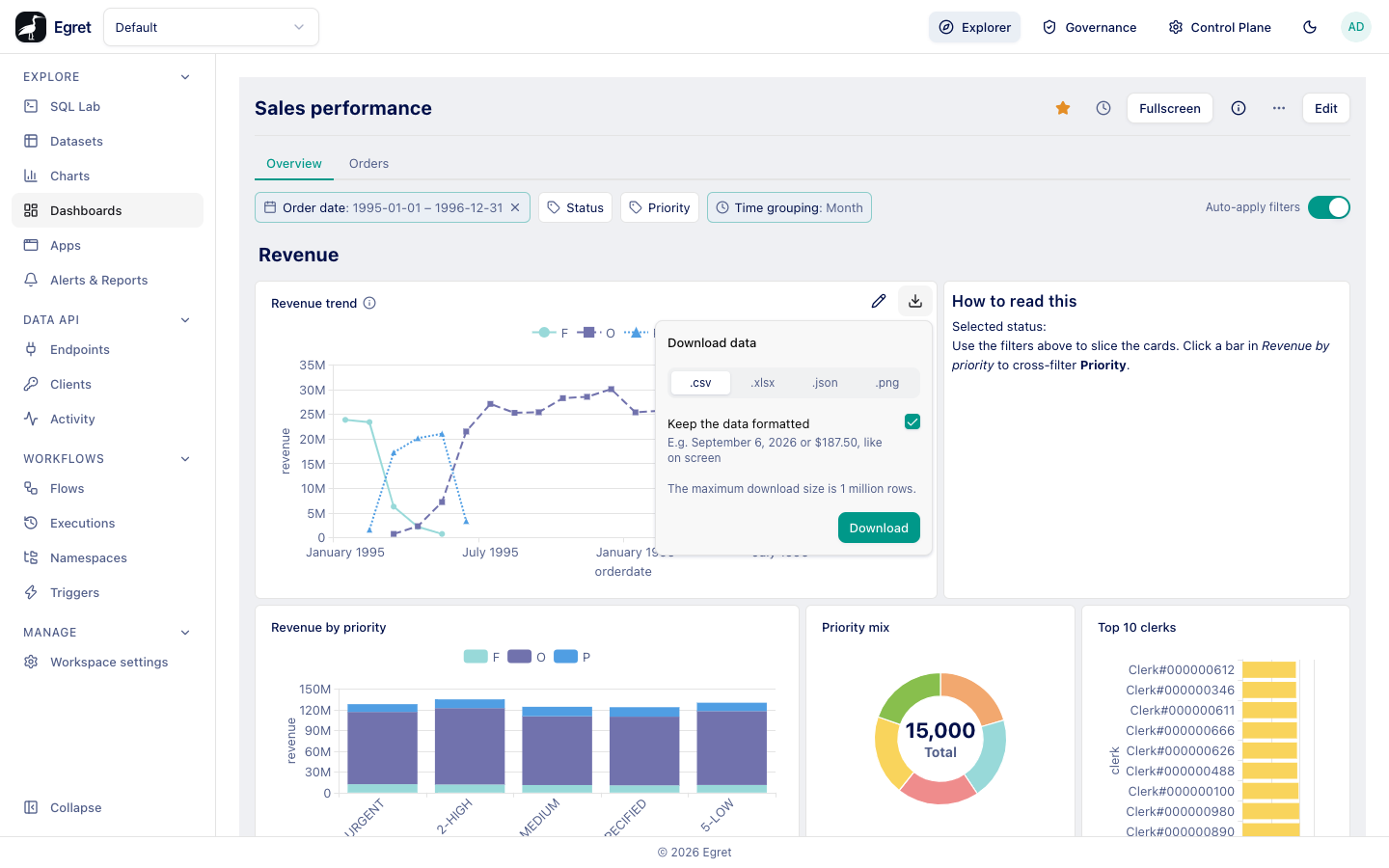
Download the data of a card
- Open the dashboard and hover the card. A download button appears at the top right, next to the pencil.
- Press it. The Download data popover opens.
- Choose a format, decide whether to keep the data formatted, and press Download.
| Format | What you get |
|---|---|
| .csv | A comma-separated file with a header row. Values that contain commas, quotes or line breaks are quoted. |
| .xlsx | An Excel workbook. Numbers and dates keep their types. |
| .json | A list with one object per row, keyed by the column headers. |
| .png | A picture of the chart as it is drawn on the card. Offered only for cards that draw a chart, not for tables. |
Keep the data formatted is on by default. On, the file has the values as the card shows them, for example "September 6, 2026" and "$187.50". Off, it has the raw values, for example 2026-09-06 and 187.50. The hint under the checkbox changes with the choice. The checkbox does not apply to PNG.
The file is named after the card title, with the characters \ / : * ? " < > | replaced by _ (or chart when there is no title), plus the extension.
What is in the file
The download is built in your browser from the result already shown on the card, so it reflects the dashboard filters you have applied and any rename or format set in the card's visualization settings. Nothing is queried again.
The popover says "The maximum download size is 1 million rows." The result a card holds is limited by the chart's row limit, which Egret caps at 10,000 rows, so a file never has more rows than the card loaded.
The download button is not shown while the card is loading, has an error, is blocked by a required filter, or returned no columns. It is not shown in edit mode.
Subscribe to a dashboard
To get a dashboard delivered regularly, create a report that targets it.
- In Explore → Dashboards, open the ⋯ menu of the dashboard and choose Subscribe….
- The New report form opens in Explore → Alerts & Reports with the dashboard already chosen. Its sections are General, Contents, Schedule and Notification.
- In Contents, Deliver is set to A dashboard, Dashboard is the dashboard you came from, and Format is one of PNG image, PDF, CSV data or Text. + Add another adds more dashboards or charts to the same report.
- Fill in the other sections and press Create.
The form, its schedule and delivery settings, owners and run history belong to Alerts & reports and are described there: see Alerts & reports. Subscribe… appears only for people who can manage the dashboard.
PNG and PDF reports are produced by a separate rendering service that opens the dashboard as a page and captures it; CSV and text reports read the query results directly. On the Docker demo stack, which runs the renderer and delivers mail to Mailpit, a PNG of Executive summary arrived inside the email and a PDF arrived as an attachment. See Reports for what the email looks like.
Scheduled report rendering
When a PNG or PDF report runs, Egret opens a special page for each target:
/embed/print/dashboard/<dashboard id>?t=<token>
/embed/print/chart/<chart id>?t=<token>
This page is for the rendering service, not for people. It has no navigation and no sign-in: the token in the address is its only credential. The token is made for one object and one user, works once, and expires after about a minute. Opening the address in a browser without a valid token shows a blank page, and a second visit with a used token fails.
What the page draws:
- the dashboard name as the page title, then one block per chart card, in the dashboard's card order, each with the chart's name and the chart in a box 384 px high;
- the chart as saved, with filters set to each filter's default value (a report has nobody to choose values), including date windows relative to the moment of rendering;
- nothing for heading, text, link and iframe cards, and nothing for tabs: all tabs' chart cards are stacked together;
- the chart's name and settings, not the card's title override or visualization override.
The page tells the renderer it is ready only when every chart has finished drawing and fonts have loaded, so images are not captured half-drawn. If a chart fails to draw or the data cannot be fetched, the page stays blank and the render is reported as failed rather than delivering a partial image.
This is what a PDF of Sales performance (two tabs, a heading, a text card and six chart cards, filters with defaults) looked like on the demo stack: the title Sales performance; the cards Revenue trend, Revenue by priority and Priority mix on the first sheet and Top clerks and Largest orders (from the Orders tab) on the second; the line chart starting in January 1995 because the Order date filter defaults to 1995–1996; no heading or text card; and Top clerks under the chart's name, not the card title "Top 10 clerks". A table taller than its 384 px box ran past the bottom of the box (KI-168). The whole render took about 20 seconds.
Limits and known issues
- There is no whole-dashboard export button; reports (PNG, PDF) are the way to get the dashboard as one file.
- Rendered reports ignore card title and visualization overrides, text cards and tabs.
- The download popover's row limit text does not match the real limit (10,000 rows).
- PNG and PDF report rendering needs the rendering service. A large dashboard takes about 20 seconds to render, and a multi-dashboard PDF fails when the renders together exceed 30 seconds (KI-167).
- A table card overflows its box on the rendered page (KI-168).