Organize dashboards
Once a workspace has more than a handful of dashboards, three things keep it manageable: folders to group them, bookmarks to find the ones you use, and the trash to remove the ones you no longer need without losing them at once. This page covers all three, plus duplicating and bulk actions.
Folders
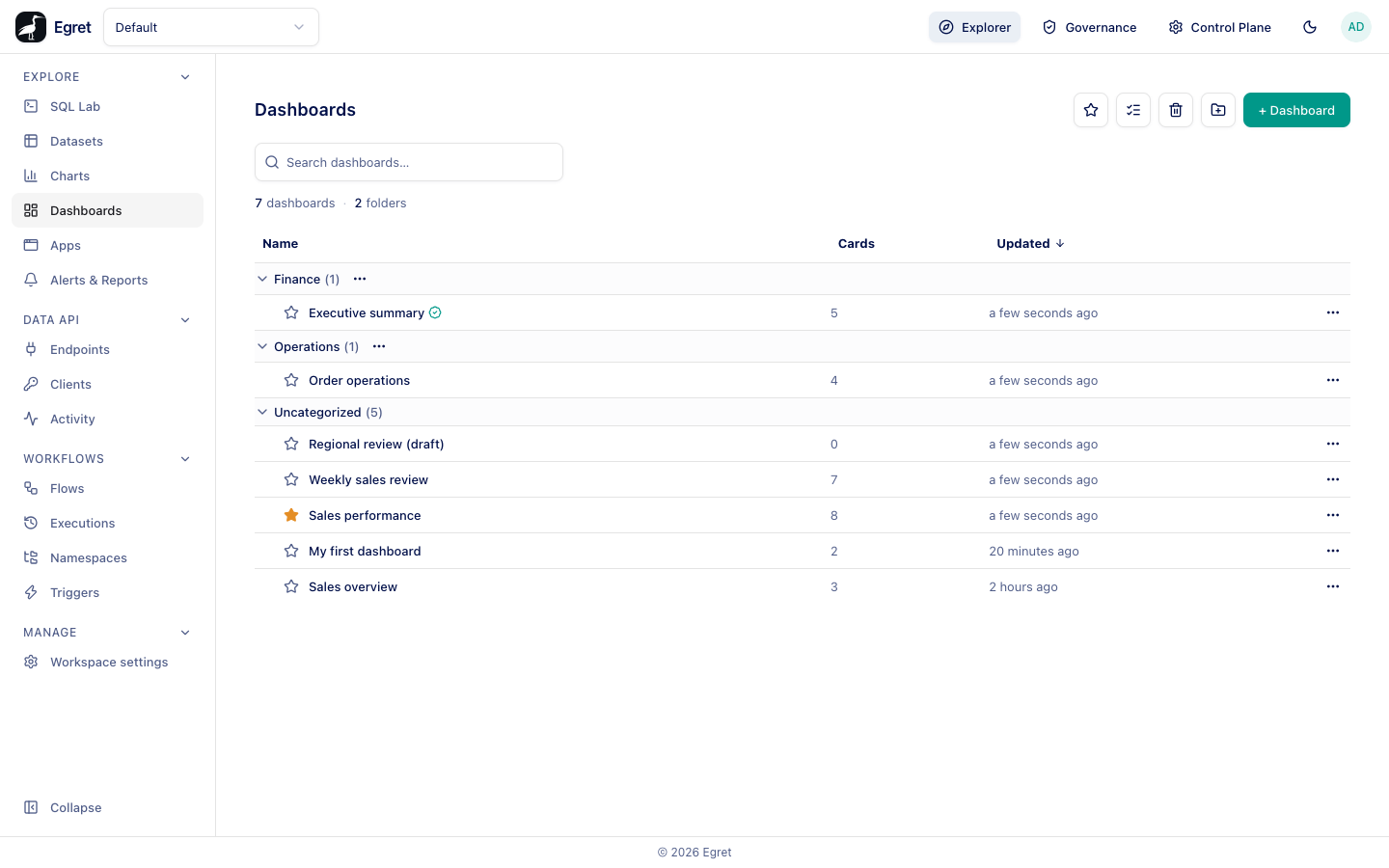
A folder is a flat group of dashboards. Folders do not nest. A dashboard is in one folder or in none. Dashboards that are in no folder are listed under Uncategorized.
Create a folder
- In Explore → Dashboards, press the New folder button in the toolbar (a folder with a plus).
- Enter a Folder name and press Create (or Enter). A toast says "Folder created".
Folder names must be unique in the workspace; a name that already exists is refused with the message "a folder with that name already exists". Names are compared exactly, so "Finance" and "finance" are different folders. Folders are separate for dashboards, charts, datasets and the other lists, so a "Finance" folder here does not exist for charts.
The list shows folder headings only when at least one folder exists. Each heading has the folder name, the number of dashboards in it and a ⋯ menu. Click the name to collapse or expand the group; Egret remembers which groups you collapsed in this browser. While you search or filter by bookmarks, folders with no matching dashboards are hidden.
Move dashboards into a folder
You can do it in four ways.
- Row menu. Open ⋯ on the dashboard and choose Move to "folder", or Move to new folder…, which asks for a name, creates the folder and moves the dashboard.
- Drag and drop. Drag a row onto a folder heading, or onto Uncategorized.
- From the dashboard page. Open ⋯ and use the same Move to… items. When the dashboard is already in a folder, Remove from folder is offered as well.
- Bulk. See below.
Moving takes effect at once; there is no confirmation.
Rename, share or delete a folder
The ⋯ menu next to a folder heading offers:
| Item | What it does |
|---|---|
| Share… | Opens the sharing dialog for the folder. Grants on a folder apply to every dashboard in it (Share a dashboard). |
| Rename | Opens Rename folder. |
| Delete | Deletes the folder immediately, without asking. The toast says "Folder deleted". The dashboards inside are not deleted; they move to Uncategorized. |
These items, and moving and dragging, appear only if you can manage dashboards.
The info sidebar of a dashboard shows its folder under Saved in, as a link that opens the list with that folder expanded.
Bookmarks
A bookmark (a star) is a personal shortcut.
- Press the star in a row, or the star in the dashboard header (or press
oon the dashboard), to bookmark or unbookmark. - Press the Bookmarks button in the list toolbar to show only your bookmarked dashboards. With none, the page says "No bookmarked dashboards."
Bookmarks belong to you. Other people do not see them, and they do not affect permissions. Permanently deleting a dashboard removes its bookmarks.
Duplicate a dashboard
Choose Duplicate in the row menu or the dashboard page's ⋯ menu. Egret copies the dashboard and opens the copy.
The copy is named "name (copy)", is created by you, and has the same description, filters, tabs, width and cards. It references the same charts as the original, and it starts Uncategorized, uncertified and without any grants. Edit it, rename it and move it as you like.
Select several dashboards
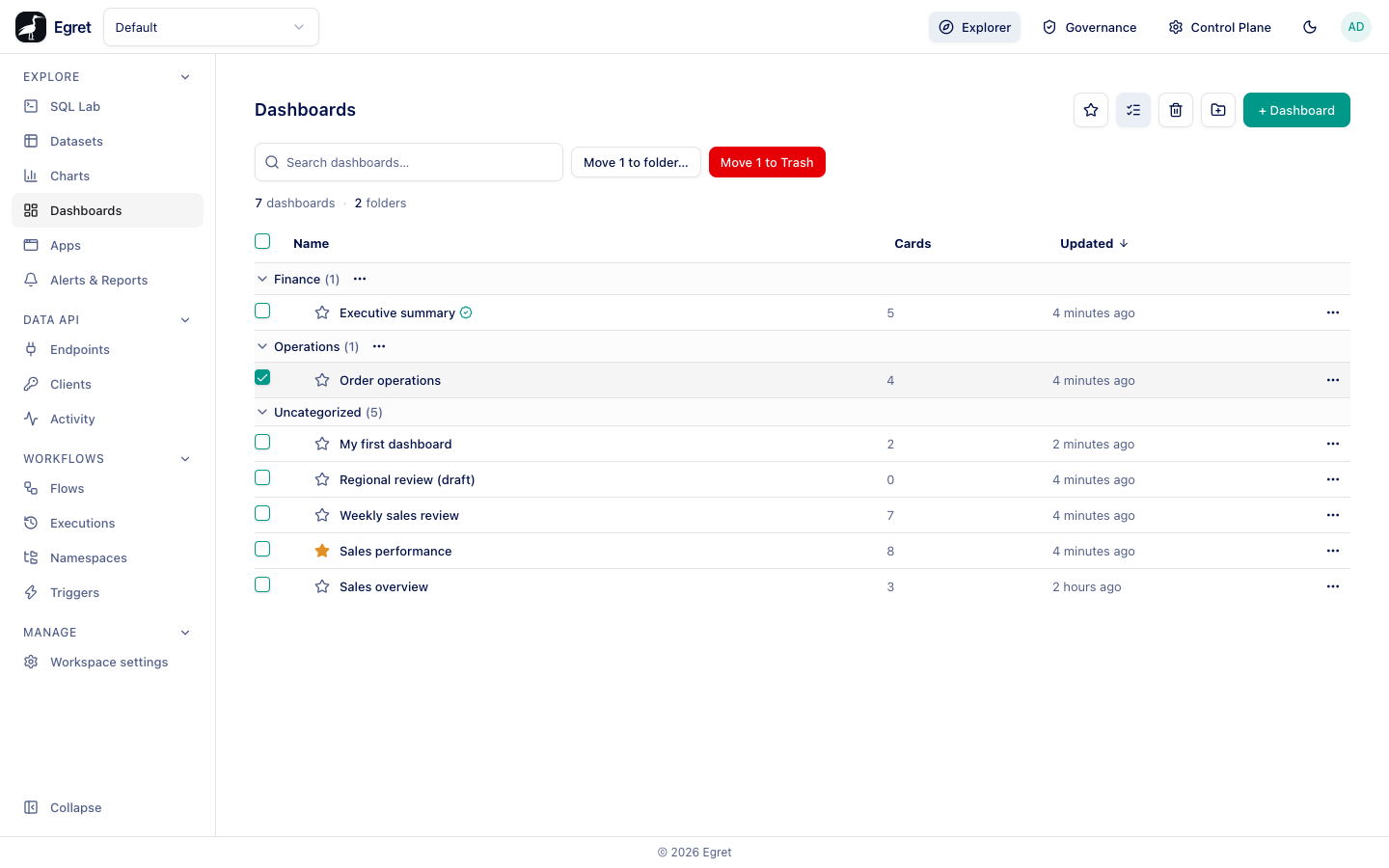
- Press Bulk select in the toolbar. A checkbox appears on every row, and the header checkbox selects every visible row.
- Tick the dashboards.
- Use Move n to folder… (pick a folder, Uncategorized or New folder…) or Move n to Trash.
Only the rows you can see are selected: dashboards in a collapsed folder are not. A toast confirms, for example "Moved 2 dashboards" or "Moved to Trash".
Trash
Trashing takes a dashboard out of the list but keeps it, so you can bring it back.
- Choose Move to Trash in the row menu, in the dashboard page's ⋯ menu (Move to trash), or with bulk select. There is no confirmation. A toast says "Moved to Trash".
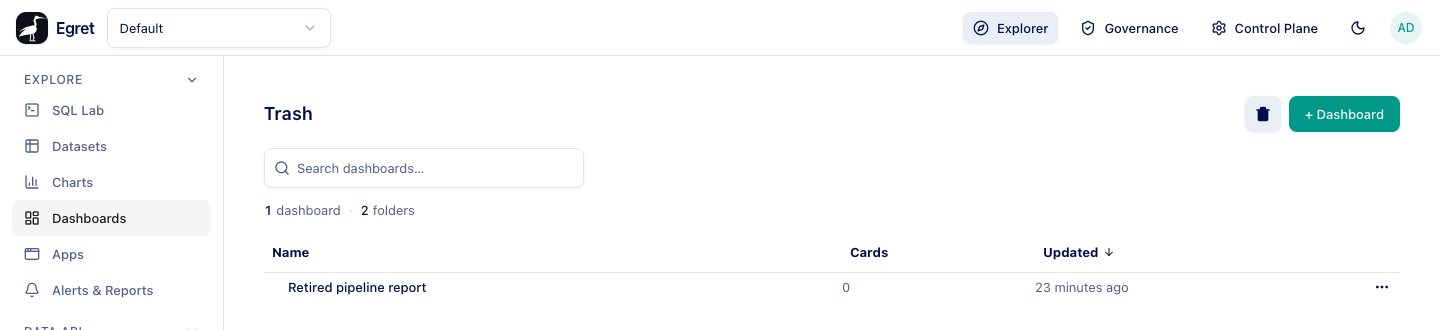
- Press the Trash button in the toolbar to see trashed dashboards. The page title becomes Trash, rows are listed flat, and "Trash is empty." shows when there are none.
- In the trash, open ⋯ on a row and choose Restore to bring it back, or Delete permanently, which asks "Permanently delete "name"? This cannot be undone." and then removes it, with its cards, tabs and bookmarks.
You can open a trashed dashboard from the trash list. It shows "This dashboard is in the trash." with a Restore button.
Egret does not empty the trash by itself. A trashed dashboard stays there until it is restored or permanently deleted.
Limits and known issues
- Folders do not nest, and a dashboard is in at most one folder.
- Deleting a folder and trashing a dashboard do not ask for confirmation.
- The trash view still shows the folder count and the + Dashboard button, which are not meaningful there.
- Bulk select applies only to the rows on screen; dashboards in a collapsed folder are not selected.