Hand-written policies
Most policies in a profile are compiled by egret from your grants and rules. A hand-written policy is a raw Apache Ranger policy you write yourself in the Advanced tab. Use it for the few things the permission model cannot express, and prefer grants, rules and engine permissions for everything else.
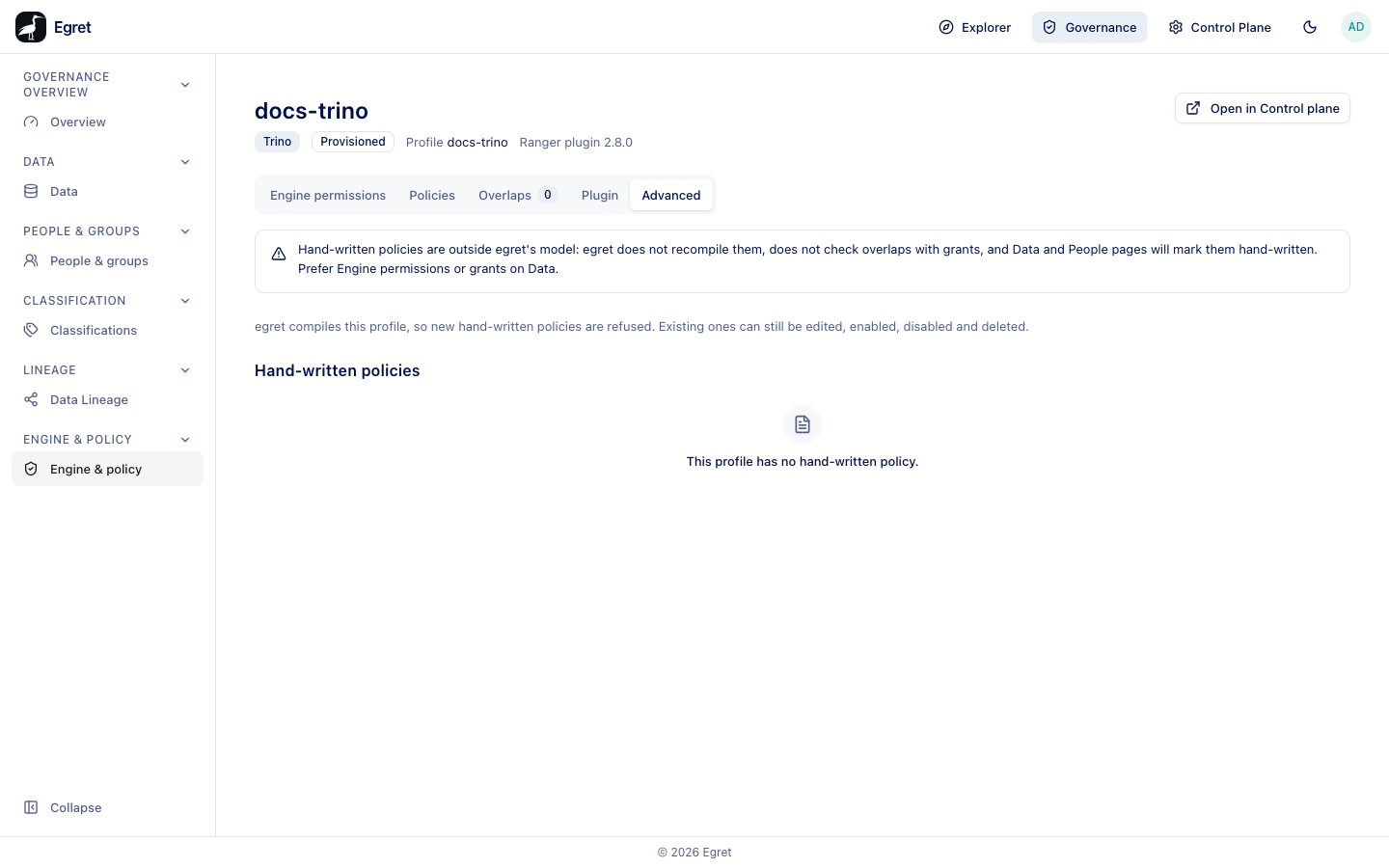
The tab opens with a fixed warning: Hand-written policies are outside egret's model: egret does not recompile them, does not check overlaps with grants, and Data and People pages will mark them hand-written. Prefer Engine permissions or grants on Data.
Creating, editing and deleting need policy:create, policy:update and policy:delete. An engine that downloads no profile shows This engine downloads no policy profile, so it has no policy.
Create a policy
- Open the engine (or unbound profile) page and select Advanced.
- Press Create policy and choose Access, Masking or Row filter. By tag appears too when the profile has a tag service.
- Fill the editor (below) and press Save.
Once egret compiles a profile, new hand-written policies on it are refused: egret compiles this profile, so new hand-written policies are refused. Existing ones can still be edited, enabled, disabled and deleted. Hand-written policies are therefore mainly for profiles of engines that egret does not compile for, and for policies that existed before.
Seed default policies adds egret's default Trino set (group admin: all access). Existing policies are not changed. If the profile already has policies, egret says No default policy was added: the profile already has policies. On an empty unbound Trino profile it added 13 policies (all - catalog, all - function and so on). They are listed on the Policies tab as egret-seeded, not under Hand-written policies, and the button gives no confirmation, so the Advanced tab looks unchanged.
The Hand-written policies table lists each policy with its Name, Type, Resource (for example finance_pg.*.*.*) and whether it is Enabled. Select a name to open it in the editor.
Example: a hand-written access policy
On the demo stack, on the unbound Trino profile docs-legacy-trino (created through the API with a tag service):
- Advanced → Create policy → Access.
- Policy name
legacy: analysts read finance_pg. - In Resource, type
finance_pgin Catalog and press Enter. Keep*for Schema, Table and Column; the compact path readsfinance_pg.*.*.*. - In Permissions → Allow conditions, type
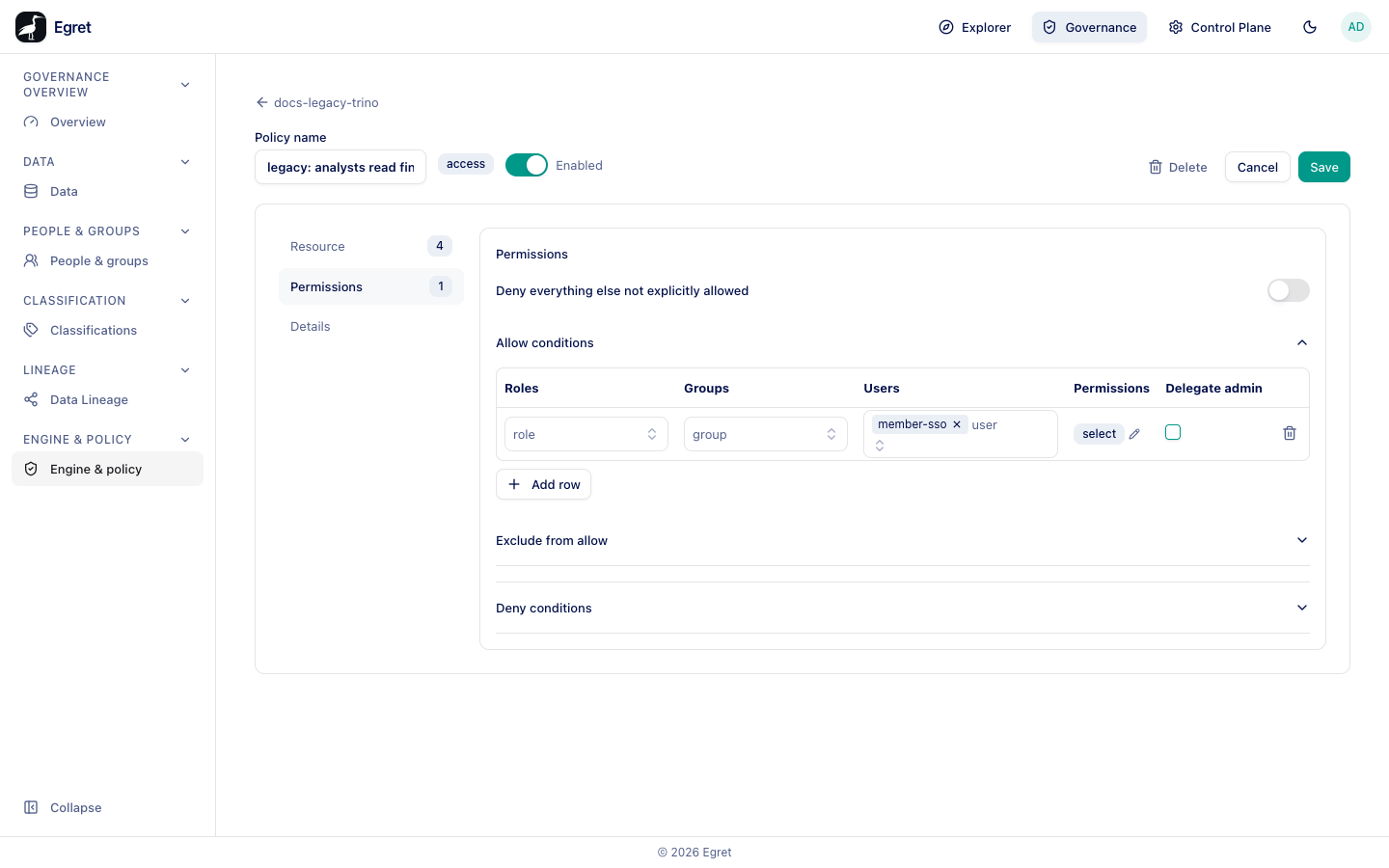
member-ssounder Users and press Enter, then Add permissions, tickselectand confirm with the check mark. - Save. You return to Advanced, and the profile now has a Migrate tab.
A policy that also allows use and show is listed on Migrate as Blocked, because the permission model has only read and write (see Migrate policies).
The policy editor
The editor is a page with a header and three sections in a side list: Resource, Permissions (Masking or Row filter for those types) and Details. Each shows a count of what is set.
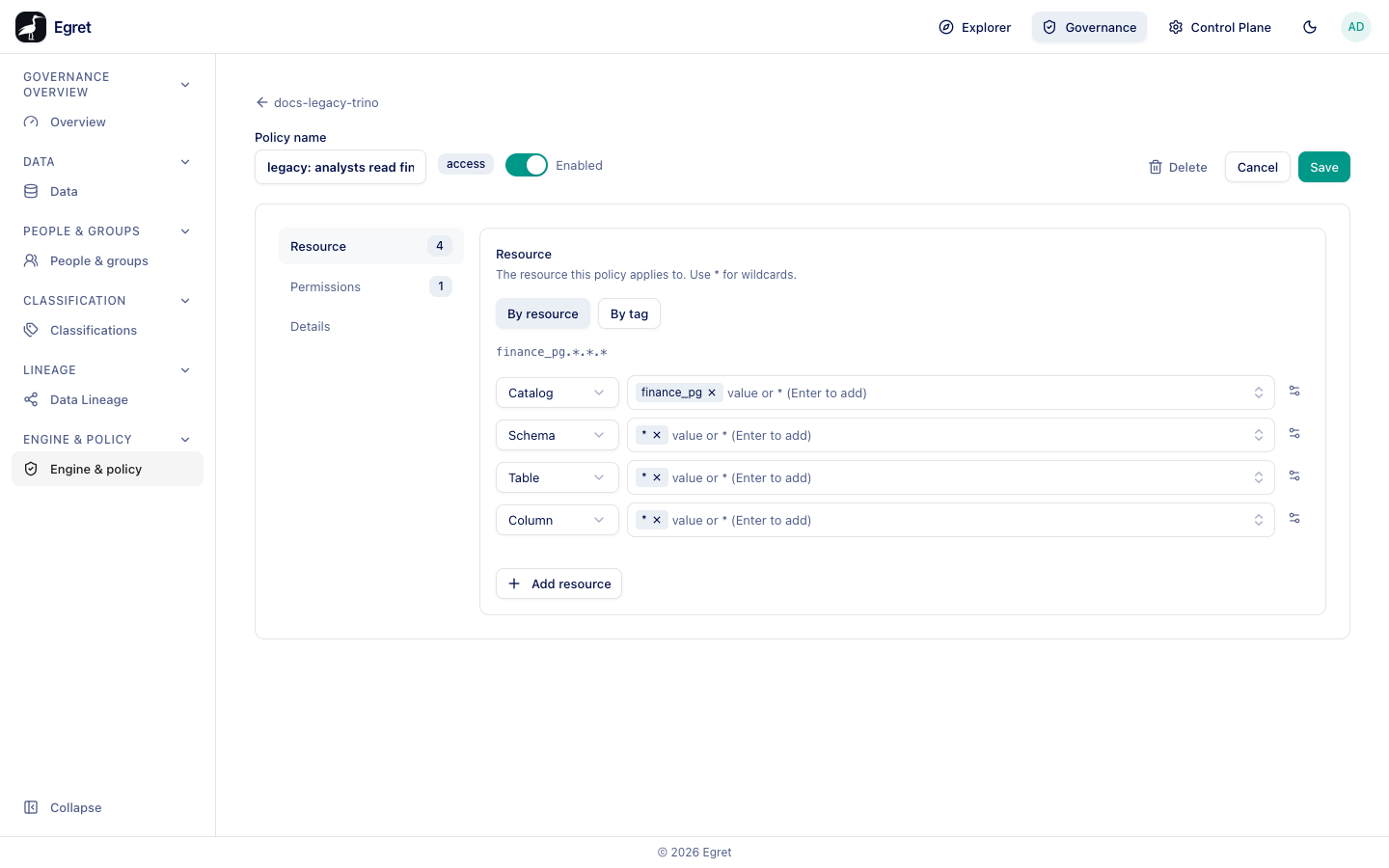
Header
| Control | Notes |
|---|---|
| Policy name | Required: Required to save. A tooltip says Enter a policy name until it is set. |
| Type badge | access, masking or rowfilter. |
| Enabled | Switches the policy on or off. A disabled policy stays in the profile but is not enforced. |
| Cancel, Save | Save is disabled until the name and the required resource level are valid. |
Resource
The text above the fields says The resource this policy applies to. Use * for wildcards. Two modes:
- By resource: set the levels Catalog, Schema, Table and Column. The first level is required, and the help says Name a catalog. It is required: * here would cover every catalog this profile serves. Type a value or
*and press Enter to add it; a level can hold several values. The icon beside each level adds include or exclude and recursive options. Add resource adds another resource to the policy. The resource shown above the fields is the compact path, for examplecatalog.*.*.*. - By tag: pick a classification tag (Select a tag…). The help says The classification tag this policy applies to. Ranger resolves the tag service from this profile automatically.
Permissions
For an access policy:
- Deny everything else not explicitly allowed is a switch.
- Allow conditions is a table with the columns Roles, Groups, Users, Permissions and Delegate admin. Add row adds a condition. Exclude from allow adds exceptions.
- Deny conditions has the same shape for deny items.
For a masking or row-filter policy the section edits the mask or the filter items instead.
Roles and groups named in a hand-written policy match nobody on engines egret serves, because egret runs no usersync and serves no roles download. Name users. The group public is the exception. See How permissions work.
Details
| Field | Meaning |
|---|---|
| Description | Free text. |
| Override | The policy's allow or deny wins over conflicting normal policies. |
| Labels | Free labels. |
Edit a policy owned by the permission model
A compiled policy opens read-only with the message This policy is owned by the permission model. Change the grant or rule it came from instead. If you save a stored policy in a way that widens it, egret asks first: Saving will widen this stored policy, listing what becomes granted, with Keep the policy as stored and Widen and save.
When a save changes the order of another policy, the editor tells you (This save changed the order of 1 other policy).
Delete a policy
Deleting a hand-written policy asks This policy will be permanently removed from Ranger. The engine drops it at its next plugin download.
Limits and known issues
- Egret does not check hand-written policies against grants, so they can overlap compiled rules. The Overlaps tab reports mask and row-filter collisions with them.
- Migrating hand-written policies into the permission model is covered in Migrate policies.