The flow editor
The editor is where you write a flow. It is a code editor with documentation and a problem list beside it, and the panels are yours to arrange. This page covers the Edit tab of a flow and the page for a new flow.
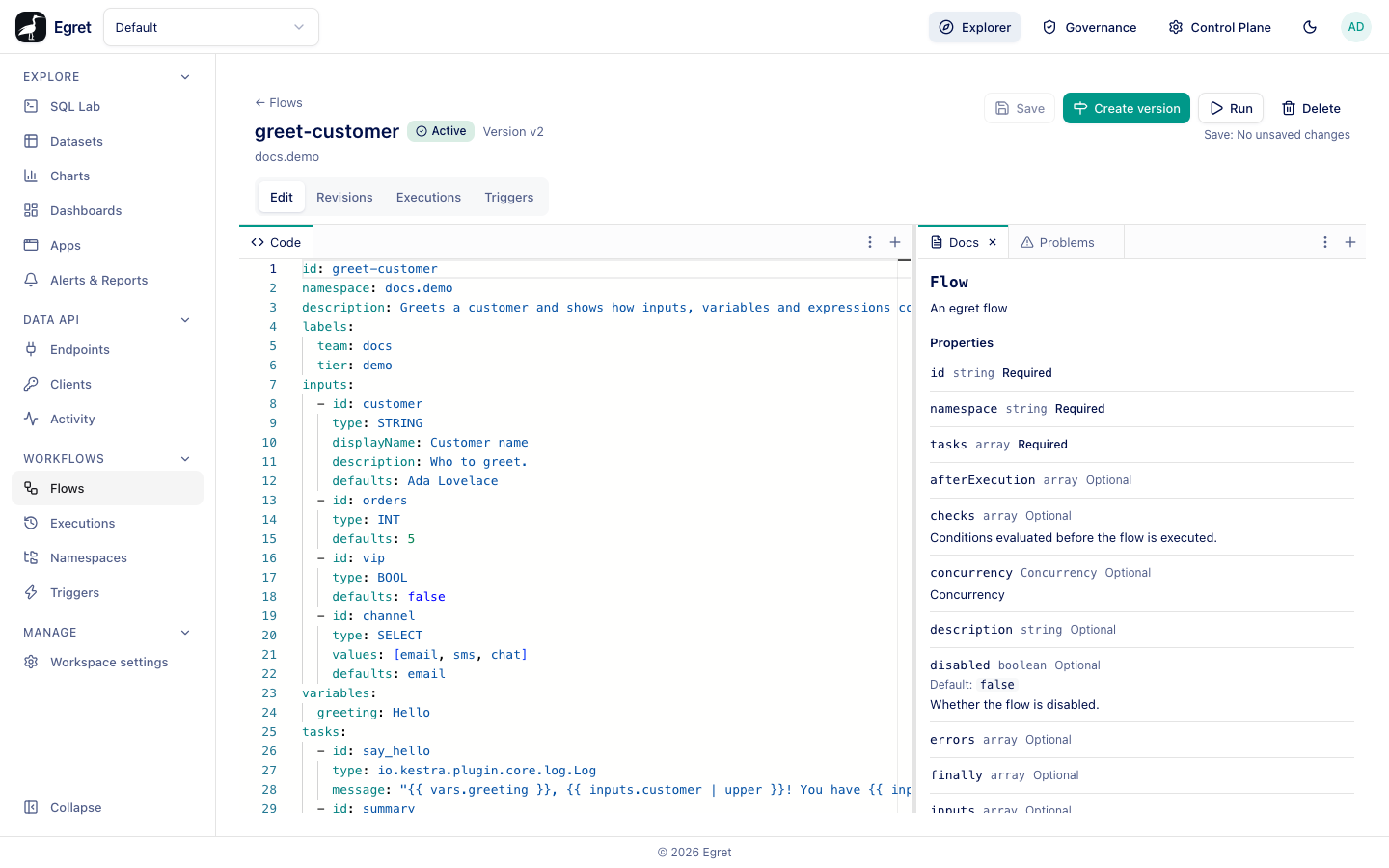
Panels and tabs
The editor is made of panels, each with its own row of tabs. By default there are two panels:
| Panel | Tabs |
|---|---|
| Left | Code |
| Right | Docs, Problems |
Two more tabs can be reopened from the + button at the right end of a panel's tab row (Reopen a tab): Topology and Files.
| Tab | What it shows |
|---|---|
| Code | The flow's YAML in a code editor. It cannot be closed. |
| Docs | Documentation for the task or trigger under the cursor, or for the flow itself outside any task. |
| Problems | Everything wrong with the flow: errors from the server and mismatches with the schema. |
| Topology | A graph of the flow's tasks. |
| Files | The namespace's files, so you can open a script in a tab beside the flow. See Namespace files. |
Use the ⋮ menu of a panel (Tab actions) to Move to panel…, Split left or Split right, or Close the active tab. You can also drag a tab to another panel. The layout is remembered per flow in your browser.
Write YAML
The Code tab gives you completion, hover documentation and structure errors as you type. They come from the same JSON schema that the Docs tab shows, and the schema is built for your workspace, so it offers only the task types and properties that this deployment can run. For example it offers io.kestra.plugin.core.flow.Loop and not ForEach, and it offers script and plugin tasks only when the workspace and the deployment can run them.
- Press Ctrl+Space for suggestions. Suggestions depend on where you are: top-level keys, task properties, or the
type:values. - Hover a key to read its documentation.
- Press Ctrl/Cmd+S to save.
When the text has unsaved changes the Save button is enabled. Leaving the page with unsaved changes asks for confirmation.
Docs
The Docs tab follows the cursor, 150 ms behind it. Put the cursor on a task and the tab shows that task type's name, a description, its properties (with type, default and whether it is required) and its outputs. If you wrote a type under an alias such as core.log, the tab says Alias: written here as core.log. Outside any task it shows the flow's own properties.
Problems
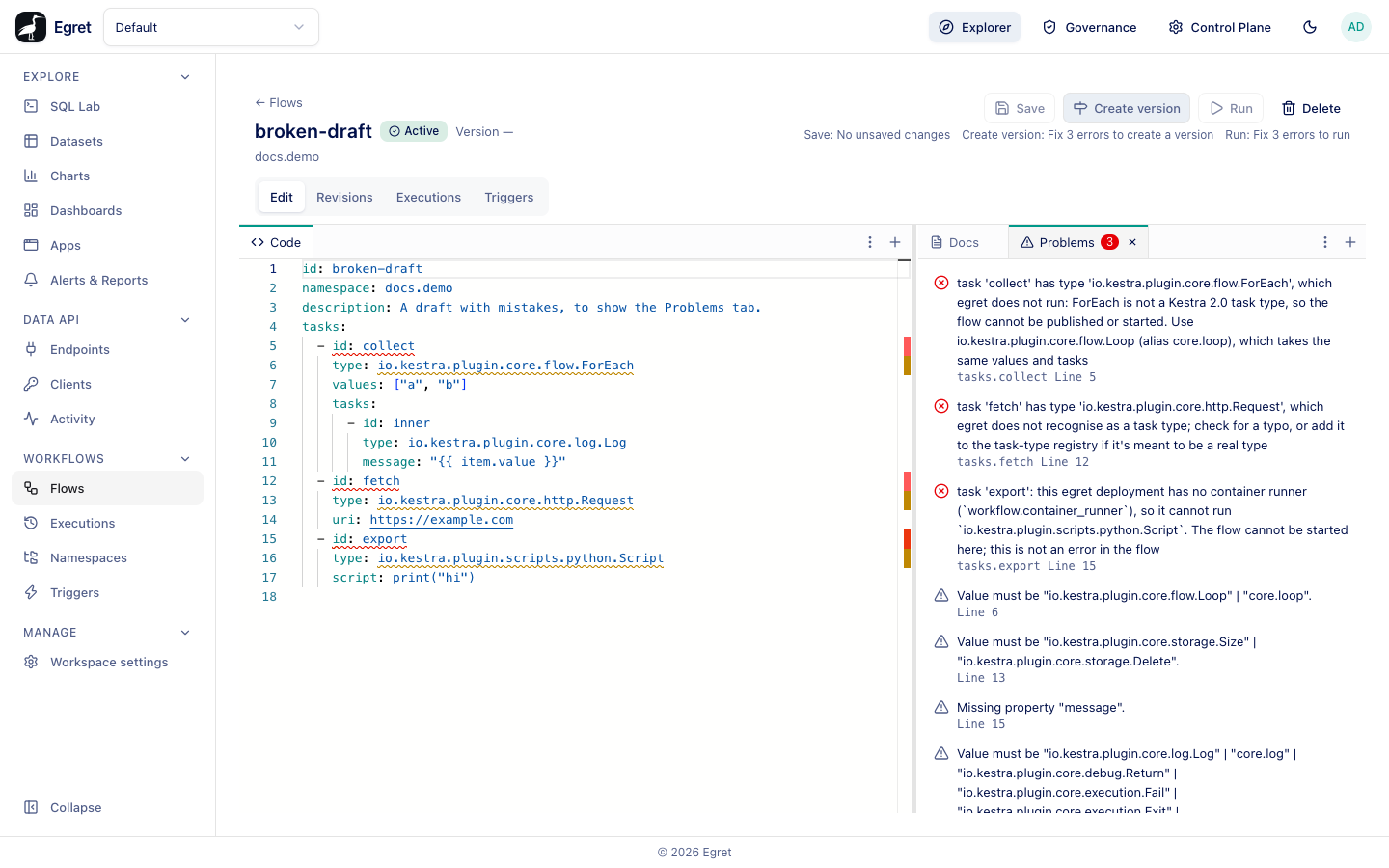
The Problems tab lists each finding with its message, its path and its line. Select a finding to move the cursor to its range in the code. The tab title carries the number of errors. Findings come from two places:
- Server validation runs 600 ms after you stop typing. It catches things the schema cannot, such as a duplicate task id, an unknown task type, a task the deployment cannot run, or a
secret()call outside a plugin task. - Schema checks run in the browser and mark values that do not fit the schema, such as a type that is not one of the offered values.
Errors are in red and warnings in grey. While any error exists, Create version and Run are disabled and say Fix 3 errors to run. A draft with errors can still be saved. Without workflow:manage the tab says Only the schema is checked here, because server validation needs that permission.
Typical messages:
| Message starts with | Meaning |
|---|---|
task '…' has type '…ForEach' | Kestra 2.0 has no ForEach task. Use Loop. |
… does not recognise as a task type | The type: is misspelled or not supported at all. |
task id '…' is declared more than once | Two tasks in the flow share an id. |
this egret deployment has no container runner | A script task needs workflow.container_runner. The flow is fine; this deployment cannot run it. |
`concurrency` is declared … but is not yet enforced | A warning: the key is accepted and ignored. |
Topology
The Topology tab draws the flow as a graph. Use Horizontal or Vertical to change the direction, the zoom buttons to scale the graph, Expand all and Collapse all to open or fold flowable tasks, and List view for a text list of the same nodes. Edges are labelled (then, else, a switch case) and error and finally branches are drawn on their own paths.
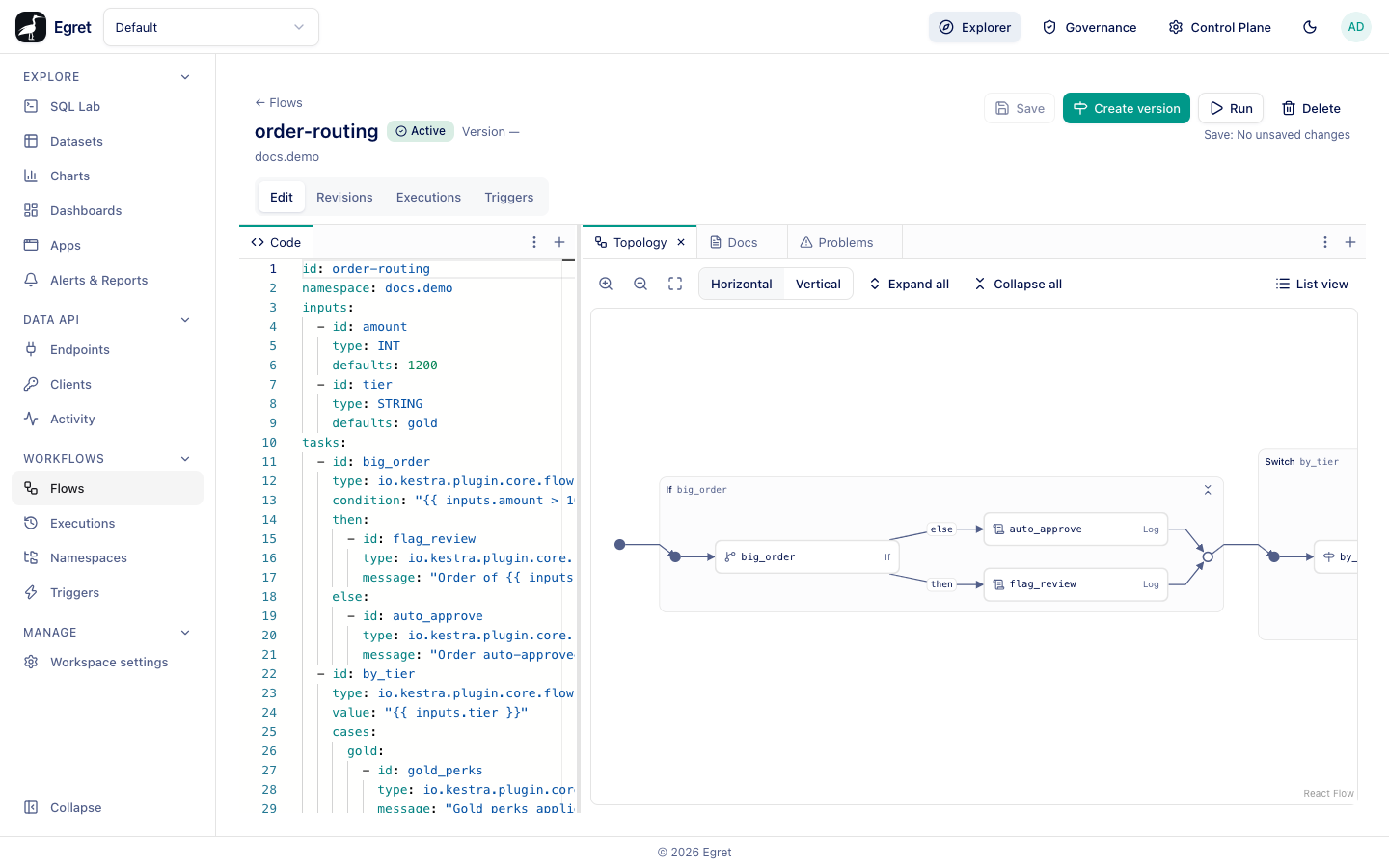
A large flow first opens at a readable zoom on its start and first task rather than fitted to the panel; press the fit button (the third zoom control) to see the whole graph, or scroll and drag to move along it.
The same graph, coloured by state, appears on a finished run: see Execution details.
Save, version and run
The buttons at the top of the page work on the flow as a whole, not on the tab you are in. See Flows for Save, Create version, Run and Delete. Two details matter while editing:
- If somebody else saved the flow after you opened it, Save is refused and a dialog asks you to reload. Your text is kept until you choose.
- A toast confirms a save: Saved. New runs use this version of the flow.
Limits and known issues
- A read-only user sees the editor without actions and with a banner that explains why.
- The Problems list can show many schema warnings next to a few real errors when a task type is wrong, because every allowed value is reported. Fix the errors in red first.