Plan and apply
Plan compares YAML files with a workspace and lists what would change; apply makes the workspace match. Do it in the UI, or with the command line from CI.
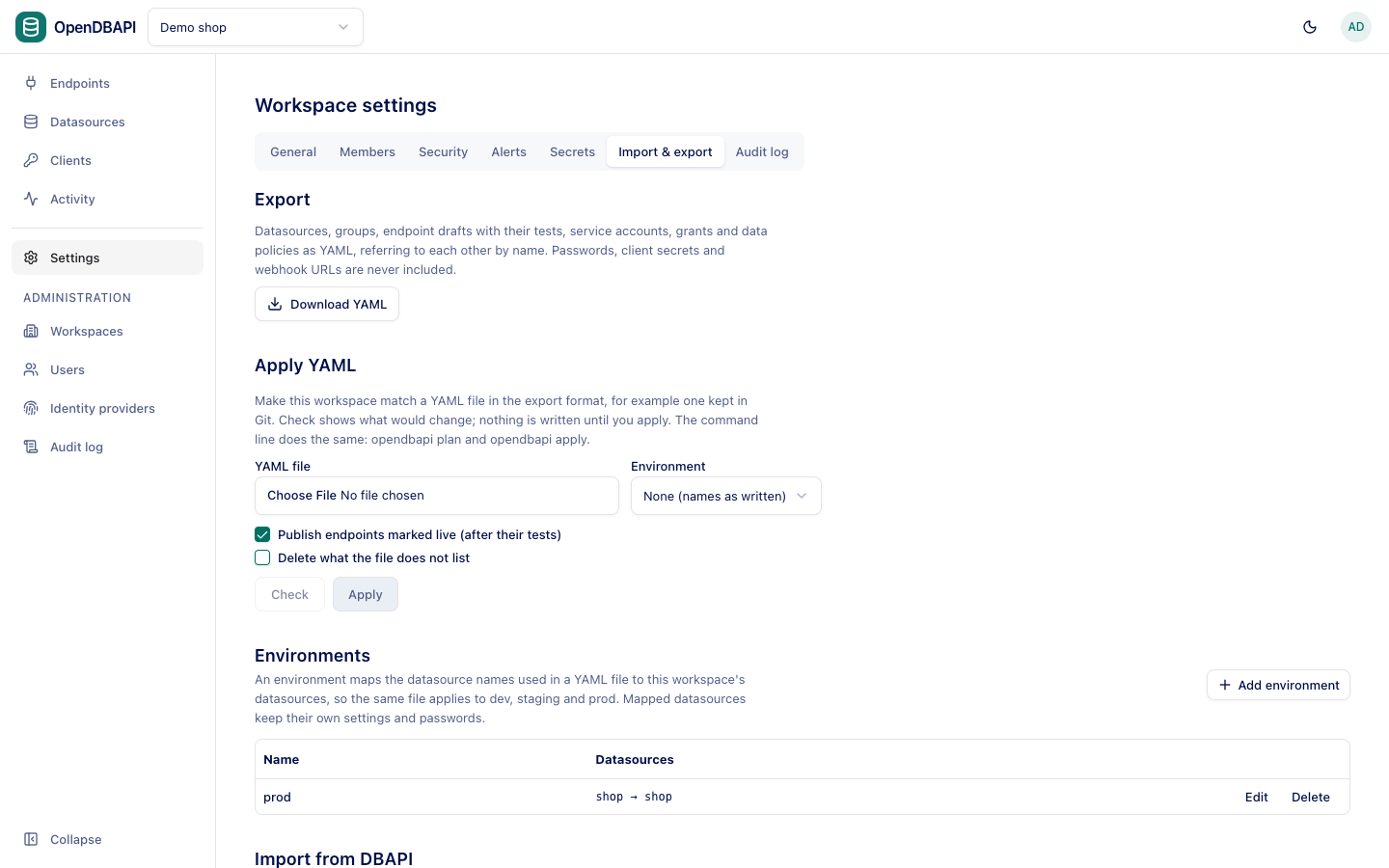
In the UI
- Open Settings → Import & export.
- Under Apply YAML, choose the YAML file and, if the file's datasource names differ from this workspace's, an Environment.
- Choose the options:
- Publish endpoints marked live (after their tests): publish each endpoint whose
stateisliveonce its tests pass, and disable those markeddisabled. - Delete what the file does not list: remove endpoints, groups, service accounts, grants and policies the file does not mention.
- Publish endpoints marked live (after their tests): publish each endpoint whose
- Press Check to see the Planned changes, then Apply.
Workspace admins can plan and apply.
What a plan shows
Workspace demo, environment prod

  · Datasource shop  (bound to datasource 'shop' in environment prod)
  ~ ServiceAccount reporting  (spec.description)

0 to create, 1 to update, 0 to delete, 9 unchanged.
Digest: 721faafb4703ea35fd3ad0cc4082c05c
+ creates, ~ updates (with the fields that differ), - deletes. The digest identifies the plan: pass it to
apply --expected-digest to refuse the apply if the workspace changed since the plan was reviewed.
How apply works
- Everything is written in one transaction: if anything fails, nothing changes.
- An endpoint's draft is updated; callers keep getting the live version until it is published.
- With publishing on, each
liveendpoint runs its tests first; an endpoint whose tests fail is not published and is reported, and the rest still apply. - Clients and their secrets are never created or deleted by apply.
Environments
An environment maps the datasource names used in the file to this workspace's datasources, so the same file applies to dev, staging and prod while each keeps its own host and password.
- Under Environments, press Add environment and name it (
prod). - Press Add mapping: for each Name in the file, choose the Datasource here.
- Press Save.
When you apply with that environment, the file's Datasource documents are bound to the mapped datasources instead of
creating or changing them.
Lock a workspace to its files
Once a workspace is managed from Git, turn on Settings → General → Managed by configuration files. Endpoints and
their tests, groups, service accounts, grants and data policies then change only through apply; editing them in the UI
answers 409 config_locked. Checks, previews, test runs, cache clears, Try-it and client credentials stay available, as
do datasources, secrets, members and settings, which belong to each environment.
Set opendbapi.ui.read-only=true on the server to lock every workspace.