Create an alert
An alert runs one SQL query on a schedule, looks at the first value of the first row, and notifies you when that value meets your condition. Use it for questions such as "are there more than 100 orders stuck in partial shipment?" or "did yesterday's load put any rows in the table at all?".
Create an alert
- Go to Explore → Alerts & Reports, stay on the Alerts tab and press + Alert.
- On General, name the alert and choose its owners.
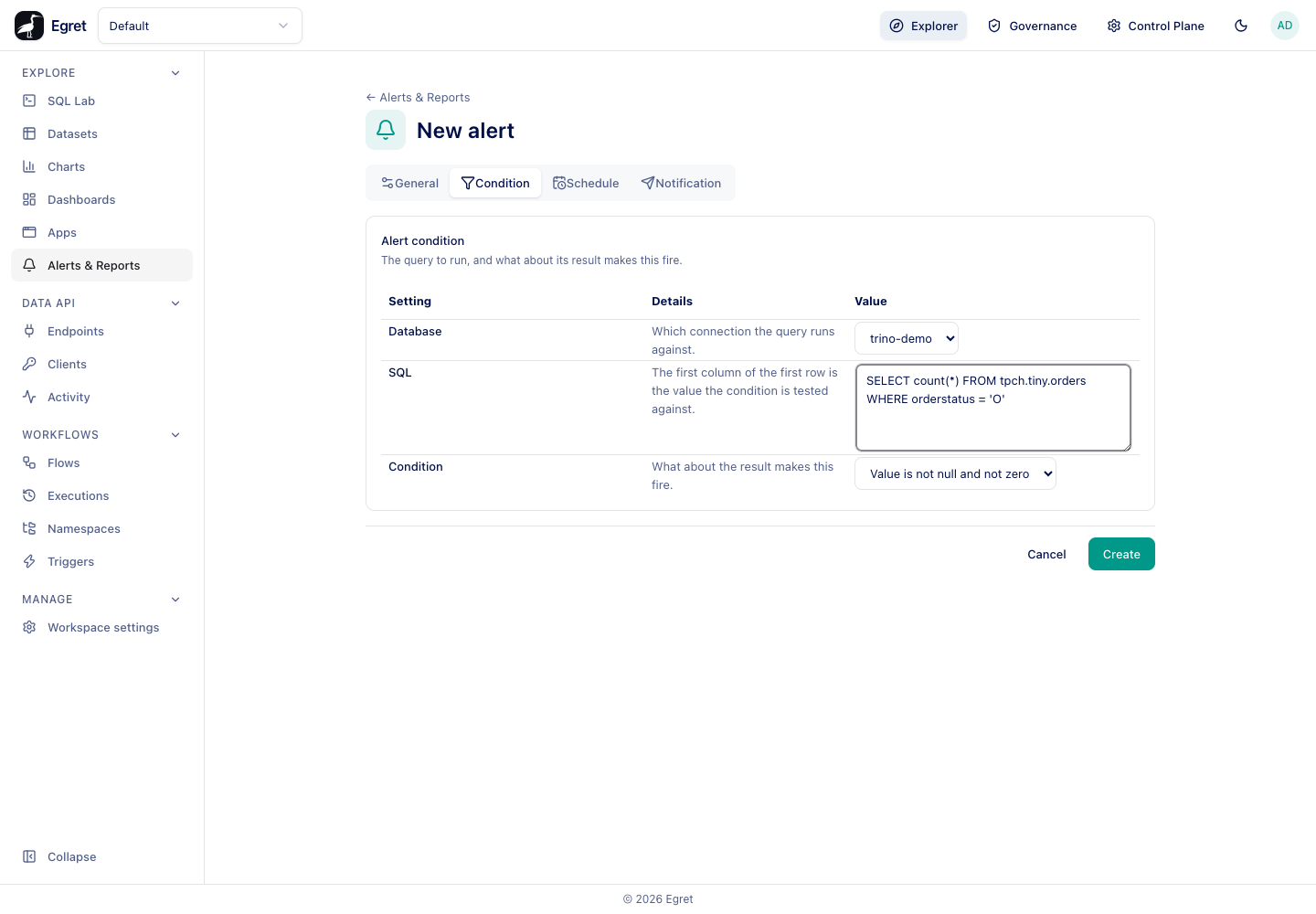
- On Condition, pick the Database, write the SQL, and choose the Condition.
- On Schedule, choose when it runs. See Schedules and limits.
- On Notification, add at least one destination. See Notifications.
- Press Create.
The editor has four tabs, General, Condition, Schedule and Notification. A Create (or Save) and Cancel bar sits under the form. Leaving with unsaved changes asks for confirmation. A saved alert opens on the same four tabs, with its Recent runs (the last five) underneath.
General
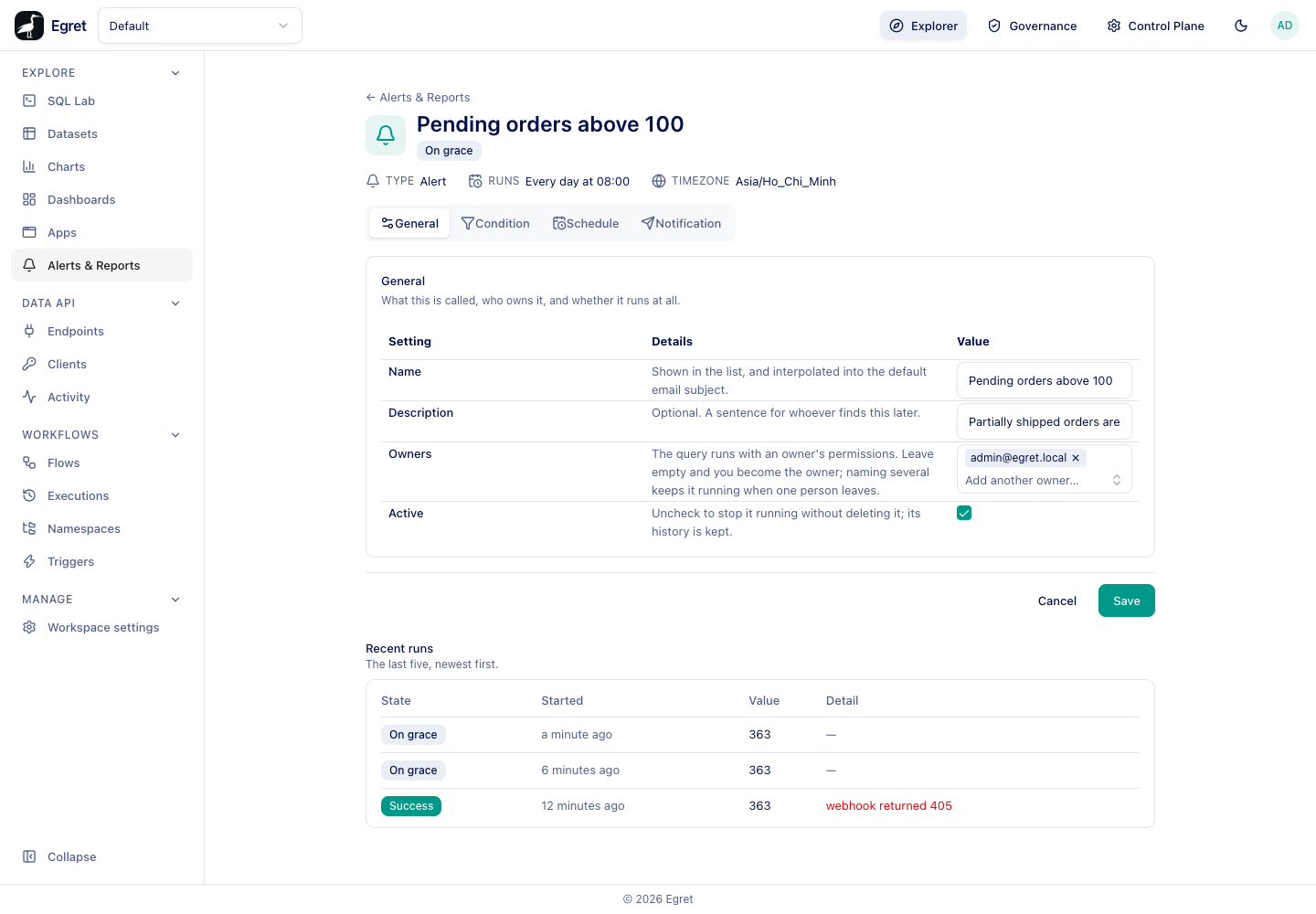
| Setting | What it does | Default |
|---|---|---|
| Name | Shown in the list and used in the default email subject. Names are unique per type in a workspace. | Required |
| Description | A sentence for whoever finds the alert later. Shown under the name in the list. | Empty |
| Owners | The people whose permissions the query runs with. Leave empty and you become the owner. Naming several keeps it running when one person leaves. | You |
| Active | Untick to stop it running without deleting it. Its history is kept. | On |
Creating a second alert with a name already used by another alert is refused: a schedule of this type already has that name in this workspace.
Condition
| Setting | What it does |
|---|---|
| Database | The database connection the query runs against. |
| SQL | The query to run. The first column of the first row is the value the condition is tested against. |
| Condition | What about the value makes the alert fire. |
Write the SQL so that its first column is the number you care about, for example SELECT count(*) FROM tpch.tiny.orders WHERE orderstatus = 'P'. A query that returns no rows, or a null, has not observed its condition to be true, so it never fires.
Condition types
| Option | Fires when |
|---|---|
| Value is not null and not zero | The value exists and is not 0. Zero is the "nothing to report" answer for a count(*), so this is the right choice for "alert me if anything shows up". |
| Value meets a comparison | The value passes the Operator and Threshold you choose. |
The operators are <, <=, >, >=, == and !=, compared against a number in Threshold.
A worked example
The alert Pending orders above 100 uses these settings:
| Setting | Value |
|---|---|
| Database | trino-demo |
| SQL | SELECT count(*) FROM tpch.tiny.orders WHERE orderstatus = 'P' |
| Condition | Value meets a comparison, operator >, threshold 100 |
| Schedule | Daily at 08:00, timezone Asia/Ho_Chi_Minh |
| Grace period | 3600 seconds |
| Notification | Email ops@example.com and a webhook to https://example.com/egret-hook, subject [egret] {{name}} on {{date}}, an opening and a closing note, and the Order operations dashboard attached as a PNG |
Pressing Run now from the list ran it once. The sample data has 363 partially shipped orders, so the value 363 passed > 100: the run was recorded as Success, meaning the alert fired. The email arrived (below). The webhook receiver answered 405, so the run log's Detail reads webhook returned 405; see Run history. A second Run now a few minutes later, and the next scheduled run, were recorded as On grace and sent nothing.
A second alert, Cancelled orders spike, counts orders with status X. There are none, so the value is 0, which does not pass > 0: each run is recorded as Not triggered and nobody is notified.
What the recipient gets
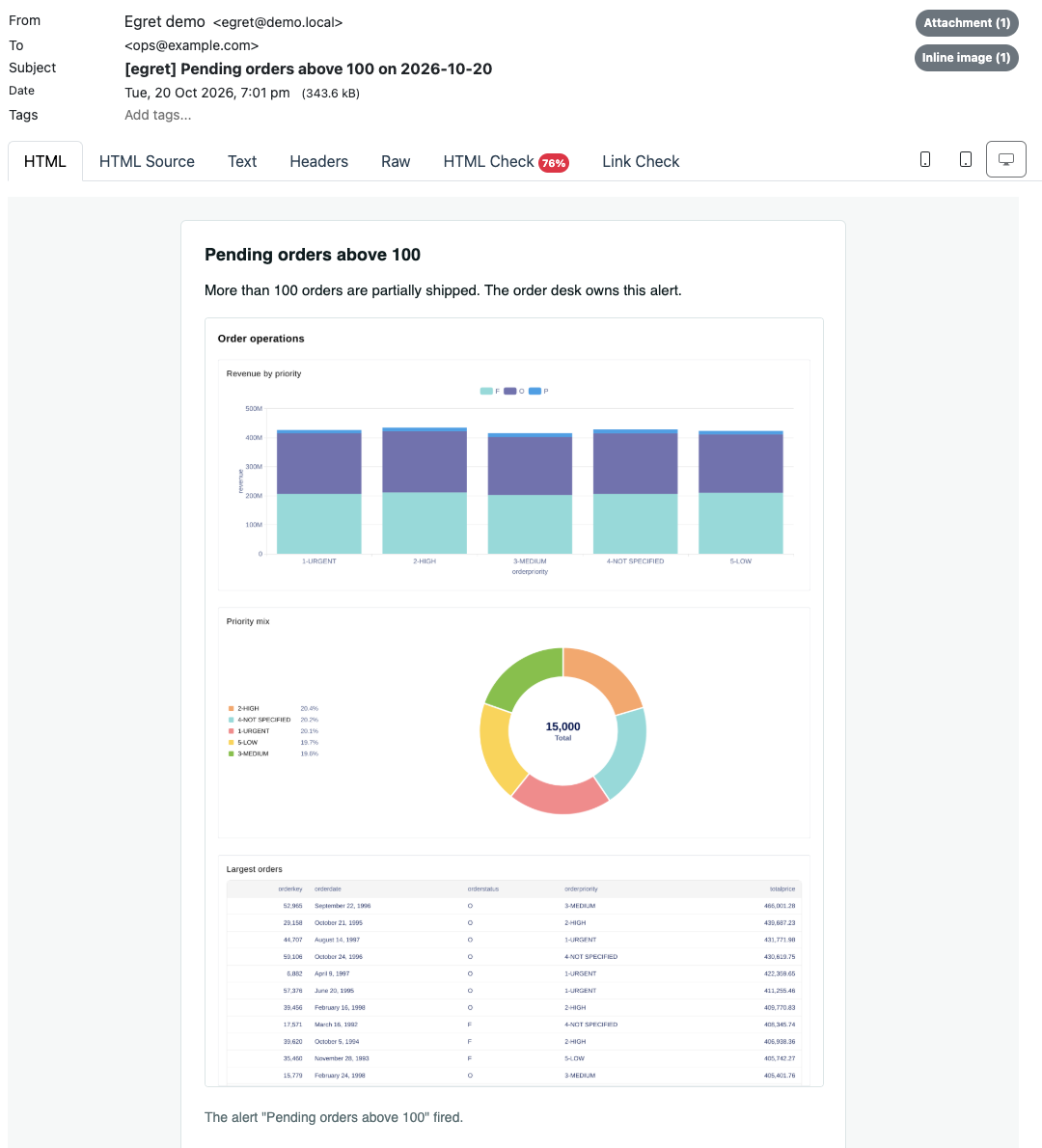
The email has the alert name as a heading, the Opening note, the attached chart or dashboard as a picture (when Also show a chart or dashboard is set), the line The alert "Pending orders above 100" fired. Observed value: 363, the Closing note and an Open in egret button. The triggering rows are attached as a CSV file named after the alert (pending-orders-above-100.csv, holding the header n and the value 363). Without a subject of your own it reads [egret] Pending orders above 100 triggered.
What happens when it fires
When a run's value meets the condition, Egret:
- skips notification and records On grace if the alert already fired within its grace period;
- otherwise sends the message to every destination and records Success.
The triggering rows are attached to the notification: as a CSV file on email, as JSON in the payload of a webhook. Slack does not receive them. See Notifications.
Use Run now on a new alert before relying on the schedule. It shows the value the query produced and any delivery error straight away. A manual run is not exempt from the grace period, so a second Run now soon after a firing records On grace and sends nothing.
Limits and known issues
- The condition tests a single number. To alert on several measurements, create several alerts.
- The editor offers six comparison operators. The API also accepts
betweenandnot between, which the editor does not. - The first column must be a number or
NULL. Text fails the run withalert query must return a number or NULL in its first column, got "O". - An alert whose query fails records Error with the engine's message in the run log, for example
Column 'nope' cannot be resolved.